Ticket Performance
The Ticket Performance page is structured into four tabs. Each tab focuses on a different dimension of your ticket data.
Status View
Metric Cards
At the top of the Status View, three KPI cards give you an instant snapshot:
Metric | What it shows | Attribution |
|---|---|---|
New Tickets | Total tickets created in the selected period | Always Cohort |
Reopened Tickets | Tickets that were reopened after being resolved | Respects global mode |
Awaiting Response | Open or on-hold tickets where the last message was from a customer | Always Cohort |
Each card includes a trend comparison to the previous period of equal length.

Status Navigator
Click any status in the left panel to drill into it. Here is what each view shows:
All Statuses (overview)
When no specific status is selected, you see:
% Assigned — Percentage of tickets that have an agent assigned
Status Distribution — Count and percentage for Open, On Hold, and Resolved (always Cohort-based)
Top Channels — Top 5 channels by ticket volume
Work Done This Period — In Throughput mode, the count of tickets actually resolved during the period (shown separately from the Cohort-based status distribution)
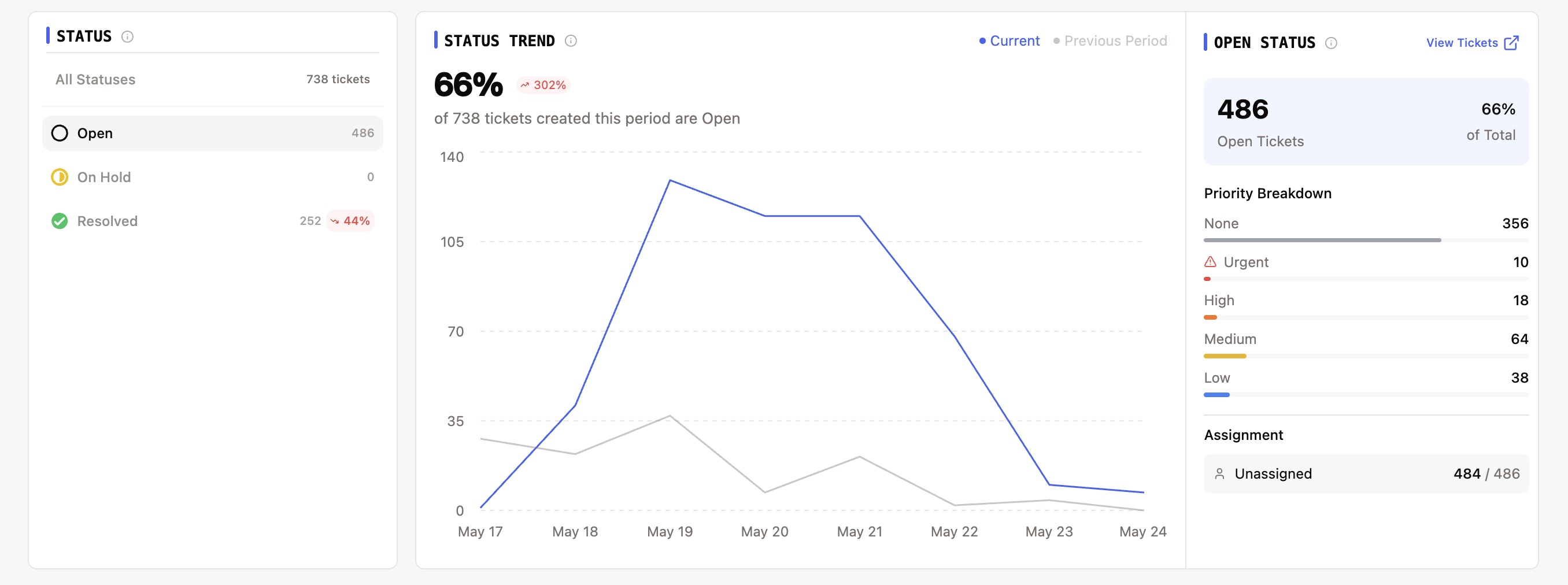
Open Status
Metric | Description |
|---|---|
Open Tickets | Count of tickets currently in "Open" status |
% of Total | Share of all tickets that are open |
Priority Breakdown | Count of open tickets per priority (Low, Medium, High, Urgent) |
Unassigned | Open tickets without an assigned agent |
On Hold Status
Metric | Description |
|---|---|
On Hold | Count of tickets in "On Hold" / "Need More Info" status |
% of Total | Share of all tickets that are on hold |
Hold Reasons | Breakdown by sub-status: Waiting for Customer, Waiting Internal, Needs Review, Unspecified |
Resolved Status
Metric | Description |
|---|---|
Resolved | Count of resolved and closed tickets. In Throughput mode: resolved during the period. In Cohort mode: created in the period that are resolved. |
Resolution Rate | Percentage of tickets resolved. Shown in Cohort mode only — omitted in Throughput mode. |
Avg Resolution Time | Average time from creation to resolution (business hours, minus customer wait time) |
First Contact Resolution (FCR) | Count and percentage of tickets resolved on first contact |
Reopened | Count and percentage of resolved tickets that were later reopened |
What is First Contact Resolution (FCR)?
FCR counts tickets that were resolved cleanly on the first interaction — no back-and-forth required. A ticket qualifies when all of the following are true:
The ticket is resolved or closed
The ticket was never reopened (reopen count = 0)
The agent sent at most 1 message
💡 This includes tickets handled entirely by AI (0 human messages) or resolved with a single agent reply. FCR Rate = (FCR Tickets / Total Resolved Tickets) × 100
Status Chart
The time-series chart at the bottom of the Status View adapts based on your selection:
Selection | Chart Shows |
|---|---|
No status selected | Overall ticket volume over time (Cohort — tickets created per day) |
Single status | Volume for that status over time, with previous period comparison |
Multiple statuses | Side-by-side comparison of volumes for each selected status |
Tags View
Tags Navigator
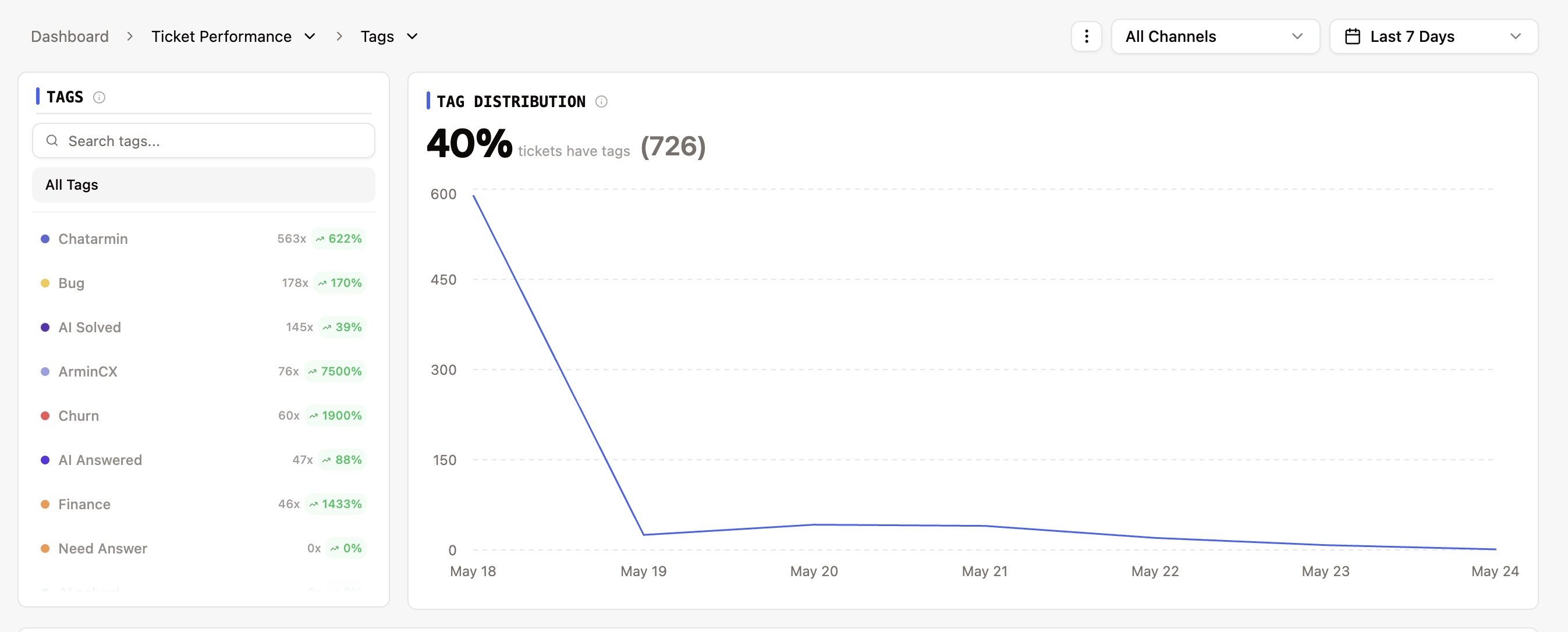
The Tags View shows how tickets are categorized using tags. The main summary metrics are:
Metric | Description |
|---|---|
Top Tags | Most frequently used tags with ticket counts |
Tag Usage % | Percentage of all tickets that have at least one tag |
Total Tickets | Total tickets in the selected period |
Tickets With Tags | Number of tickets with at least one tag assigned |
Attribution note: Tags respect the global attribution mode. In Throughput mode, tag counts reflect tickets resolved in the period.
Tags Chart
Selection | Chart Shows |
|---|---|
No tag selected | Overall tagged ticket volume over time |
Single tag | Usage of that tag over time, with previous period comparison |
Multiple tags | Comparison of usage for each selected tag |
CSAT View
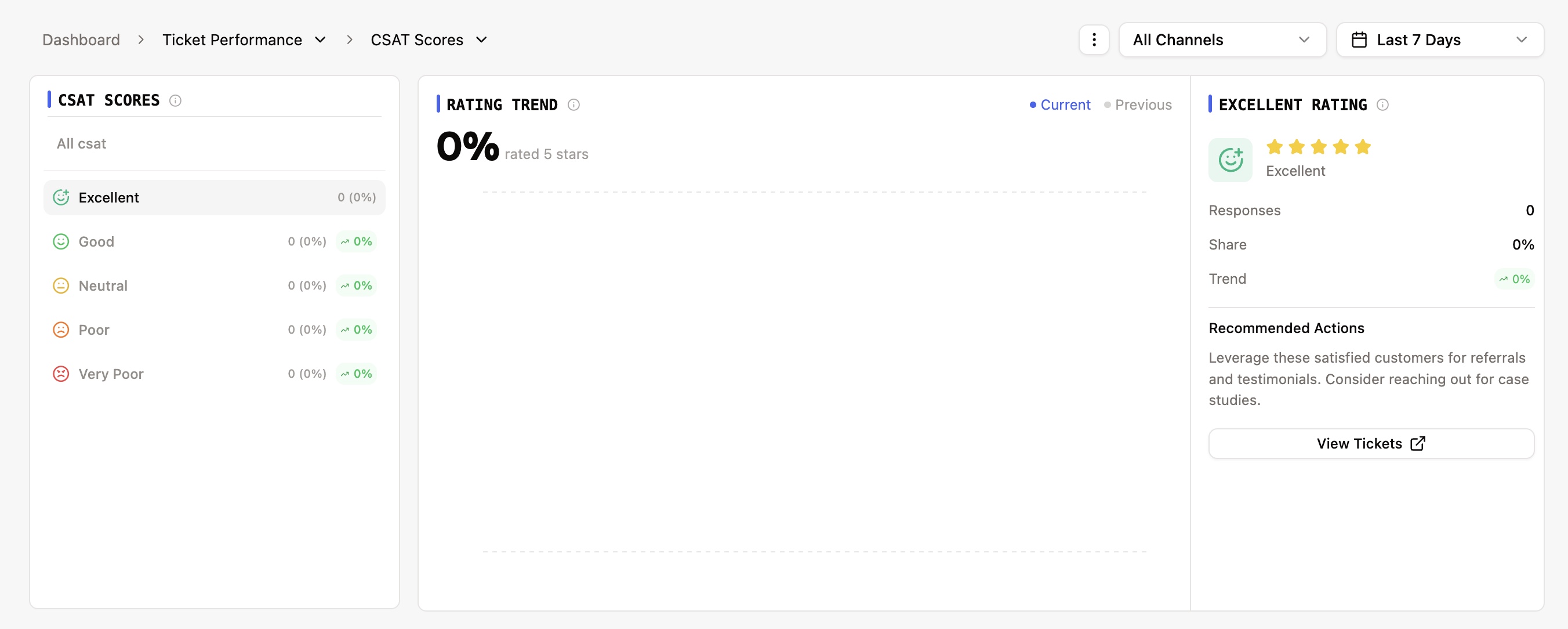
The CSAT View lets you analyze customer satisfaction scores and survey responses.
How CSAT Data is Filtered
Mode | Behavior |
|---|---|
Throughput | Surveys filtered by survey sent date within the selected period |
Cohort | Surveys linked to tickets created within the selected period |
Overview Metrics (No Rating Selected)
Metric | Description |
|---|---|
Average Score | Mean CSAT rating across all responses |
Total Responses | Number of CSAT surveys that received a rating |
Response Rate | Percentage of sent surveys that received a response |
Top Distribution | Breakdown of the most common ratings |
Trend | Average score compared to the previous period |
Response Rate = (Surveys with a submitted score / Surveys that were sent) × 100
How CSAT surveys work
Surveys are triggered via workflows or automation rules (e.g., after a ticket is resolved)
Customers have up to 30 days (default, configurable per channel) to submit their response
A ticket must have received at least one business reply before a CSAT survey can be sent
Only one CSAT survey is sent per ticket — duplicates are prevented
Single Rating View
When you click on a specific rating (1–5), you see:
Metric | Description |
|---|---|
Count | Number of surveys with that rating |
Percentage | Share of all responses with this rating |
Recent Comments | Latest customer comments associated with this rating |
Trend | Count compared to the previous period |
CSAT Chart
Selection | Chart Shows |
|---|---|
No rating selected | Total CSAT responses over time |
Single rating | Responses with that rating over time, with previous period comparison |
Multiple ratings | Comparison of response counts for each selected rating |
Ticket Fields View
The Fields View lets you analyze tickets by the custom ticket fields configured in your organization.
Attribution note: In Throughput mode, field statistics are computed over tickets resolved during the period. In Cohort mode, over tickets created during the period.
Fields Navigator
Metric | Description |
|---|---|
Field Name | The custom field label |
Usage Count | Number of tickets that have a value for this field |
Fill Rate | Percentage of tickets with this field filled |
Field Types and What They Show
Depending on the type of custom field, different metrics are displayed:
Field Type | Metrics Shown |
|---|---|
Dropdown | Count and percentage per option, with trend comparison |
Boolean | True/False distribution with counts and percentages |
Number | Average, median, min, max values with range distribution |
Text | Usage count and recent entries |
Product | Product names with ticket counts |
Correlations
For dropdown and product fields, the Fields View can show correlations — how a selected field value relates to other metrics (e.g., average resolution time, CSAT score) compared to the overall average. This helps you spot patterns, such as whether certain product categories consistently take longer to resolve.
Fields Chart
For dropdown fields, the chart shows the usage of the top 5 options over time.
Key Terms
Term | Definition |
|---|---|
FCR (First Contact Resolution) | Tickets resolved on first interaction without reopening or extended back-and-forth (0 reopens, at most 1 agent message) |
CSAT | Customer-submitted satisfaction rating on a 1–5 scale |
Cohort Mode | Attribution mode that selects tickets based on when they were created |
Throughput Mode | Attribution mode that selects tickets based on when they were resolved (default) |
On Hold / Need More Info | Tickets paused while waiting for customer response, internal review, or additional information |
Reopen Count | Number of times a ticket was reopened after being resolved |
Trend | Percentage change compared to the previous period of equal length |