Cancellation Form
Setting Up a Cancellation Form and Linking It to a Workflow
With ArminCX you can create a contact form for cancellation requests and connect it to a workflow that handles everything automatically — no manual work needed from your team.
1. Open Contact Forms
In the left navigation, click Channels → Contact Form.
You will see a list of all existing forms. To create a new one, click + Add in the top right corner.

2. Name and configure the form
After clicking + Add, give your form a name — for example "Cancel" or "Cancellation Request".
The form editor opens. Here you can set up the following:
Header Text — the title shown at the top of the form (e.g. "Cancellation Request")
Subheader Text — an optional description below the title
Submit Button Text — the label on the submit button
Success Title and Success Message — what the customer sees after submitting
The default fields are Full name, Email, Subject, and Message. Required fields are marked with a red asterisk (*).
On the right side under Form Appearance you can customise the text and visual settings at any time. Click Save to apply your changes.

3. Embed the form on your website
Once the form is saved, click the Embed tab inside the form editor. You will find a ready-made code snippet that you paste directly into the HTML of your website.
From that point on, every submission from a customer automatically creates a ticket in your ArminCX inbox.
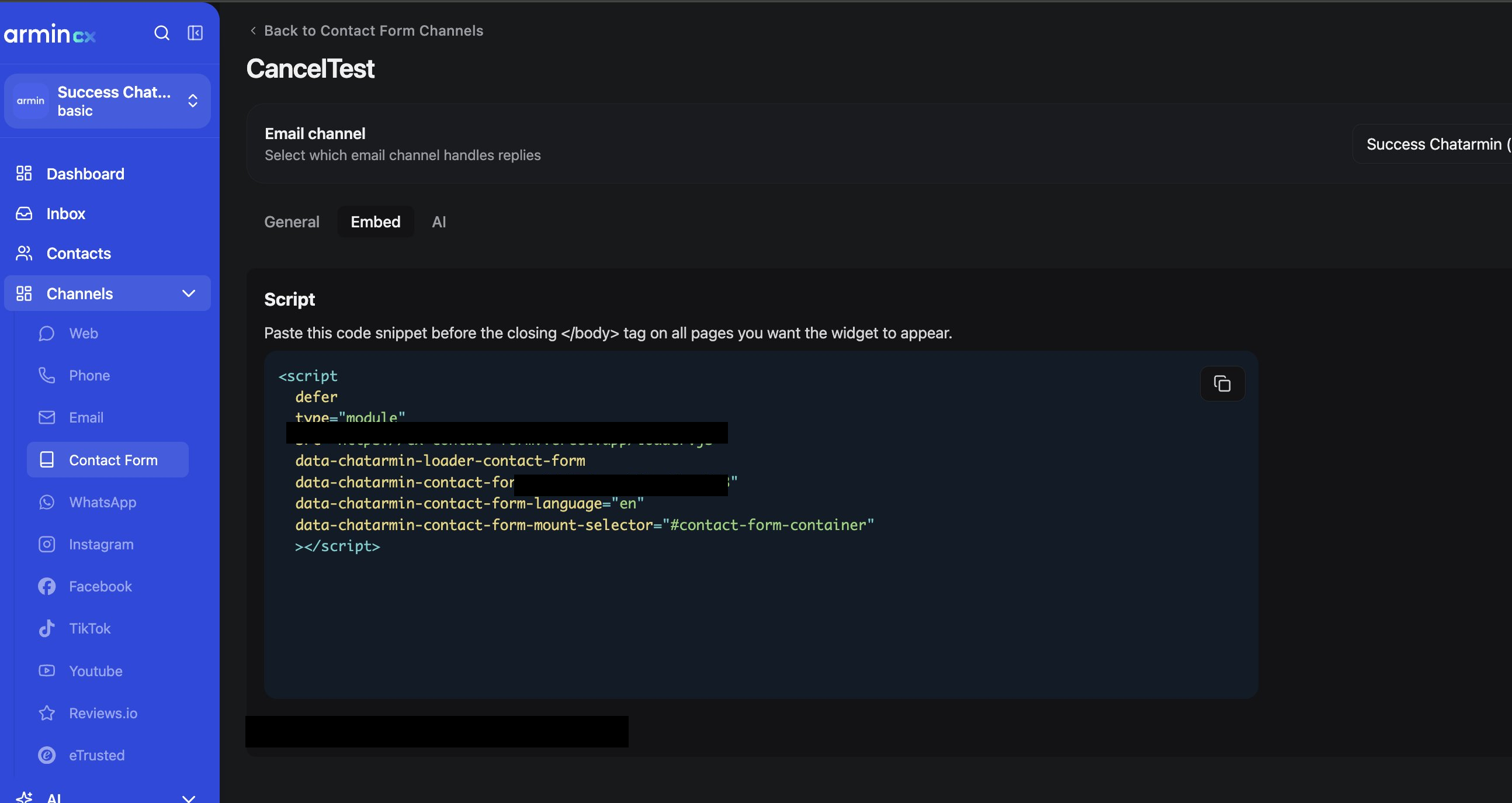
Exposing the src URL and contact-form-uid publicly would allow anyone to impersonate your contact form, hijack submissions, or send unauthorized requests to your ArminCX backend
4. Connect the form to a workflow
To process incoming cancellation requests automatically — for example tagging, assigning, or sending a confirmation — you link the form to a workflow.
Go to Automation → Workflows → New workflow and set up the following three steps:
Step 1 — Trigger Set the trigger to When a new conversation starts, select Email as the channel and add a filter: Channel is "Cancellation" (or whichever keyword matches your form subject).

Step 2 — Action: Update Ticket Select Update the ticket. Under Fields to update, set: Tags → Add → "Cancellation" This tags the ticket automatically so it is easy to find in your inbox.
Step 3 — Send Email (Action)
This node sends an automatic confirmation email to the customer as soon as their cancellation is received.
Channel — the sending email channel
To Email — Use / to access the variables then select email (automatically pulls the customer's email from the ticket)

Subject — Confirmation Cancellation Entry
Message — Your confirmation text goes here ( text marked blue are variables that you can access by using / )
Once all steps are set up, click Republish in the top right to activate the workflow.

What happens automatically after that
Once a customer submits the form:
A ticket is created in your inbox with all the customer details already filled in
The ticket is automatically tagged
The customer receives a confirmation message from the AI Agent straight away