Connect your ChatArmin account to CXArmin to automatically forward WhatsApp messages.
Setting up the WhatsApp channel
Set up automatic forwarding of WhatsApp messages from ChatArmin to CXArmin. This integration forwards WhatsApp messages to your CXArmin inbox based on conditions you define.
requirements
Active ChatArmin account with WhatsApp integration
CXArmin account with appropriate permissions
WhatsApp Business API configured in ChatArmin
Setup steps in armincx
1.
Retrieve API token
Log in to your Chatarmin account, select "Settings" -> "Settings," and copy your API token.
2.
Connect armincx with Chatarmin.
Go back to your armincx account. Find the "Integrations" section, select "Chatarmin," add an account, and paste your API token. Click "Connect."
3.
Set up WhatsApp
To create your WhatsApp channel, go to Channels -> WhatsApp, click +Add, and select the integration you just set up from the dropdown menu.
4.
Setting up WhatsApp View
Go to your inbox and click on "+ Add view." Name it "WhatsApp" and select "Channel – WhatsApp" as the filter.
Setup steps in Chatarmin
1.
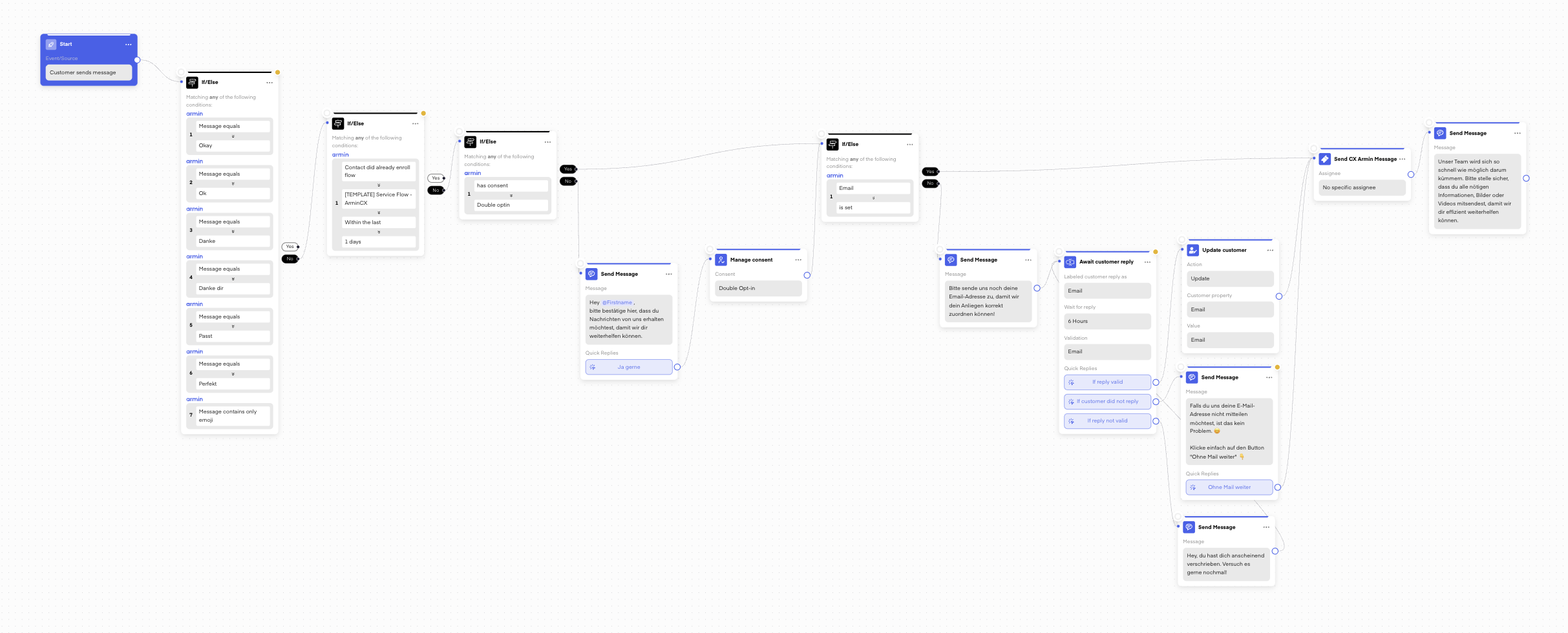
Access to Chatarmin flows
Log in to ChatArmin and navigate to the "Flows" section. Select "Service Flow – ArminCX" from the templates.
2.
Customize the process to suit your needs
We have already set up the service workflow, but if you need to make any changes (e.g., to the automated messages sent via the workflow), feel free to do so.
3.
Publish the process and test it.
You can now publish the flow and send a test message to your WhatsApp number. You will then find the message in the WhatsApp view in armincx.
If the test is successful, the WhatsApp message will be displayed in CXArmin with the correct sender information.
Sending Custom Templates After the 24-Hour Window
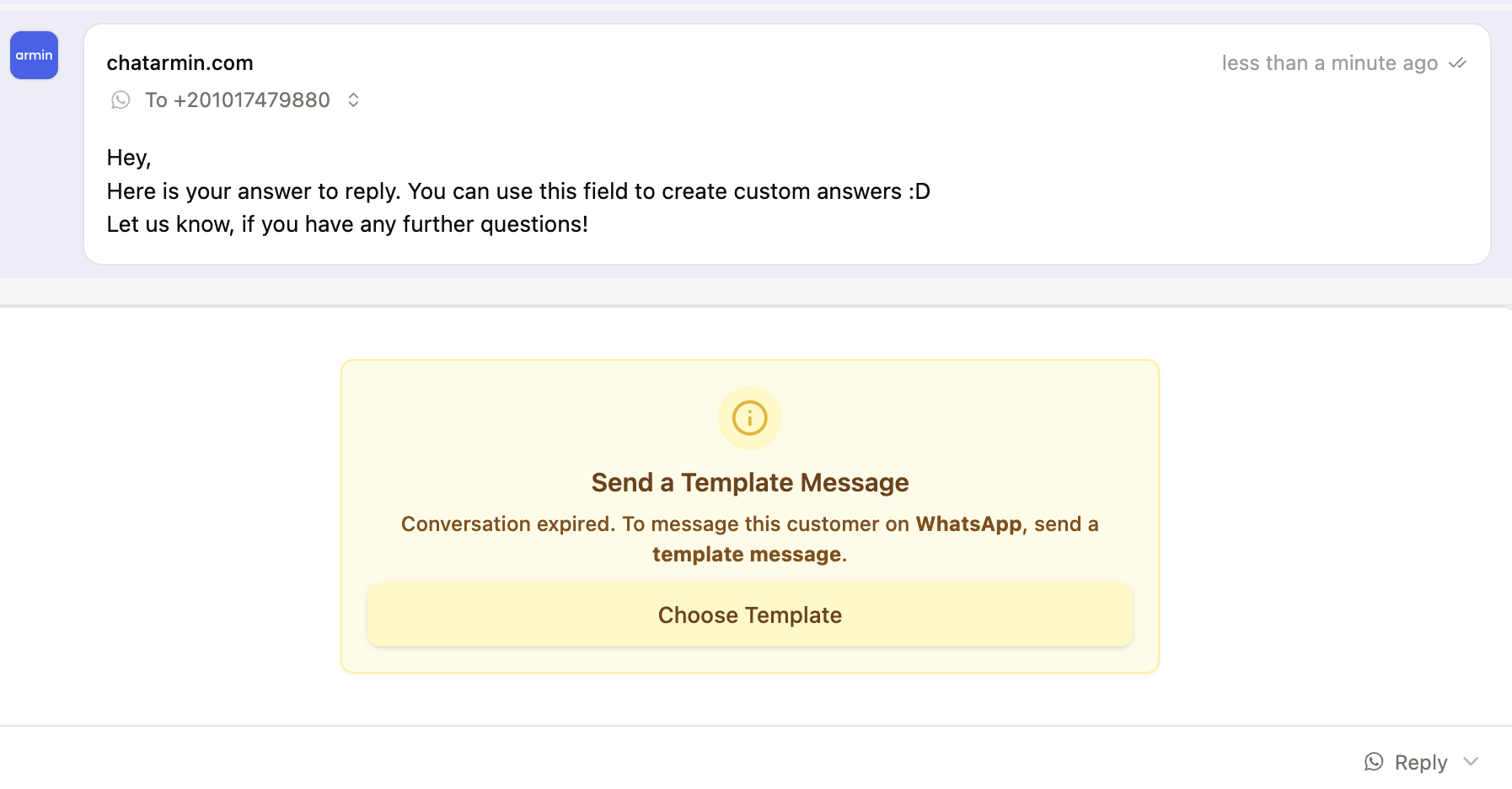
Once more than 24 hours have passed since the customer’s last WhatsApp message, regular messages can no longer be sent. In this case, WhatsApp requires an approved template message to reopen the conversation.
ArminCX supports Custom Templates, allowing agents to send personalized messages even after the 24-hour window has expired. By filling the Custom variable, you can provide an individual response to the customer without waiting for them to message first.
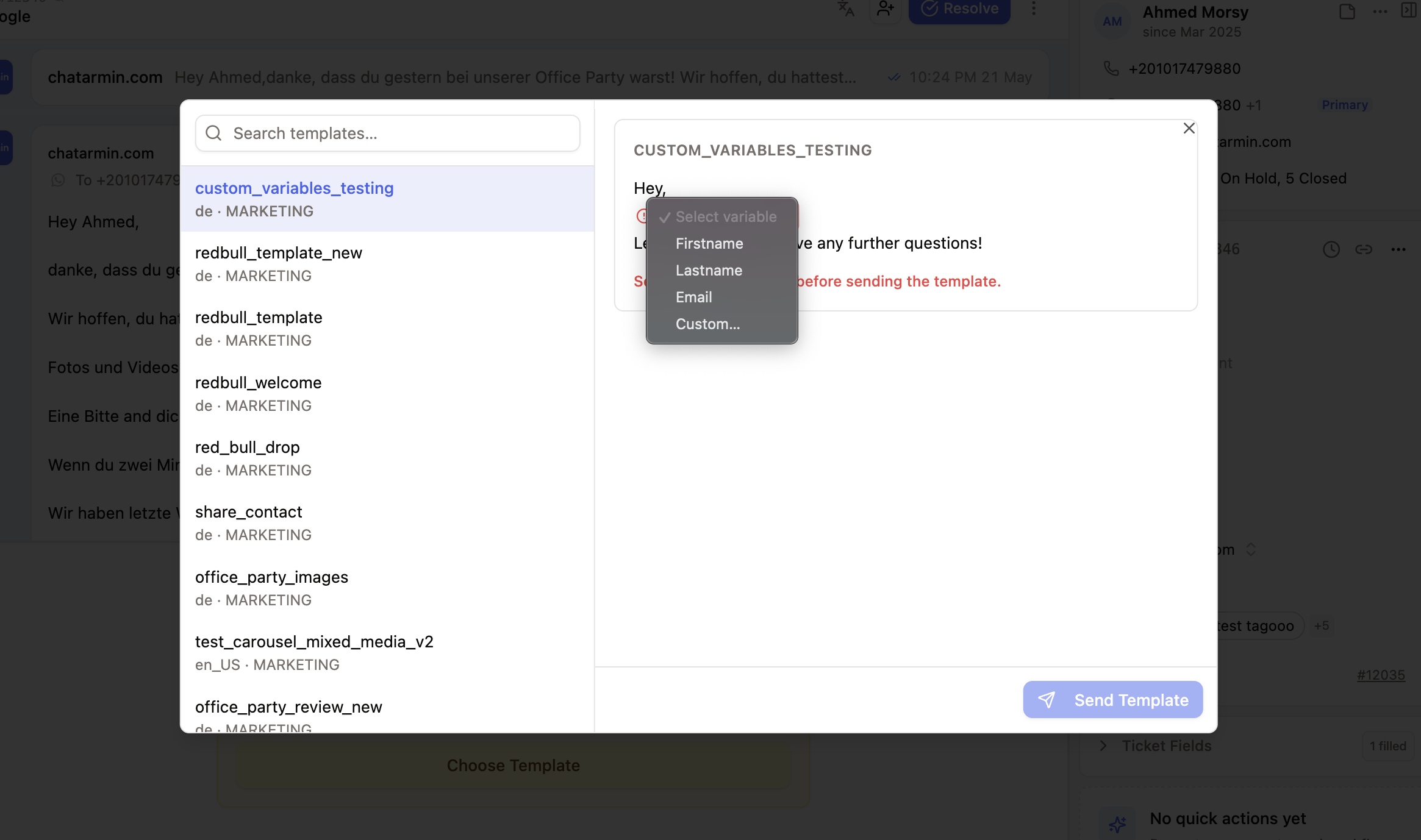
Custom templates must first be created and approved in Chatarmin. Once approved, they can be selected and used directly within ArminCX.
Typical use cases:
Answering customer questions after the 24-hour window
Shipping or order updates
Refund or replacement updates
Proactive customer follow-ups
troubleshooting
Messages are not forwarded
Check whether the flow is activated.
Check the trigger conditions (they may be too restrictive).
Ensure that the WhatsApp integration is configured correctly.
Duplicate messages
Check whether multiple flows are forwarding the same messages.
Check the expiration conditions to avoid duplicate processing.
Both ChatArmin and CXArmin must be properly configured for this integration. Contact support if you encounter any issues during setup.