
Ticket Fields
Overview
Ticket Fields allow you to capture structured information about customer conversations beyond the standard ticket properties. Create custom fields to track product details, issue categories, resolution metrics, or any data specific to your support workflow.
Key Capabilities
5 Field Types: Text, Number, Dropdown, Boolean, and Product fields
AI Auto-Population: Automatically fill fields by analyzing conversation context
Smart Product Linking: Connect tickets to purchased products from customer orders
Advanced Analytics: Track field usage, trends, and distribution over time
Required Field Validation: Ensure critical information is captured before resolution
Channel-Specific Fields: Show different fields based on communication channel
Getting Started
1.
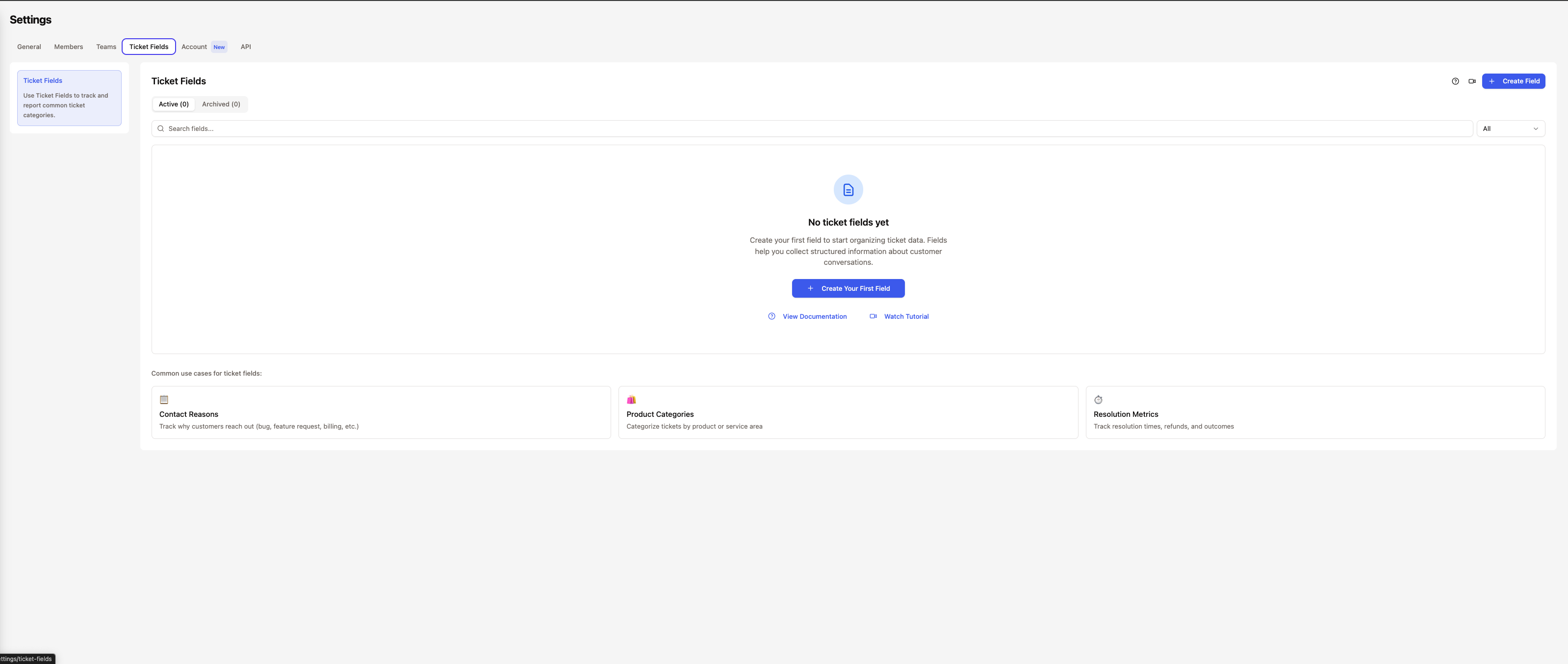
Navigate to Ticket Fields Settings
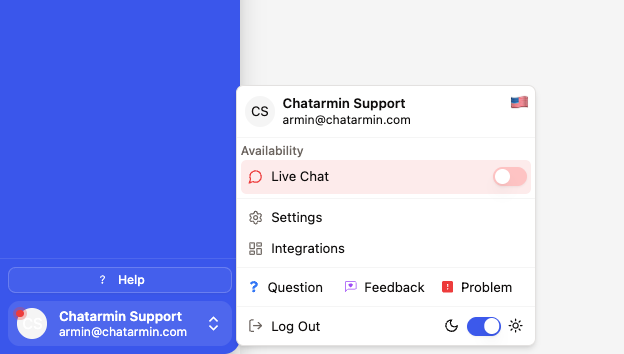
Go to Settings → Ticket Fields to access field management.
2.
Create Your First Field
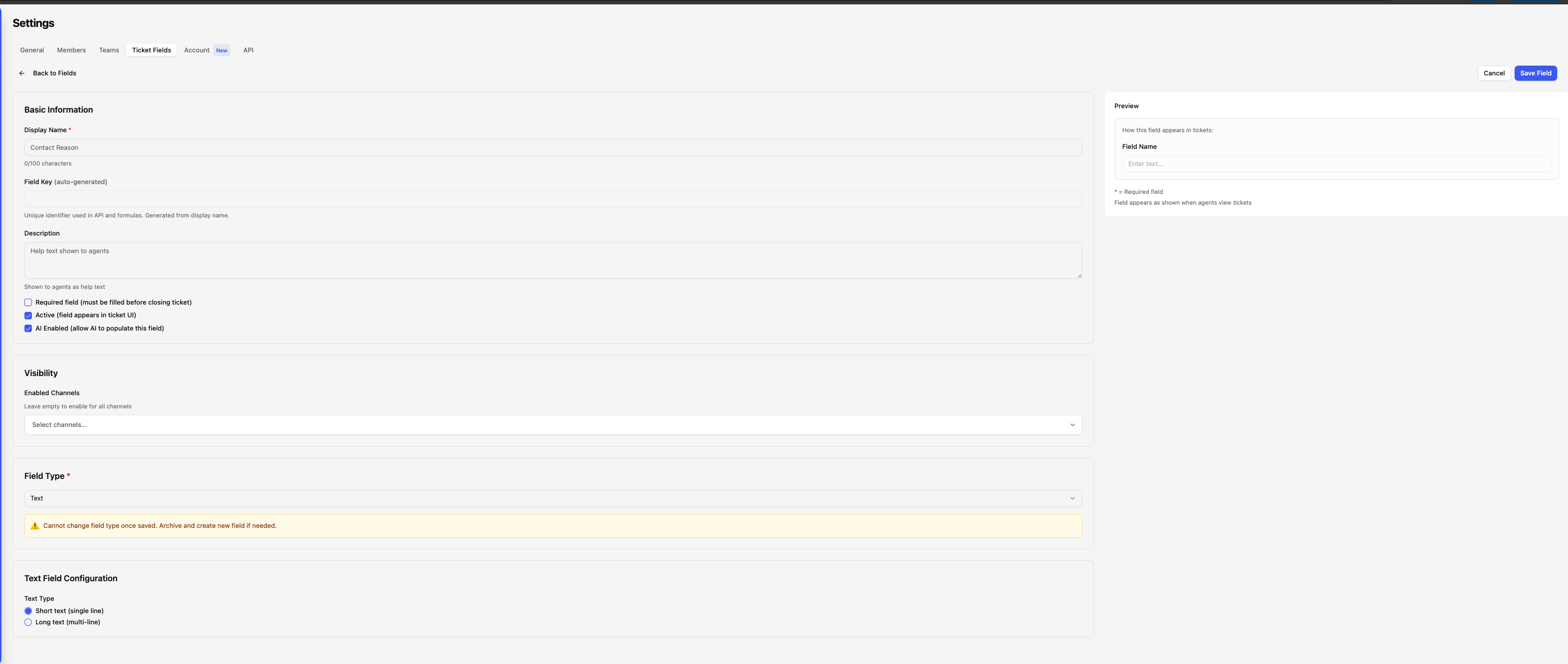
Click Create Field to open the field configuration panel.
You’ll configure:
Display Name: How the field appears to agents
Field Type: Text, Number, Dropdown, Boolean, or Product
Description: Optional help text for agents
Channel Availability: Which channels should show this field
3.
Configure Field Options
Depending on the field type, configure specific options:
Text: Single-line or multi-line input
Number: Integer or decimal values
Dropdown: Add custom options with nested hierarchies
Boolean: Simple Yes/No toggle
Product: Automatic integration with shop platforms
Field key is auto-generated from the display name and must be unique.
4.
Enable AI and Required Settings
Toggle these options based on your needs:
AI Enabled: Let AI automatically populate the field
Required: Must be filled before ticket resolution
Combining AI-enabled + Required ensures critical data is captured automatically, with manual fallback if AI can’t determine the value.
5.
Save and Activate
Save your field configuration. The field immediately becomes available on tickets for the enabled channels.
Field Types
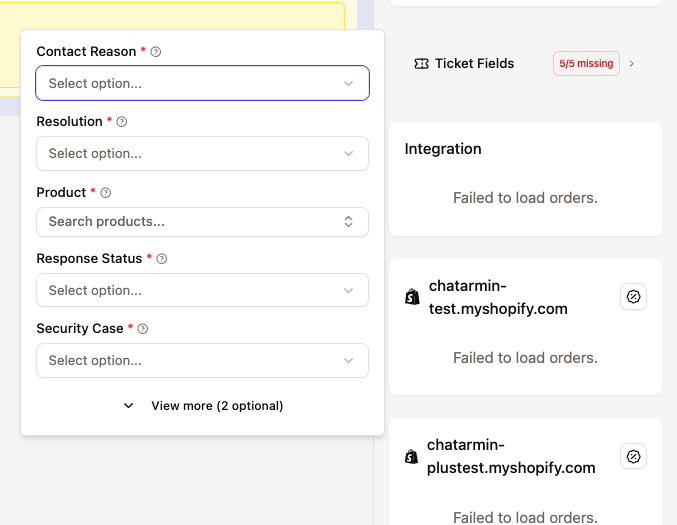
Text Field
Capture free-form text input from agents.
Configuration Options:
Single-line: For short text like names, IDs, or brief notes
Multi-line: For longer descriptions or detailed information
Behavior:
Auto-saves when field loses focus (onBlur)
Auto-saves when Enter key is pressed
AI can extract relevant text from conversation
Use Cases:
Customer reference numbers
Case summaries
Special instructions
Tracking IDs
Number Field
Capture numeric values with validation.
Configuration Options:
Integer: Whole numbers only
Decimal: Allows decimal points (e.g., 10.99)
Behavior:
Auto-saves when field loses focus (onBlur)
Auto-saves when Enter key is pressed
Validates numeric input automatically
Use Cases:
Order quantities
Refund amounts
Issue severity scores
Response time targets
Dropdown Field
Single-select dropdown with custom options.
Features:
Unlimited custom options
Nested hierarchies support (e.g., Category → Subcategory → Issue Type)
Searchable options
Reorderable options via drag-and-drop
Behavior:
Saves immediately on selection
AI selects most appropriate option based on conversation context
Updates in real-time
Use Cases:
Issue categories
Product types
Resolution methods
Department routing
Nested Options Example:
How you input:
Pre-Sale::Product Information::Pricing
Pre-Sale::Product Information::Features
Pre-Sale::Shipping Questions
Post-Sale::Returns
Post-Sale::Refunds
Post-Sale::Exchanges
How it displays:
Pre-Sale > Product Information > Pricing
Pre-Sale > Product Information > Features
Pre-Sale > Shipping Questions
Post-Sale > Returns
Post-Sale > Refunds
Post-Sale > Exchanges
Use :: as separator when creating nested options. The system displays them with > for better readability.
Boolean Field
Simple Yes/No toggle for binary choices.
Behavior:
Saves immediately on toggle
AI determines true/false based on conversation
Clear visual indication of state
Use Cases:
VIP customer flag
Urgent priority indicator
Refund eligibility
Warranty coverage
Product Field
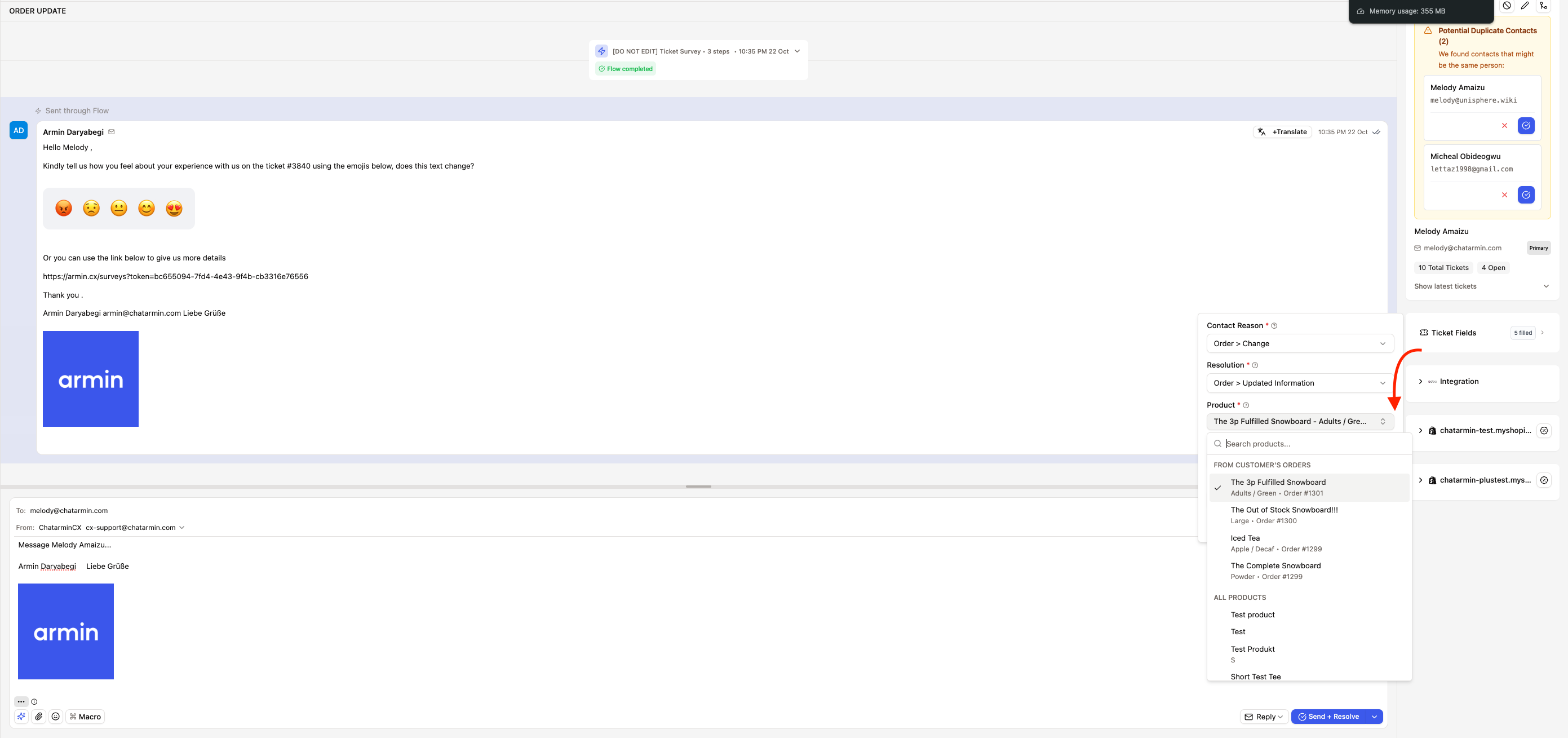
Advanced product selection from customer orders and catalog.
Features:
Order Products First: Customer’s recent order products shown at top
Full Catalog Access: Search entire product inventory
Variant Support: Select specific product variants
Order Context: Shows which order the product is from
Multi-Integration: Works with Shopify, WooCommerce, Billbee, and more
Behavior:
Searchable interface with two sections:
From Customer Orders (prioritized)
All Products (full catalog)
Shows variants as nested options
Displays order number for context
Redis-cached for fast loading (10-minute TTL)
Display Format:
Product Name - Variant (Order #12345)

Example:
iPhone 15 - 256GB Black (Order #12345)
AI Behavior:
Analyzes conversation to identify mentioned products
Cross-references with customer’s order history
Automatically selects matching product and variant
Use Cases:
Product-specific support tickets
Warranty claims
Return/exchange processing
Product defect tracking
Product field requires active shop integrations (Shopify, WooCommerce, etc.) to function. The field will be empty if no integrations are configured.
AI Auto-Population
AI automatically populates enabled fields by analyzing ticket context.
How AI Analysis Works
1.
Trigger Points
AI analysis runs at two key moments:
On Creation: When first customer message arrives
On Resolution: Retry for missing required fields
2.
Context Analysis
AI examines:
Customer messages and ticket subject
Customer’s order history (for product fields)
Similar resolved tickets (pattern matching)
Channel-specific context
3.
Confidence Scoring
AI only saves values when confidence exceeds 70%.
High Confidence (>0.7): Value saved automatically
Low Confidence (<0.7): Field left empty for manual review
AI logs reasoning for each field decision, helping you understand and improve accuracy over time.
4.
Batch Processing
All AI-enabled fields are analyzed in a single AI call for efficiency.
This reduces API costs and improves response time compared to analyzing fields individually.
Creation Analysis
When a ticket is created, AI analyzes all AI-enabled fields:
Customer: "Hi, I ordered an iPhone 15 but it won't turn on"

AI Analysis:
✅ Product Field → iPhone 15 (from order #12345)
✅ Issue Category → Post-Sale → Product Defect
✅ Urgency → High (device not functional)
Resolution Analysis
When resolving a ticket, AI retries only missing required AI-enabled fields:
Agent has added 3 more messages with troubleshooting steps...

AI Re-analysis:
✅ Resolution Method → Replacement Sent (from conversation)
✅ Root Cause → Hardware Defect (inferred from troubleshooting)
AI learns from previously filled fields and doesn’t overwrite manual entries unless the field was originally set by AI.
Smart Review Workflow
When AI cannot fill required fields after multiple attempts, tickets are automatically flagged for manual review.
The Process
1.
AI Attempts (3 Retries)
When a ticket is resolved with missing required AI-enabled fields:
Attempt 1: Immediate retry (1 second delay)
Attempt 2: Retry after 2 seconds
Attempt 3: Final retry after 4 seconds
2.
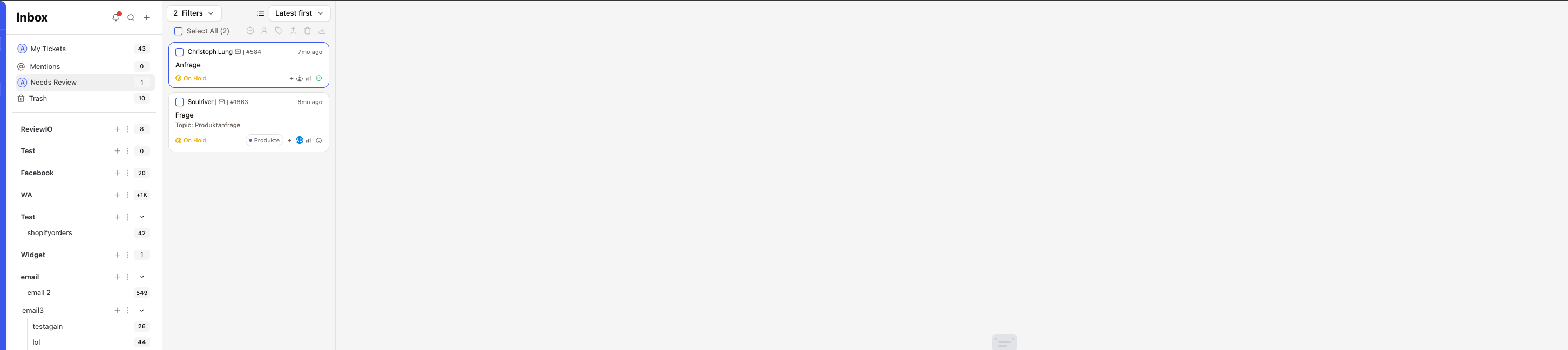
Automatic Status Change
After 3 failed attempts:
Status →
On HoldSub-status →
Needs ReviewTicket appears in “Needs Review” system view
3.
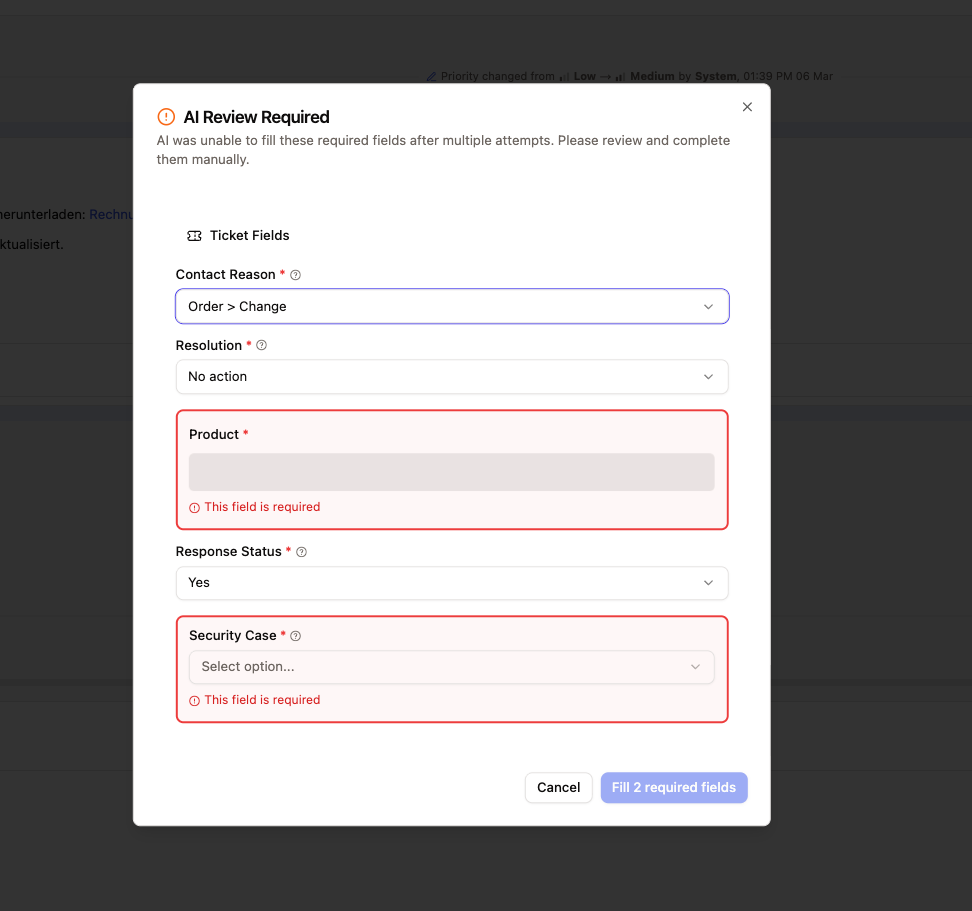
Agent Review
Agent opens ticket from “Needs Review” view:
Missing fields highlighted in red
Dialog explains which fields need attention
Agent fills fields manually
Ticket can then be resolved
This workflow ensures no required data is lost while maintaining automation efficiency. Most fields are filled automatically, with manual review only when necessary.
Required Field Validation
Ensure critical data is captured before ticket resolution.
Validation Contexts
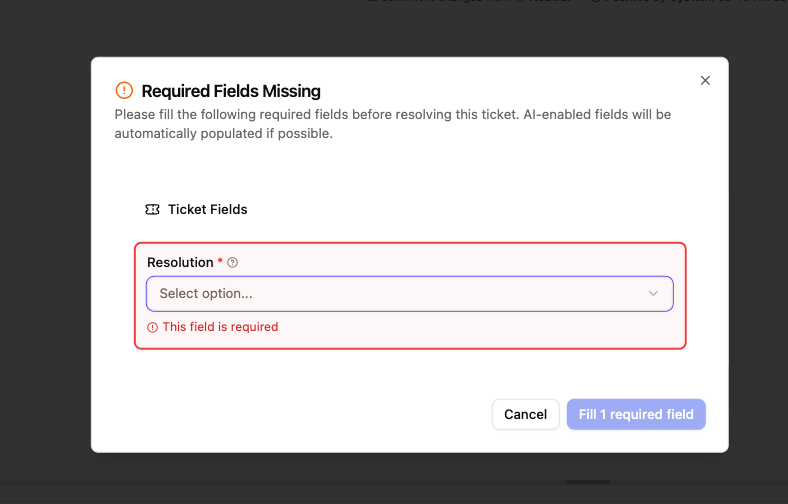
Pre-Resolution Validation (Chat Input):
Only checks non-AI required fields
Assumes AI fields will be populated automatically
Blocks resolution if manual required fields are missing
Needs Review Validation (Review Dialog):
Checks all required fields (AI + non-AI)
Used when ticket is in
needs_reviewstatusShows all missing fields for completion
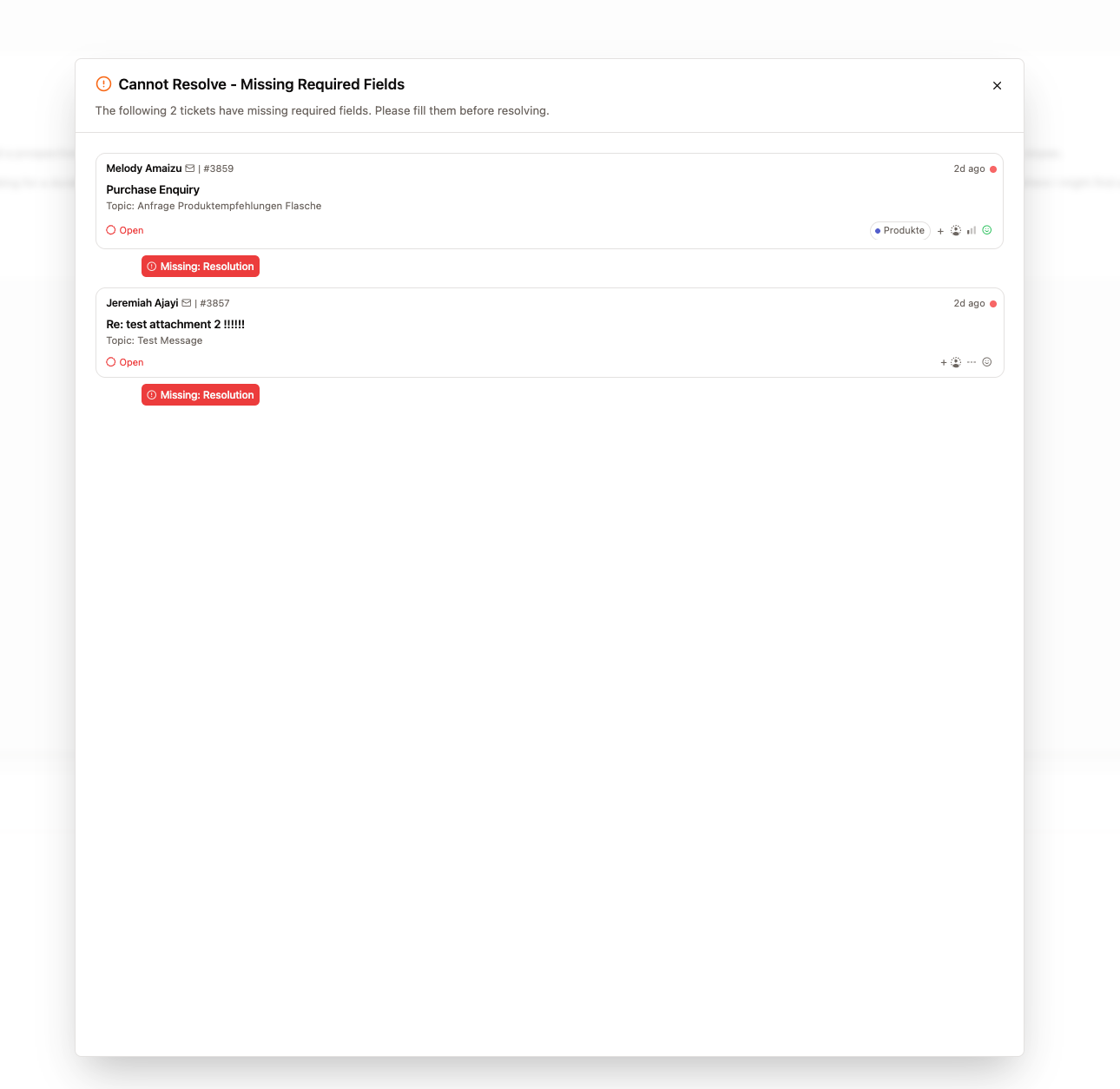
Bulk Resolution Validation
When bulk-resolving multiple tickets:
System checks all selected tickets for missing required non-AI fields
Blocks resolution if any ticket has missing fields
Shows preview modal with affected tickets
Agent can click ticket to fill fields individually
Bulk resolution validation only checks non-AI required fields to prevent blocking when AI can fill fields automatically during the resolution trigger.
Channel Configuration
Control which fields appear based on the communication channel.
How It Works
Each field can be configured for:
All Channels: Field appears on all ticket types
Specific Channels: Field only appears for selected channels (Email, WhatsApp, Voice, etc.)
Use Cases
Email-Only Fields:
Email domain verification
Spam classification
Voice-Only Fields:
Call duration
Call quality rating
Product-Specific Channels:
Product fields for e-commerce channels
Order number for shop integrations
Channel-specific fields keep your interface clean by only showing relevant fields for each ticket type.
Analytics Dashboard
Track field performance and identify trends.
Accessing Analytics
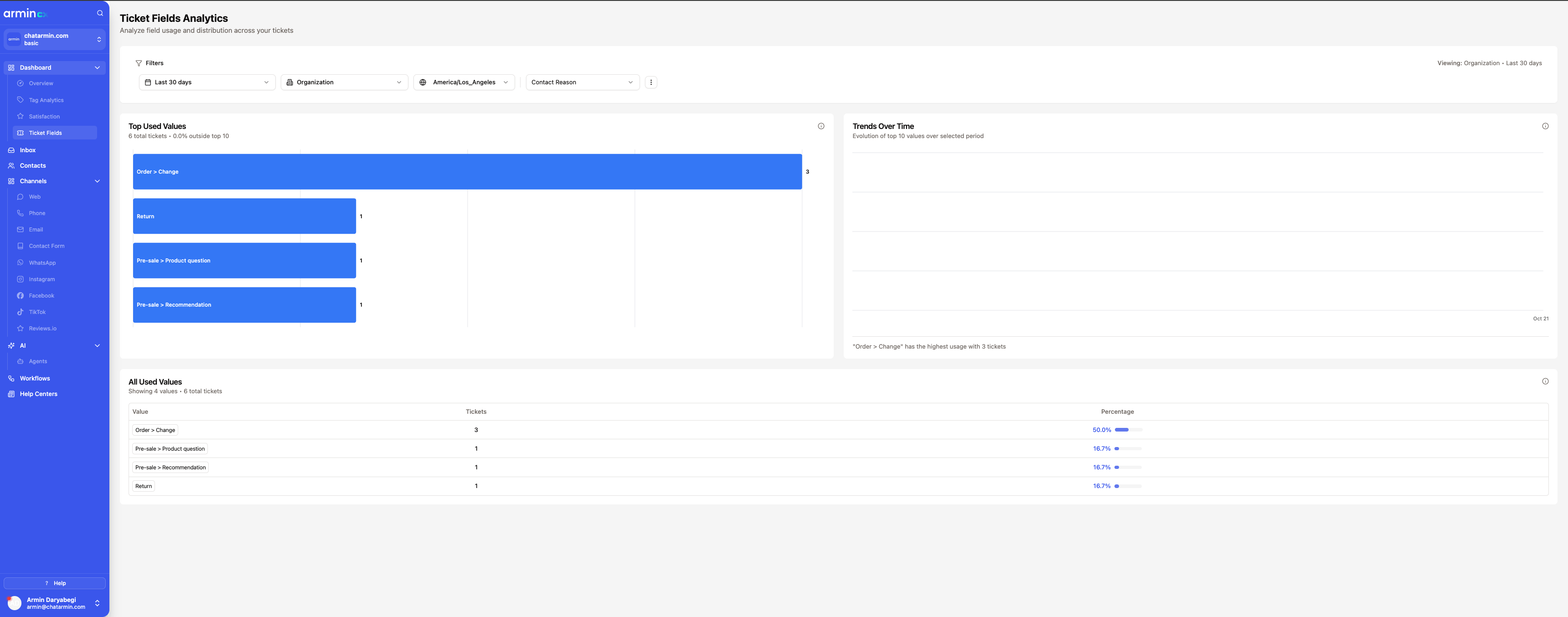
Navigate to Dashboard → Ticket Fields to view analytics.
Field Selector
Choose which field to analyze from the dropdown selector.
Shows only active fields
Groups by field type
Updates all cards when selection changes
Date Range Filter
Filter analytics by time period:
Last 7 days
Last 30 days
Last 90 days
Custom date range
Data Scope Toggle
Switch between:
All Tickets: Includes tickets without the field set
Applied Only: Only tickets where field has a value
Use “Applied Only” to see distribution among tickets that actually use the field, excluding tickets where the field wasn’t relevant.
Top Used Values Card
Horizontal bar chart showing the most popular field values.
Features:
Shows top 10 values by ticket count
Value labels inside bars
Ticket counts at bar end
Click any bar to drill down to filtered inbox
Example Insights:
Most common issue categories
Popular product selections
Frequent resolution methods
Trends Over Time Card
Multi-line chart tracking value usage over time.
Features:
Smooth line chart for each field value
Color-coded lines for easy distinction
Hover tooltips showing exact counts
Footer text highlighting highest-usage value
Use Cases:
Identify seasonal trends
Track issue type evolution
Monitor product problem patterns
Measure category shifts over time
All Values Table
Complete paginated table of all field values.
Features:
Sortable columns (Value, Ticket Count, Percentage)
Search functionality
Pagination for large datasets
Click any row to filter inbox by that value
Benefits:
Comprehensive view of all values
Easy export and analysis
Quick navigation to related tickets
Filtering Tickets by Fields
Filter your inbox based on custom field values.
How to Filter
1.
Open Filter Menu
Click the Filter button in your inbox toolbar.
2.
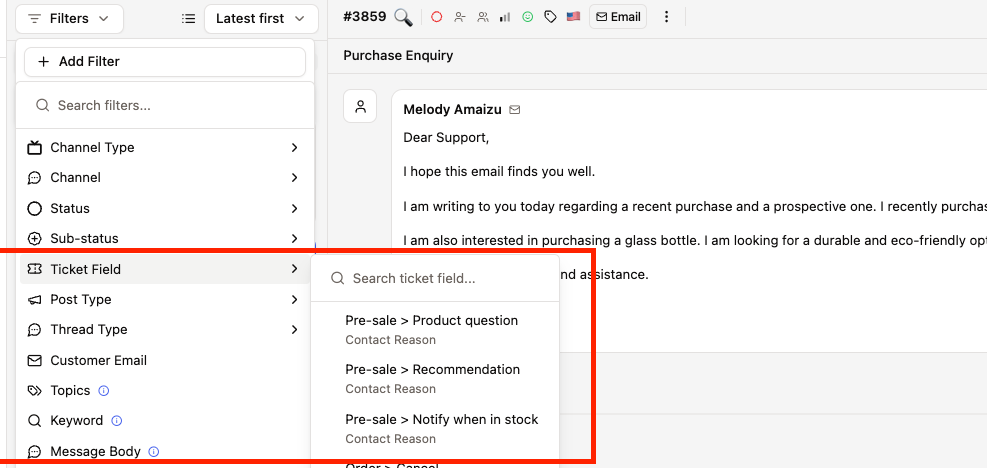
Select 'Ticket Field'
Choose Ticket Field from the filter options list.
3.
Choose Field and Value
The interface shows:
Grouped by Field: All fields grouped with their values
Search Bar: Quick search across all options
Multi-Select: Select multiple field values
4.
Apply Filter
Selected filters appear as active filters. Inbox updates to show matching tickets.
Filters persist in URL for easy sharing and bookmarking.
Field Management
Active vs Archived Fields
Active Fields Tab:
Currently available fields
Shown on tickets
Can be edited or archived
Archived Fields Tab:
Previously used fields
Hidden from tickets
Can be restored if needed
Historical data preserved
Archive fields instead of deleting them to preserve historical data and reporting accuracy.
Reordering Fields
Drag and drop fields to change their display order on tickets.The order affects:
Display sequence in ticket field card
Tab order for keyboard navigation
Export/report column ordering
Editing Fields
Click any field to open the configuration panel and modify:
Display name and description
Field type-specific options (e.g., dropdown values)
AI enabled status
Required status
Channel availability
Changing field type on existing fields may cause data loss. Consider creating a new field instead.
Best Practices
Field Design
Keep field names clear and concise
Use descriptive names that agents will immediately understand:
✅ Good: “Product Category”, “Issue Type”, “Resolution Method”
❌ Avoid: “Field1”, “Category”, “Type”
Use dropdown over text when possible
Dropdowns provide:
Consistent data for reporting
Easier filtering and analytics
AI has clear options to choose from
Prevents typos and variations
Reserve text fields for truly free-form data.
Enable AI for repetitive fields
Good candidates for AI:
Issue categories (can infer from conversation)
Product selection (can match with orders)
Priority level (can assess urgency)
Resolution type (can determine from outcome)
Keep manual for:
Internal tracking codes
Agent-specific notes
Subjective assessments
Start with fewer required fields
Begin with 2-3 essential required fields, then expand based on:
Agent feedback on usefulness
AI accuracy rates
Actual data usage in reports
Too many required fields can slow down resolution workflows.
AI Optimization
Provide clear field descriptions
Help AI understand field purpose with good descriptions:
✅ Good: “Select the specific product the customer is asking about from their order history”
❌ Vague: “Product field”AI uses descriptions as context when analyzing tickets.
Monitor AI accuracy
Check analytics to see:
Which fields AI fills successfully
Which fields often end up in “Needs Review”
Patterns in AI selections
Adjust dropdown options or descriptions to improve accuracy.
Use product fields with shop integrations
Product fields work best when:
Shop integration is active (Shopify, WooCommerce, etc.)
Customer has order history
Products have clear names and variants
AI can then accurately match conversation mentions to actual products.
Performance
Limit total fields per organization
Recommended limits:
Active fields: 10-15 maximum
Required fields: 3-5 maximum
AI-enabled fields: 5-8 maximum
Too many fields can:
Slow down ticket loading
Overwhelm agents
Reduce AI accuracy
Archive unused fields
Regularly review field usage in analytics:
Archive fields with <5% usage
Consolidate similar fields
Remove duplicate or redundant fields
This keeps the interface clean and performant.
Advanced Features
Conditional Prefetching
Product catalogs are intelligently prefetched:
Only loads when required product field exists on ticket
Runs in background while agent reads messages
Cached results available instantly when agent interacts
This ensures product fields load quickly without wasting resources on tickets that don’t need them.
Real-Time Sync
All field changes sync in real-time via Supabase Realtime:
Agent fills field → Updates immediately for all viewers
AI populates field → Appears instantly without refresh
Field configuration changes → Reflect immediately on open tickets
Troubleshooting
Field not appearing on tickets
Possible causes:
Field is archived → Check Archived tab and restore if needed
Field is disabled → Toggle “Active” status in field settings
Channel mismatch → Check field’s enabled channels include the ticket’s channel
AI not populating fields
Check these:
Field has “AI Enabled” toggled on
Ticket has sufficient message context for AI to analyze
Field type is supported by AI (all types except pure number calculations)
Check logs for AI confidence scores (may be below 0.7 threshold)
For product fields: Ensure shop integration is active and customer has orders
Product field shows no products
Verify:
Shop integration is connected (Shopify, WooCommerce, etc.)
Customer has order history in the system
Integration credentials are valid
Products are synced (check integration settings)
Product catalog is cached for 10 minutes. If products were just added, wait for cache refresh.
Validation blocking resolution incorrectly
Context-specific behavior:
Normal resolution: Only validates non-AI required fields (AI fields auto-filled)
Needs review tickets: Validates all required fields (AI failed, needs manual input)
If validation seems wrong:
Check if ticket is in
needs_reviewstatusVerify field’s “Required” and “AI Enabled” settings
Ensure field is enabled for the ticket’s channel
Slow product field loading
Performance factors:
First load: Fetches from shop API (can take 2-5 seconds)
Subsequent loads: Uses Redis cache (instant)
Large catalogs: Products limited to 500 most recent
To improve:
Ensure shop integration API is responsive
Consider reducing product catalog size at integration level
Check Redis connection health
FAQ
Can i change a field type after creation?
Not recommended. Changing field types can cause data loss or inconsistencies.
Instead:
Create a new field with the desired type
Migrate data if needed
Archive the old field
This preserves historical data and prevents breaking existing reports.
What happens to field data when a field is archived?
Data is preserved:
Historical values remain in database
Analytics continue to work for historical periods
Field just becomes hidden from new tickets
You can restore an archived field to make it active again.
Can customers see or fill custom fields?
No. Custom fields are internal only:
Only visible to agents
Not shown in customer-facing interfaces
Not included in customer notifications
Use fields to track internal information without exposing operational details to customers.
How does AI handle multiple products in one order?
For product fields, AI:
Analyzes conversation to identify mentioned product
Searches customer’s orders for matching products
Selects specific variant if mentioned
If multiple matches, chooses most recently ordered
Agents can always change AI selection if incorrect.
Have feedback or feature requests? Contact support or submit via the feedback widget.