
First Steps
The Armin CX Dashboard provides you with a real-time and historical overview of your support activities. It is designed to help you monitor performance, identify trends, and make data-driven decisions.
Dashboard pages
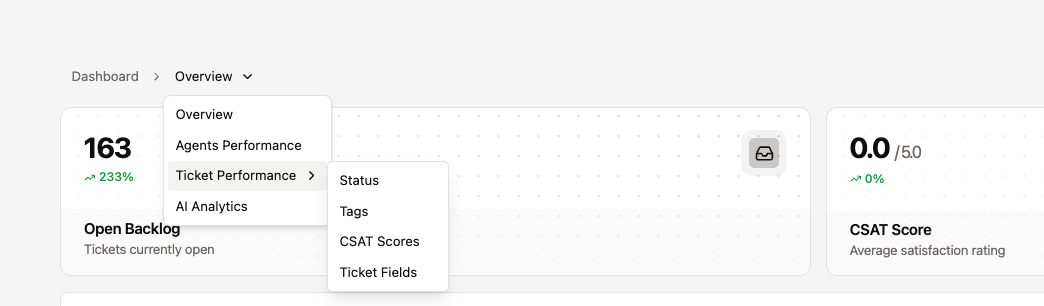
The dashboard is divided into four main pages, each focusing on a different aspect of your support:
Page | What you'll find here |
|---|---|
Overview | An overview of your support activities—ticket volume, response times, satisfaction scores, agent activity, and status distribution. Start here with a quick status check. |
AI Analyst | How AI performs in your workflow – automation rates, acceptance of suggestions, escalation tracking, issue analysis, and workflow performance. |
Ticket Sales | A detailed overview of your tickets from four different perspectives: Status (open, completed, postponed), Keywords (Use and Trends of Tags), CSAT (customer satisfaction ratings) as well as Fields (Analysis of custom ticket fields). |
Agent Performance | Employee productivity at the individual and team levels—who has solved which problems, how quickly did they respond, and how effectively do they utilize AI suggestions? |
How Trend Comparisons Work
The metrics in the dashboard include a Trend Indicator— a percentage that indicates how the current value compares to the previous period.
The comparison period is calculated automatically based on the date range you selected:
When you select Last 7 days (e.g., March 14–21), the trend can be seen in the the past 7 days (March 7–14).
If you have a custom selection Over a 10-day period, the trend is compared with that of the immediately preceding 10 days.
The trend is illustrated as follows:
The green upward arrow when the metric improved compared to the previous period.
The red downward arrow when it got worse.
The Percentage change is displayed next to the arrow.

Filter
All dashboard pages have the same global filters at the top of the page. These filters determine the scope of each metric displayed:
Date range— Select a preset (Today, Yesterday, Last 7 Days, Last 30 Days) or specify a custom time period.
Channel— Filter by specific channels (email, WhatsApp, phone, Instagram, etc.) or view all channels.
Team— Limit the metrics to the members of a specific team and the channels assigned to them.
Scope— Switch between Organization (complete team statistics) or Even (only your own metrics).
What happens next?
Overview Dashboard – Start here with a quick check of your support status.
AI Analytics Dashboard – See how AI performs in your workflow.
Ticket Performance – Detailed analysis of ticket status, tags, customer satisfaction (CSAT), and custom fields.
Agent Performance Overview – Track the productivity of individual agents and teams.
How Key Metrics Are Calculated – Learn exactly how each key metric is determined.