CSAT-Survey
Automatically send satisfaction surveys to customers after ticket resolution to measure service quality
Overview
The CSAT (Customer Satisfaction) Survey flow action enables you to automatically collect feedback from customers after their support interactions. This powerful tool helps measure service quality, identify areas for improvement, and track agent performance through simple emoji-based ratings or detailed survey responses.
Key Features
Multi-channel Support
Send surveys via Email, WhatsApp, Web Widget, Instagram, Facebook, and TikTok
Smart Delivery
Built-in duplicate prevention ensures customers receive only one survey per ticket
Flexible Templates
Customize messages for each channel with dynamic variables and formatting
Quick Ratings
One-click emoji ratings (😡 😟 😐 😊 😍) or full survey links for detailed feedback
Prerequisites
Before using the CSAT Survey action, ensure: - Your workflow has a trigger that provides ticket context (e.g., “Ticket Resolved”, “Ticket Closed”) - Customer contact information is available in the ticket - The ticket has a valid channel associated with it
Configuration Guide
1.
Add CSAT Survey Action
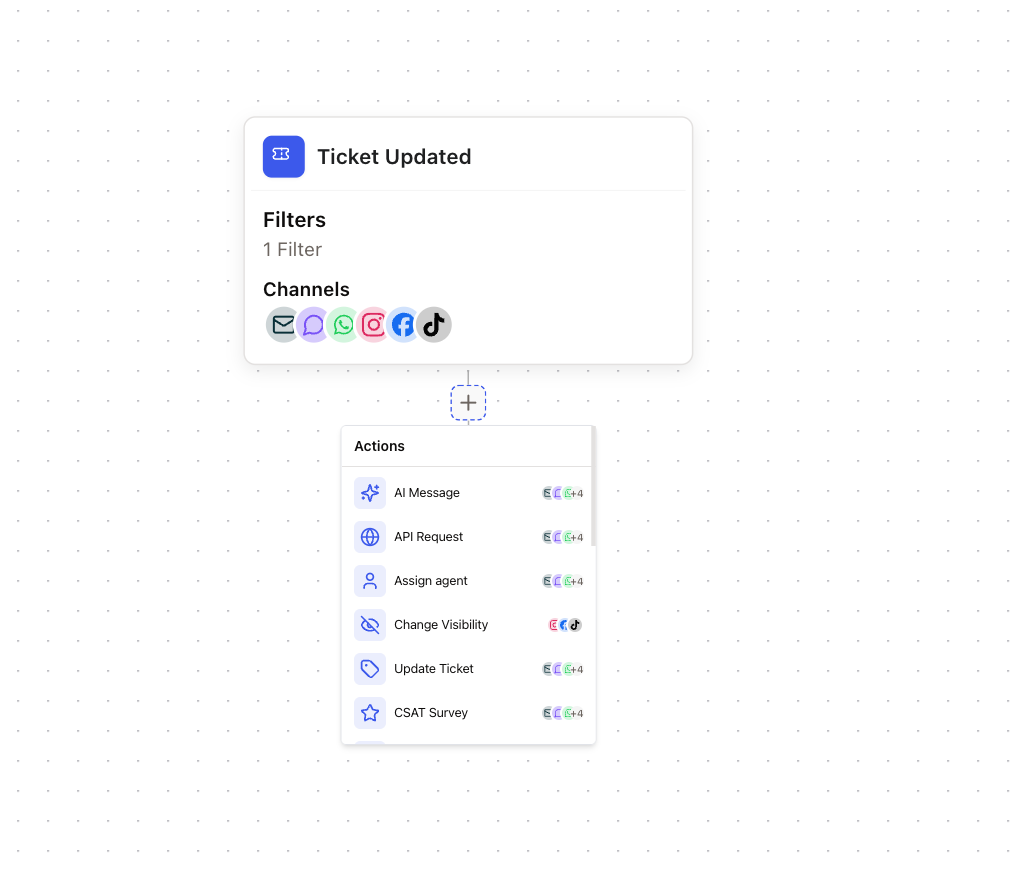
Navigate to your workflow and click the + button to add a new action. Search for “CSAT Survey” and select it from the list.
2.
Configure Channel Messages
The CSAT Survey action displays tabs for each available channel. Click on a channel tab to configure its settings.
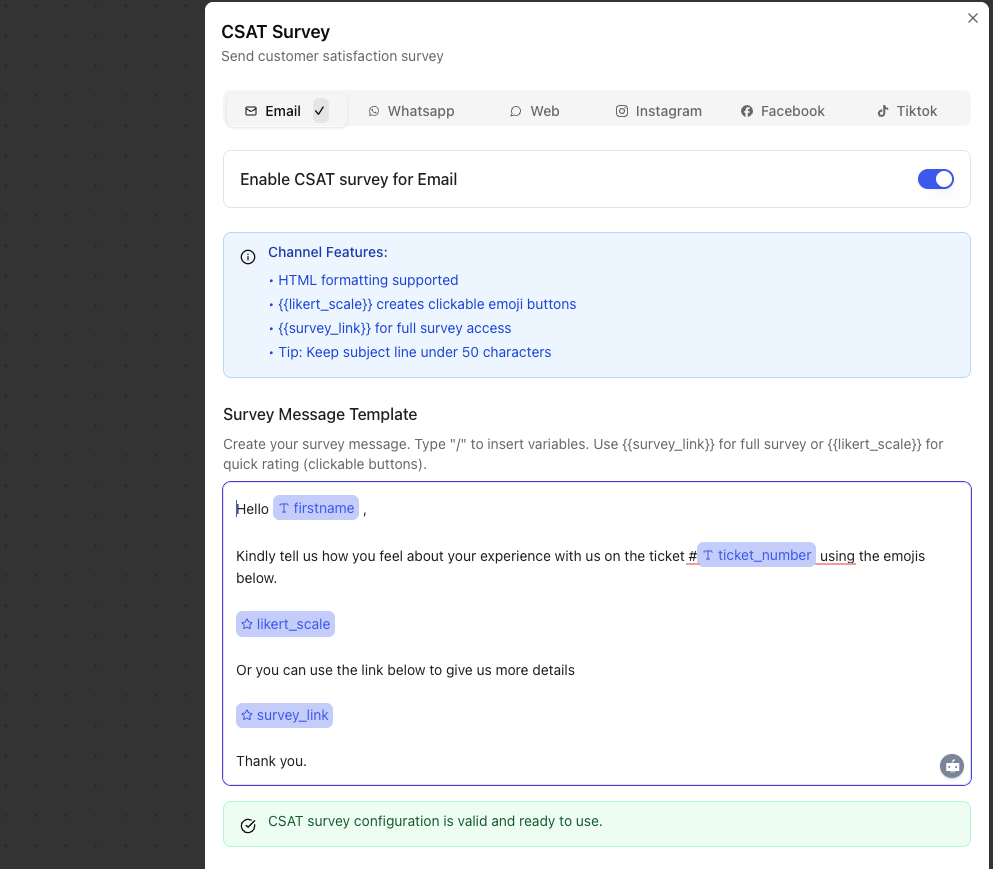
For each channel: - Toggle the switch to enable/disable the channel - Compose your survey message using the text editor - Insert variables using the / key
3.
Create Survey Messages
Use the rich text editor to create engaging survey messages. Type / to insert variables:
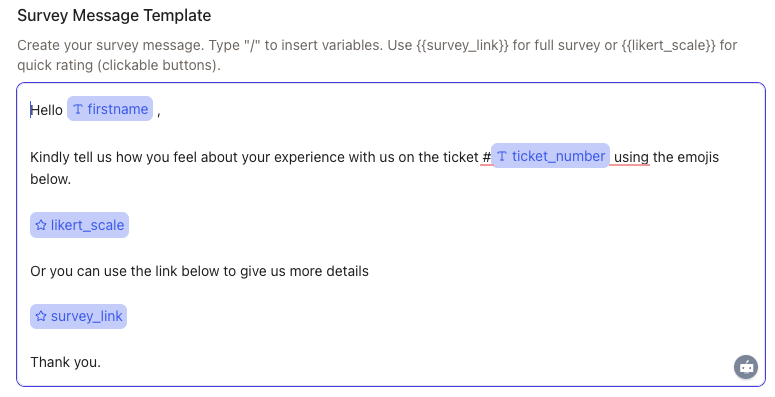
Social channels have character limits: - Instagram: 1,000 characters - Facebook: 900 characters
TikTok: 150 characters
4.
Preview and Test
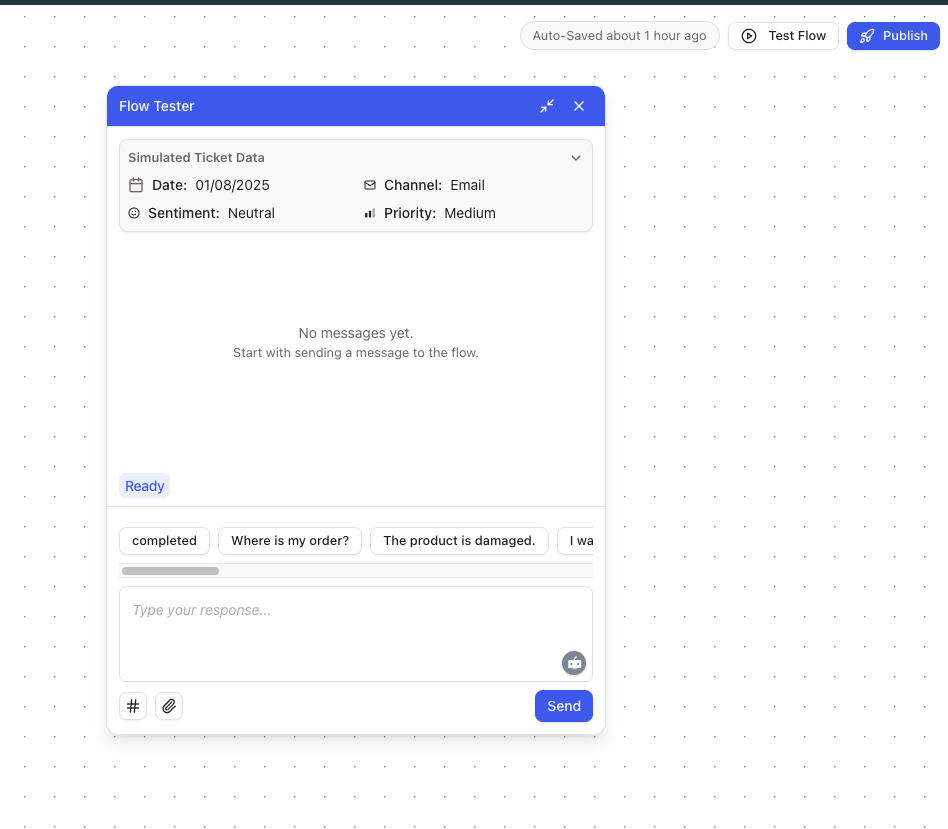
Use the workflow tester to preview how your surveys will appear across different channels.
Channel-Specific Features
Each channel has unique capabilities and limitations for CSAT surveys:
Features:
Full HTML formatting support
Clickable emoji rating buttons in a styled card
Embedded “Rate your conversation” section
No character limit
Supported Variables:
{{likert_scale}}- Displays clickable emoji buttons (😡 😟 😐 😊 😍){{survey_link}}- Direct link to full survey page
Email surveys have the highest response rates due to the visual emoji buttons
Features: - Interactive quick reply buttons for ratings - Plain text messages (HTML automatically stripped) - Native WhatsApp button interface - No character limit Supported Variables: - {{ likert_scale }} - Creates 5 quick reply buttons - {{ survey_link }} - Direct link to survey
WhatsApp quick replies appear as buttons at the bottom of the chat
Web Widget
Features: - Interactive quick reply buttons - Rich text formatting support - Seamless in-chat experience - No character limit Supported Variables: - {{ likert_scale }} - Creates clickable rating buttons - {{ survey_link }} - Direct link to survey
Social Channels
Instagram (1,000 chars), Facebook (900 chars), TikTok (150 chars)Features:
Plain text messages only
Character limits enforced
Survey link only (no emoji buttons)
Supported Variables:
{{survey_link}}- Direct link to survey{{likert_scale}}- Not supported
Keep messages brief on social channels, especially TikTok with its 150 character limit
Available Variables
Use these variables in your survey messages to personalize the experience:
Contact Variables
contact.firstname string
Customer’s first name from their profile
contact.lastname string
Customer’s last name from their profile
contact.email string
Customer’s email address
contact.phone string
Customer’s phone number
Ticket Variables
ticket.ticket_number string
Unique ticket identifier (e.g., “2844”)
ticket.subject string
Ticket subject or title
ticket.channel string
Channel where ticket was created
ticket.status string
Current ticket status
Survey Variables
survey_link string required
Unique URL to the survey page. Always available for all channels.
likert_scale string
Channel-specific rating interface. Shows emoji buttons for email, quick replies for WhatsApp/Web.
Message Templates
Here are example templates for different channels:
Email Template
Hello {{contact.firstname}},

Thank you for contacting our support team regarding ticket #{{ticket.ticket_number}} - "{{ticket.subject}}".

We'd love to hear about your experience:

{{likert_scale}}

Or if you prefer, you can provide detailed feedback here: {{survey_link}}
WhatsApp Template
Hi {{contact.firstname}}! 👋

Thanks for reaching out about "{{ticket.subject}}" (Ticket #{{ticket.ticket_number}}).

How was your experience with our support?

{{likert_scale}}

Need to share more? Visit: {{survey_link}}
Instagram/Facebook Template
Hey {{contact.firstname}}! Thanks for contacting us about "{{ticket.subject}}".

We'd appreciate your feedback on how we did: {{survey_link}}

Your opinion helps us improve! 🙏
TikTok Template (150 char limit)
How did we do with ticket #{{ticket.ticket_number}}? Rate us: {{survey_link}}
For your Information: - Signature is getting automatically added based on your channel
Survey Analytics
Track and analyze survey responses through the dedicated surveys dashboard:
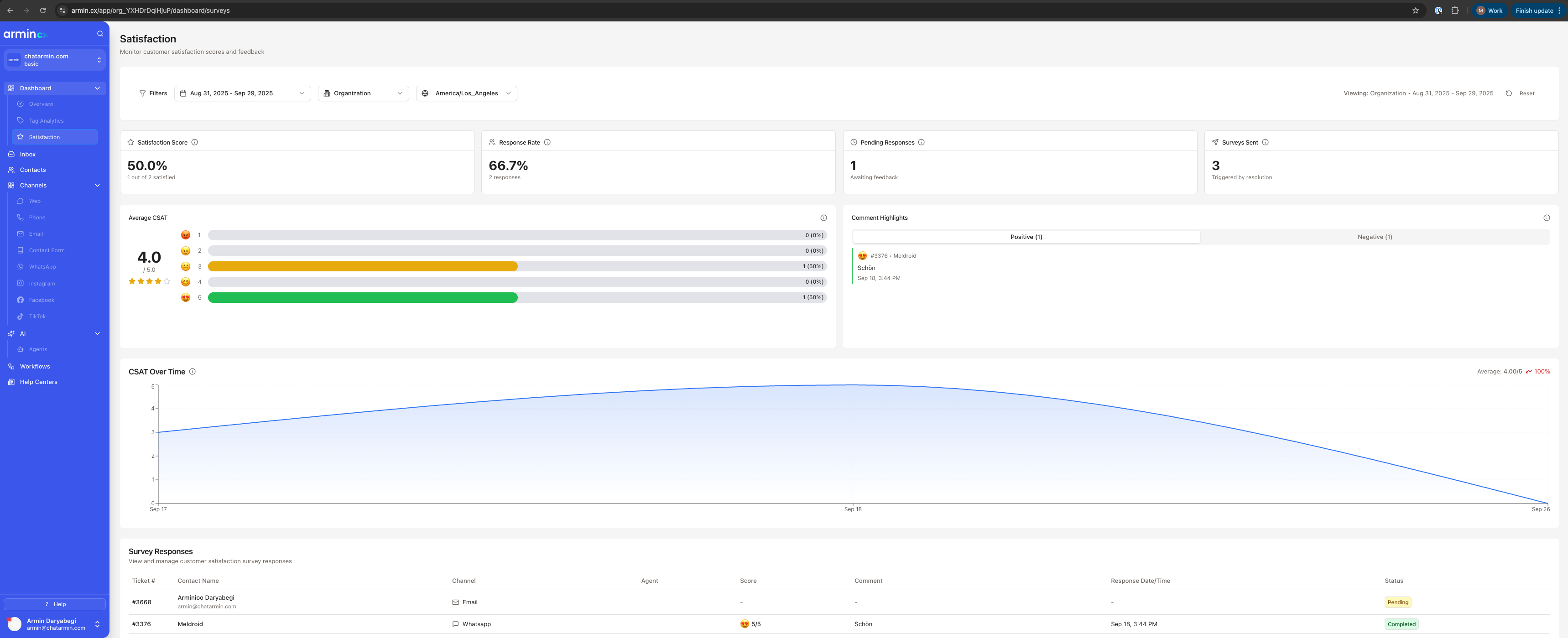
Available metrics:
Overall satisfaction score
Response rate by channel
Individual agent performance
Trend analysis over time
Detailed customer comments
Best Practices
Timing is crucial: Send surveys 24-48 hours after ticket resolution for optimal response rates
Personalization matters: Always use the customer’s name and reference their specific issue
Keep it simple: One-click ratings get 3x more responses than detailed surveys
Test thoroughly: Use the workflow tester with different scenarios before going live
Monitor regularly: Check survey analytics weekly to identify trends and coaching opportunities
Technical Details
Survey Expiration: All surveys expire after 30 days to maintain data relevance
Duplicate Prevention: Each ticket can only trigger one survey, preventing customer fatigue
Security: Survey links use secure tokens and cannot be guessed or shared
Data Retention: Survey responses are permanently linked to tickets and agents for historical analysis
Common Issues & Solutions
Survey not sending to customer
Possible causes:
Ticket missing contact information
Channel not enabled in survey configuration
Survey already sent for this ticket
Customer has no email/phone for the channel
Solution: Check the workflow execution logs for specific error messages
Variables showing as {{variable}} in message
Possible causes: - Incorrect variable syntax (check spelling) - Variable data not available (e.g., contact.firstname is empty) - Using unsupported variables for the channel Solution: Use the workflow tester to verify variable values and availability
Low response rates
Possible causes: - Sending surveys too late after resolution - Message not engaging or too long - Missing personalization - Wrong channel for customer preference Solution: A/B test different message templates and sending times
Character limit exceeded
Message too long for social channels
Variables expanding beyond limit
Solution: Use the character counter in the editor and create channel-specific short versions
Example Workflows
Condition based Customer Surveys:
Trigger: Ticket Closed
Condition: Check if customer meets a condition
CSAT Survey: Send personalized survey