
Inbox Filters
In armincx you can configure inbox views with filters to sort and display tickets based on specific criteria. Filters are saved per view and can be made available to all agents or kept private.
When to use this
Use inbox filters when you want to set up a view for specific ticket types — for example, only social media comments, only open tickets assigned to a specific agent, or only tickets in a particular language.
Steps
Create or edit a view
1. Open the Inbox in armincx.
2. Click + Add view at the bottom left of the sidebar to create a new view, or click the settings icon next to an existing view to edit it.
3. In the Edit view dialog, configure the following settings:
- Name: Enter a descriptive name (e.g. "Instagram Comments", "Returns").
- Parent view: Select "At root" for a top-level view, or choose an existing view as a parent to create a subview.
Add filters
4. In the Filters section, click + Add filter.
5. Select a filter category from the list. The following categories are available:
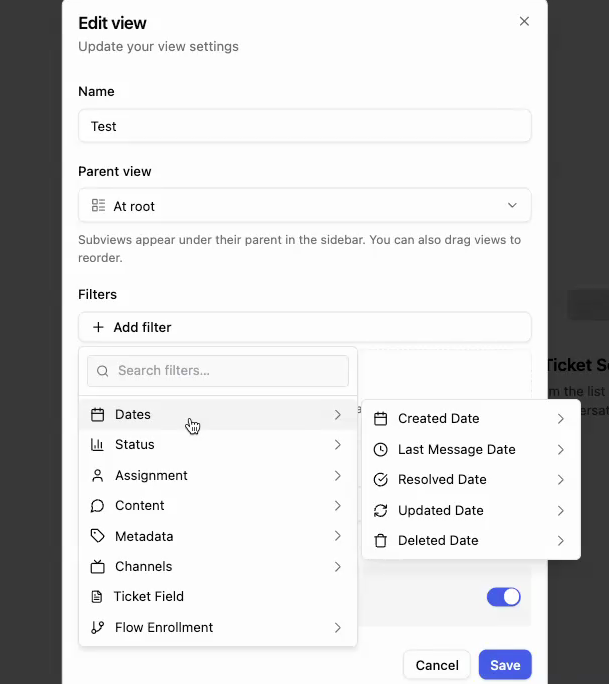
Dates — Filter by time. Subcategories: Created Date, Last Message Date, Resolved Date, Updated Date, Deleted Date. Each subcategory offers predefined time ranges (e.g. 5 min ago, 15 min ago, Today, 7 days ago).
Status — Filter by ticket status. Subcategories: Status (Open, On Hold, Resolved, Closed), Sub-status, Deleted (Yes/No), Unread.
Assignment — Filter by assignment. Subcategories: Agent (No Agent, AI Agent, Current Agent, or a specific agent), Resolved By, Team, Mention.
Content — Filter by ticket content. Subcategories: Customer Email, Subject, Message Body, Last Customer Message, Topics.
Metadata — Filter by metadata. Subcategories: Priority (Urgent, High, Medium, Low), Sentiment, Language (English, German, French, Dutch, Spanish, Italian, Portuguese, Russian, and others), Tag, CSAT Score (1 – Very Dissatisfied to 5 – Very Satisfied), Reviews.io Rating (1–5 Stars).
Channels — Filter by channel. Subcategories:
Channel Type: Email, Contact Form, WhatsApp, Voice, Aircall, Widget, Instagram, Facebook, TikTok, Youtube, Reviews.io, Amazon Seller.
Channel: Filter by a specific connected channel (e.g. a particular web widget or email address).
Post Type: Ad, Reel, Story, Post. Use this to filter for comments under ads only, or reel comments only.
Thread Type: DM, Comment. Use this to separate direct messages from comments.
Contact Form: Filter by a specific contact form.
Ticket Field — Filter by custom ticket fields.
Flow Enrollment — Filter by flow membership. Shows configured flows and their status (Completed, Waiting).
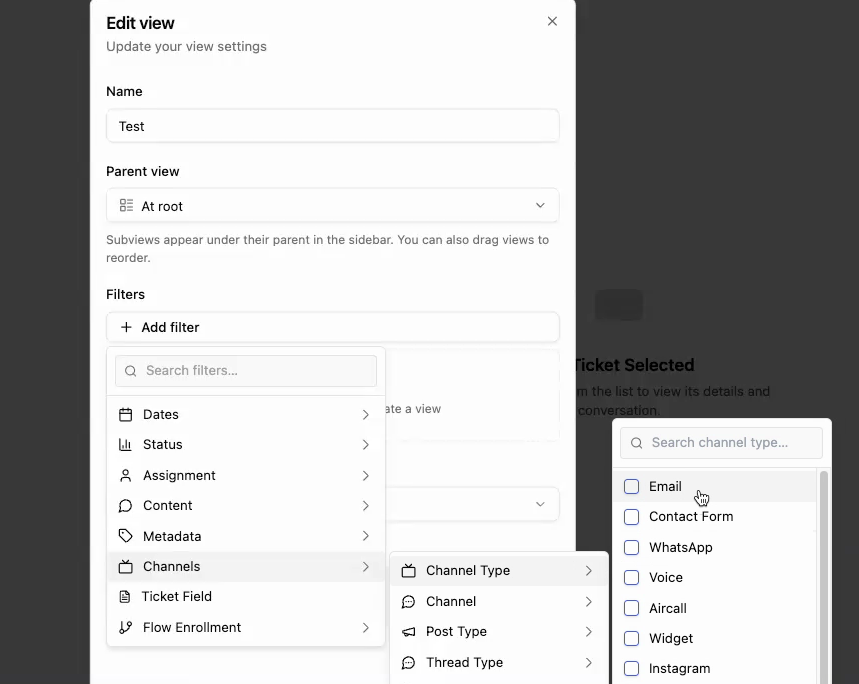
6. Select the desired subcategory and set the filter value (e.g. check the "Instagram" checkbox under Channel Type).
7. You can add multiple filters at the same time. Active filters are displayed below + Add filter. Click the X next to a filter to remove it, or click Clear all to remove all filters.
Additional view settings
8. Sort by: Choose a sort order, e.g. "Latest message (newest)".
9. Visibility: Enable the Public toggle to make the view visible to all agents in the organization. Disable it for a private view.
10. Click Save to save the view.
Notes / best practices
- Use the Channel Type filter under Channels to set up views for social media channels (e.g. a view for Instagram and TikTok only).
- Combine Channel Type with Thread Type to show only Instagram DMs or only Facebook comments.
- Combine Channel Type with Post Type to filter for comments under ads only — useful for community management on paid campaigns.
- Use Parent view and subviews to build a hierarchical structure in the sidebar (e.g. "Social Media" as parent with "Instagram DMs" and "Facebook Comments" as subviews).
- The filter Agent is current agent is useful for personal "My Tickets" views.
FAQ
Can I combine multiple filters?
Yes. You can add any number of filters per view. All filters are combined using AND logic.
Which social media channels can I filter by?
Under Channels > Channel Type, Instagram, Facebook, TikTok, and Youtube are available. You can additionally filter by Post Type (Ad, Reel, Story, Post) and by Thread Type (DM vs. Comment).