Enable AI-powered email support in minutes
Setting up AI email support is as simple as forwarding your emails. No complex integration needed.
Watch Video here:
Quick Setup
1.
Add your Email
2.1
Setup with Google or Microsoft
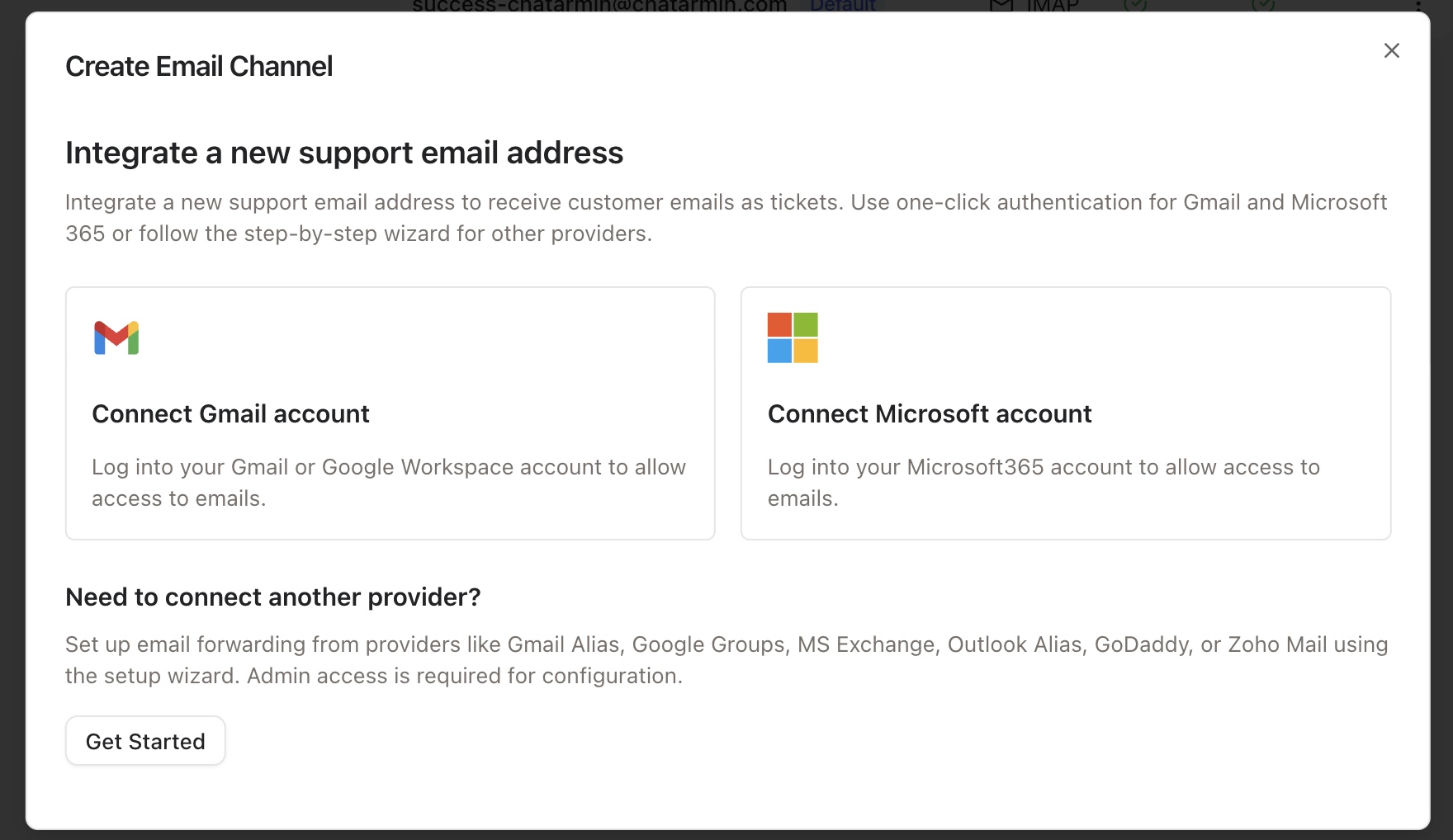
If you want to connect a Gmail or Microsoft Account, you can do so with our One-Click authentication. You will be redirected to the providers Sign-In mask.
Just connect and you’re ready to go, continue with step 3.
2.2
IF you use other Provider (STRATO, IONOS etc..):
Setup Receiving
First click on “Get Started”
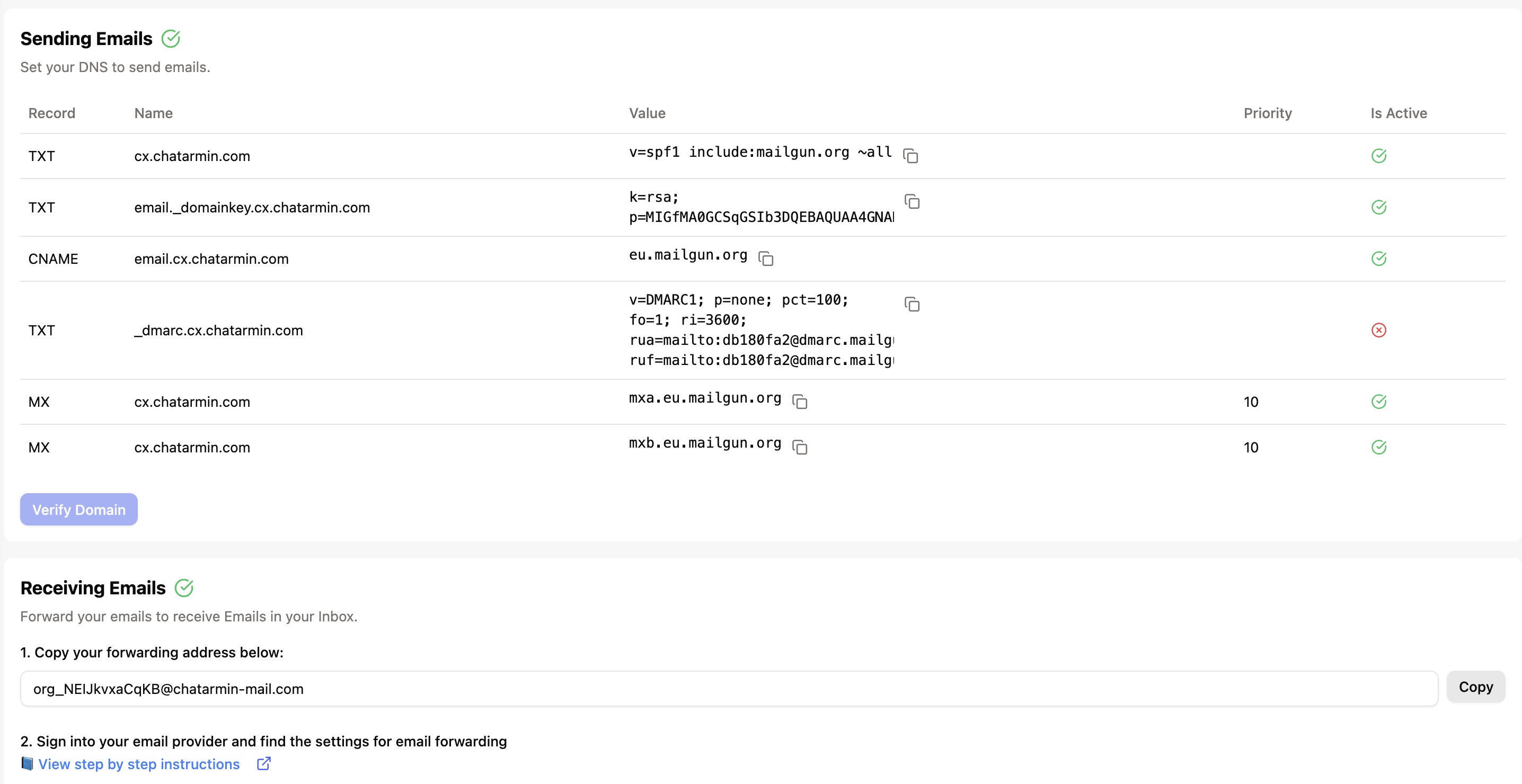
After your Email was added, setup receiving of your Email Address. For this, you will need to set forwarding rules and forward to:
<org_id>@chatarmin-mail.com
You will find the exact Email when clicking on your Email Channel
Setup Sending
Now, you need to open your Domain Host Provider so you can set DNS Records. Those will be shown on the Email Channel Page aswell
See Image below:
3.
Choose AI
If not already done, go to your newly created Email Channel -> AI -> Select your current AI Bot
How it works
Customer emails your support address
Email is forwarded to our system
AI processes and responds to the email
When
Auto-Reply ON:Response appears from your original email addressWhen
Auto-Reply OFF:AI Suggestions appears in the ticket and doesn’t auto-send
Features available
Automatic email responses
Smart ticket categorization
AI Auto Tagging
File attachment handling
HTML email support
Seamless human handoff
Full conversation history
4.
Set E-Mail Signature
After E-Mail connection is set you will find the Signature Settings under the “General” Tab
Type in your signature, you can also use variables with “@”
See Screenshot below
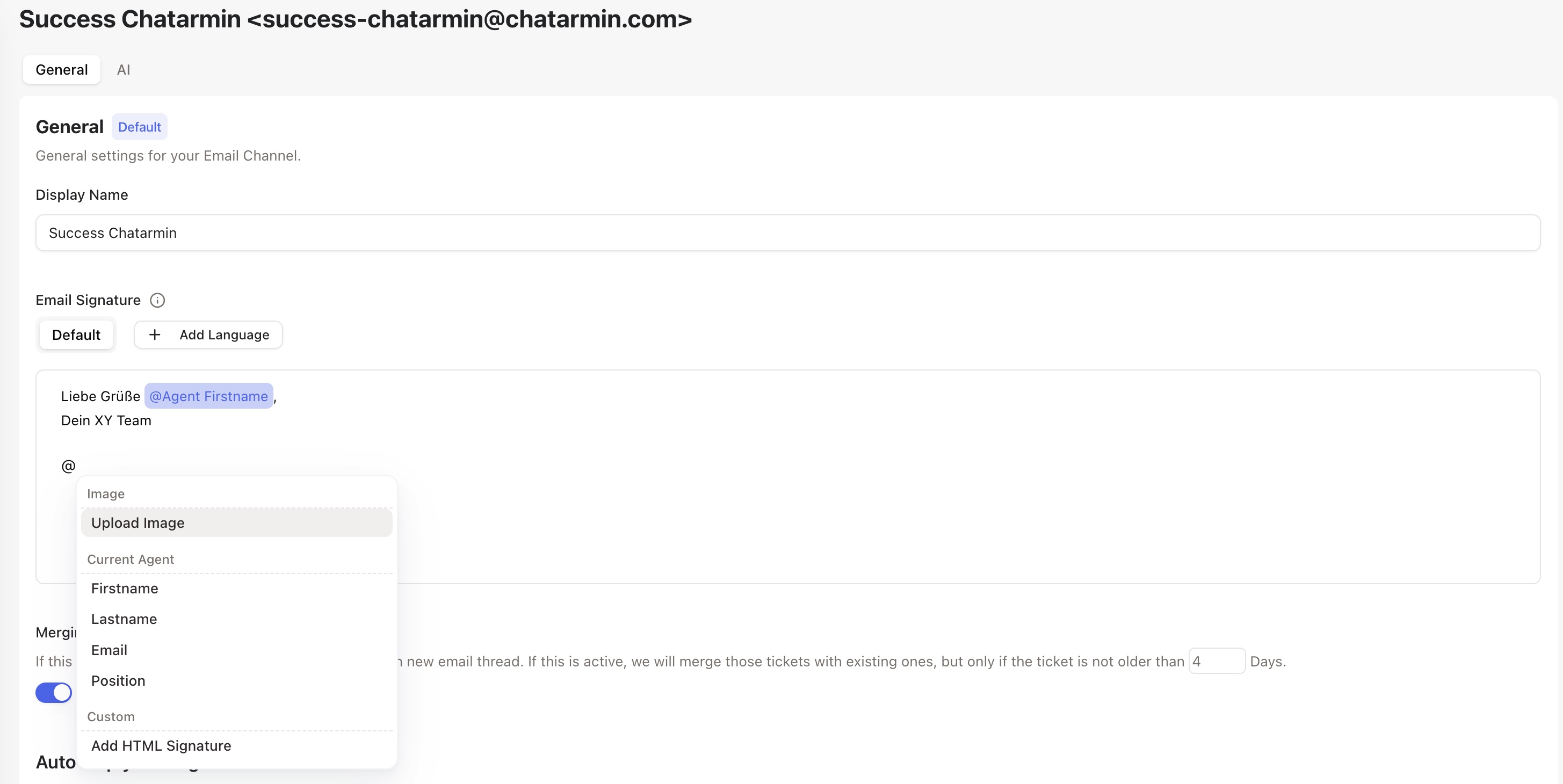
The Signature will automatically be attached to your outbound E-Mail messages