Best Practice for Holiday Season: Auto-Reply
To avoid unanswered tickets and set the right expectations, we strongly recommend activating an Auto-Reply for incoming messages during the holidays.
🔎 Why this matters
Customers immediately know their request was received
You set clear response-time expectations
Your team reduces follow-up messages and pressure
A more professional customer experience - even when offline
🫵 Best practice for your Auto-Reply
Confirm receipt of the message
Communicate limited availability or holiday hours
Share when customers can expect a response
Optionally link to FAQs or self-service resources
Example Auto-Reply
Thanks for reaching out! Our support team is currently operating with limited capacity during the holidays. We’ll get back to you as soon as possible after {{date}}. Thank you for your patience.
⚙️ How to Set-up:
🚨 Watch our Loom here or follow these instructions:
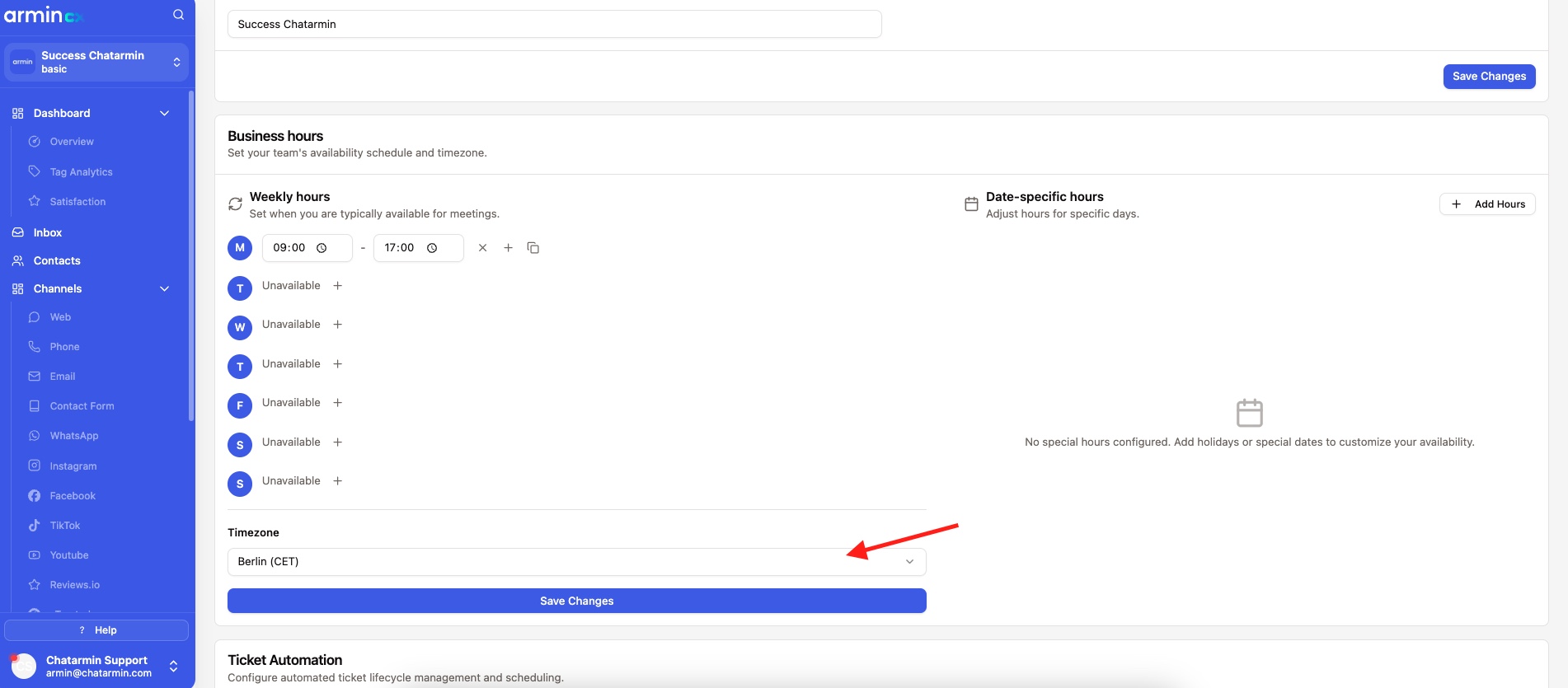
1. Set Date-specific hours
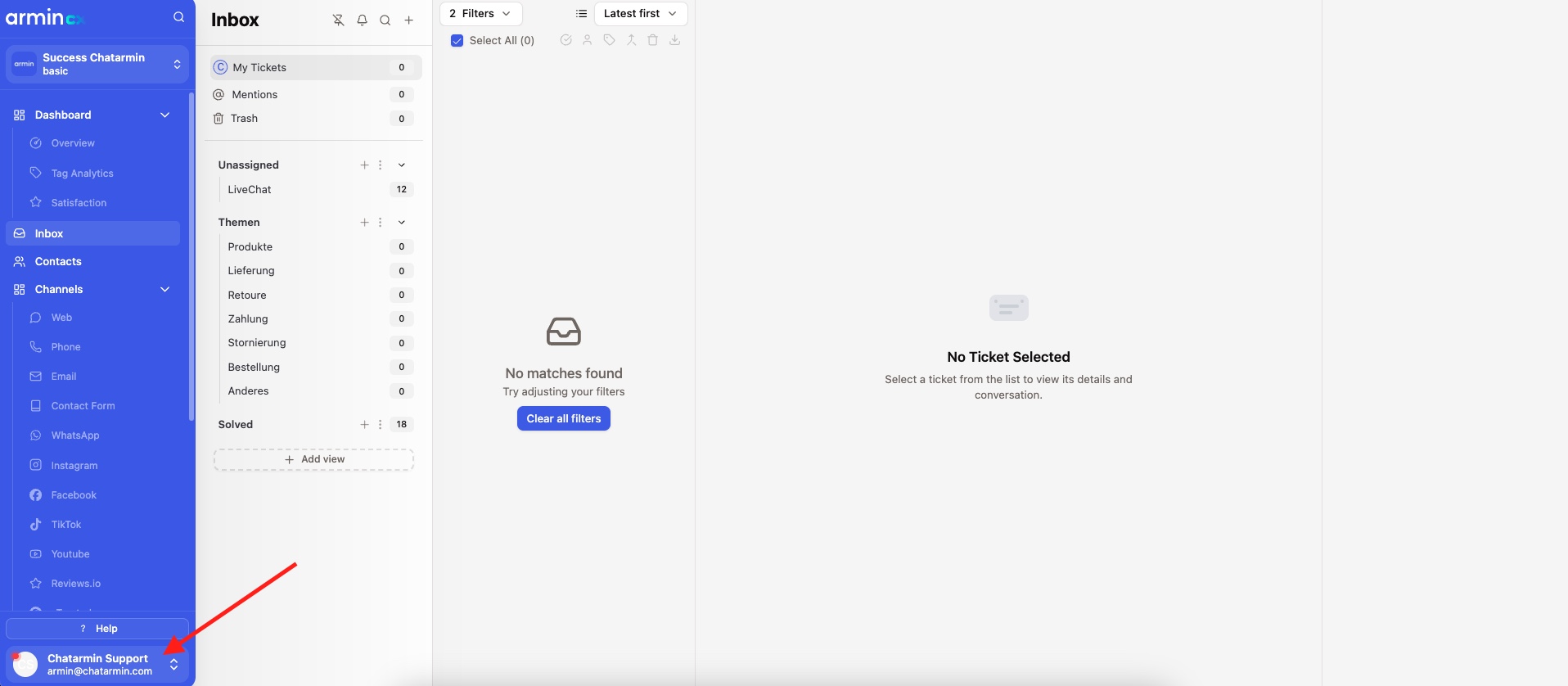
a) Click on your profile down below
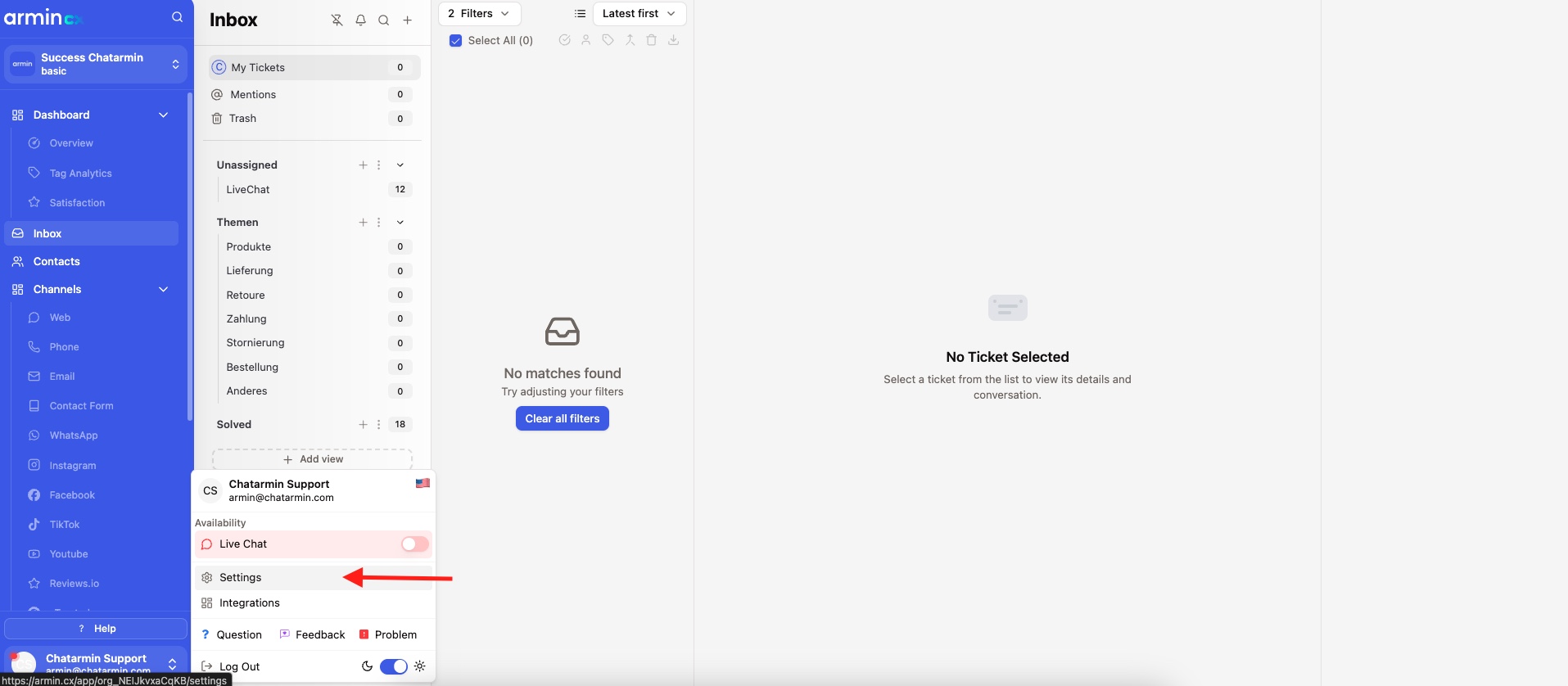
b) Click on Settings
c) Enter your Date-specific hours (enter Holiday here)
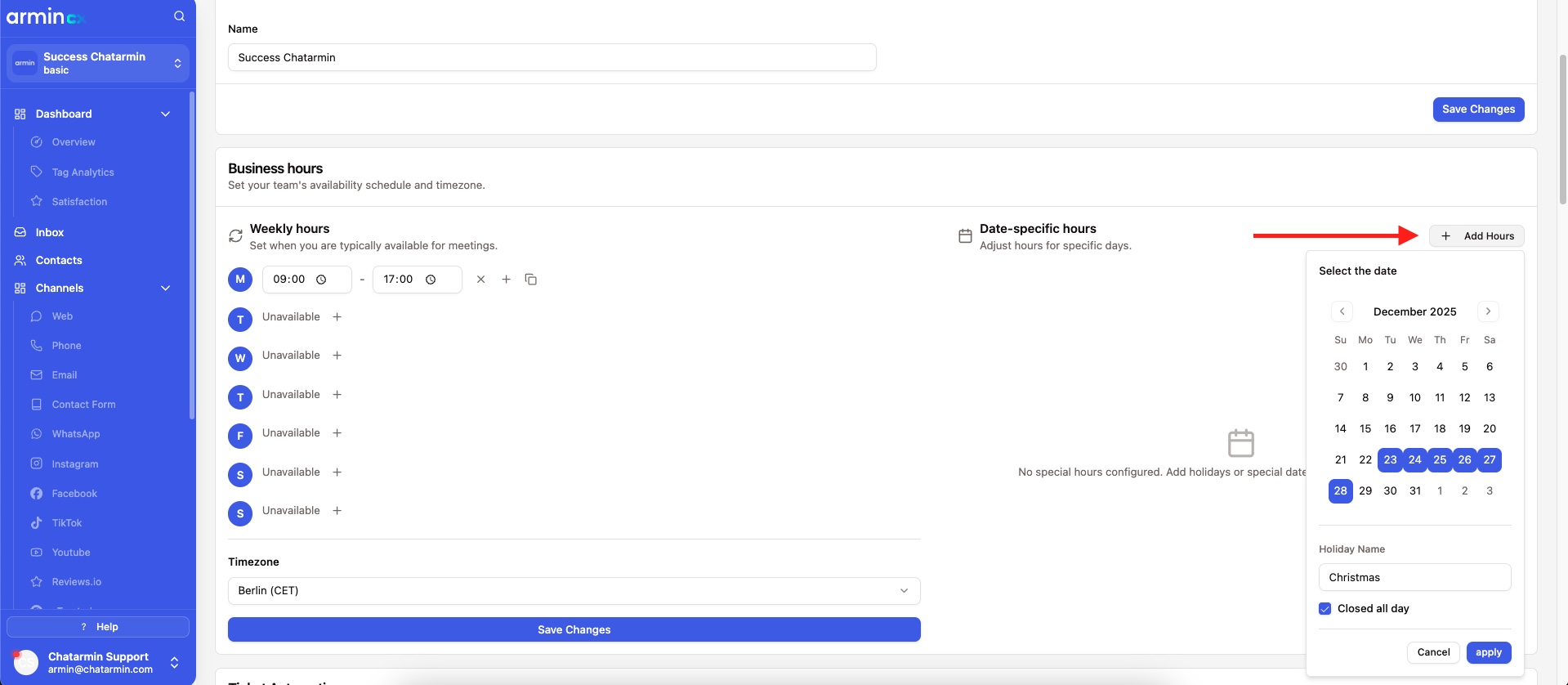
d) Set your time-zone
2. Enable Auto-Reply
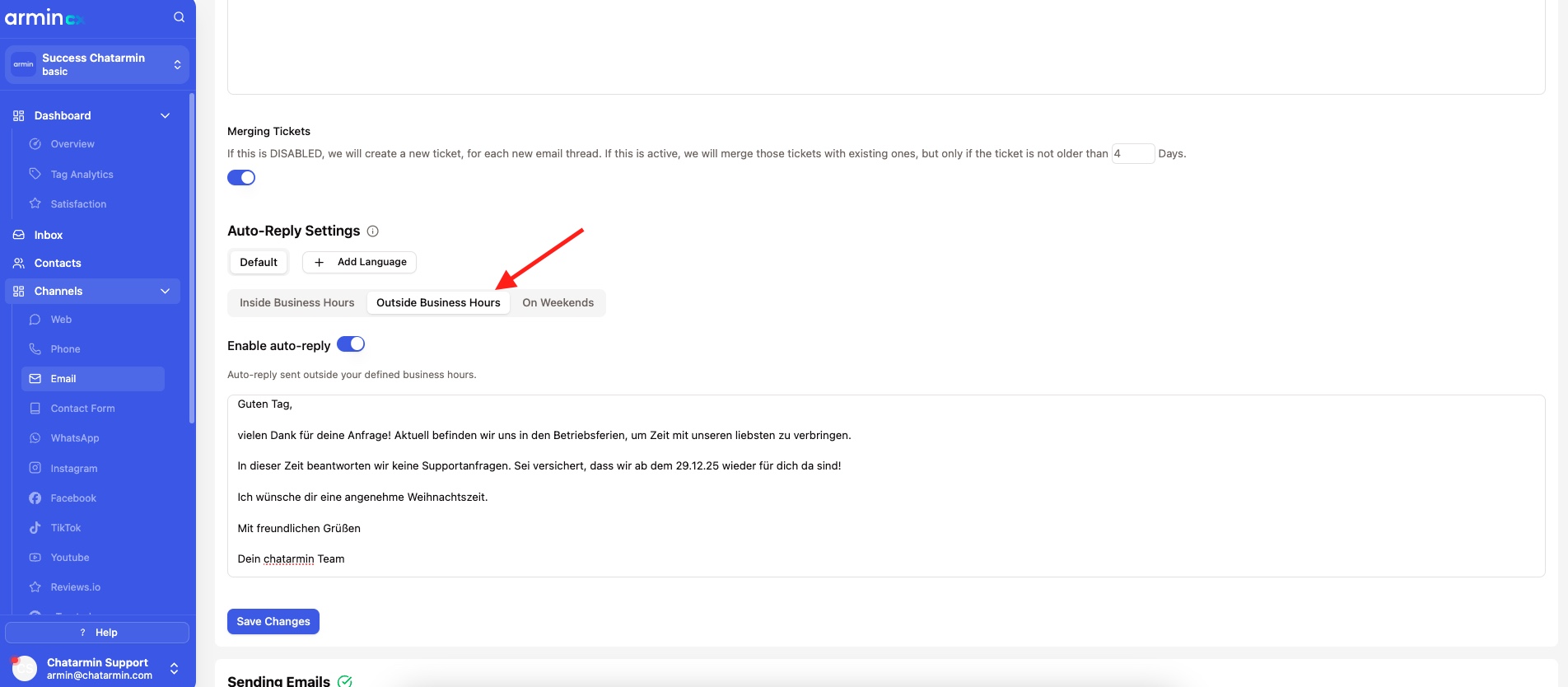
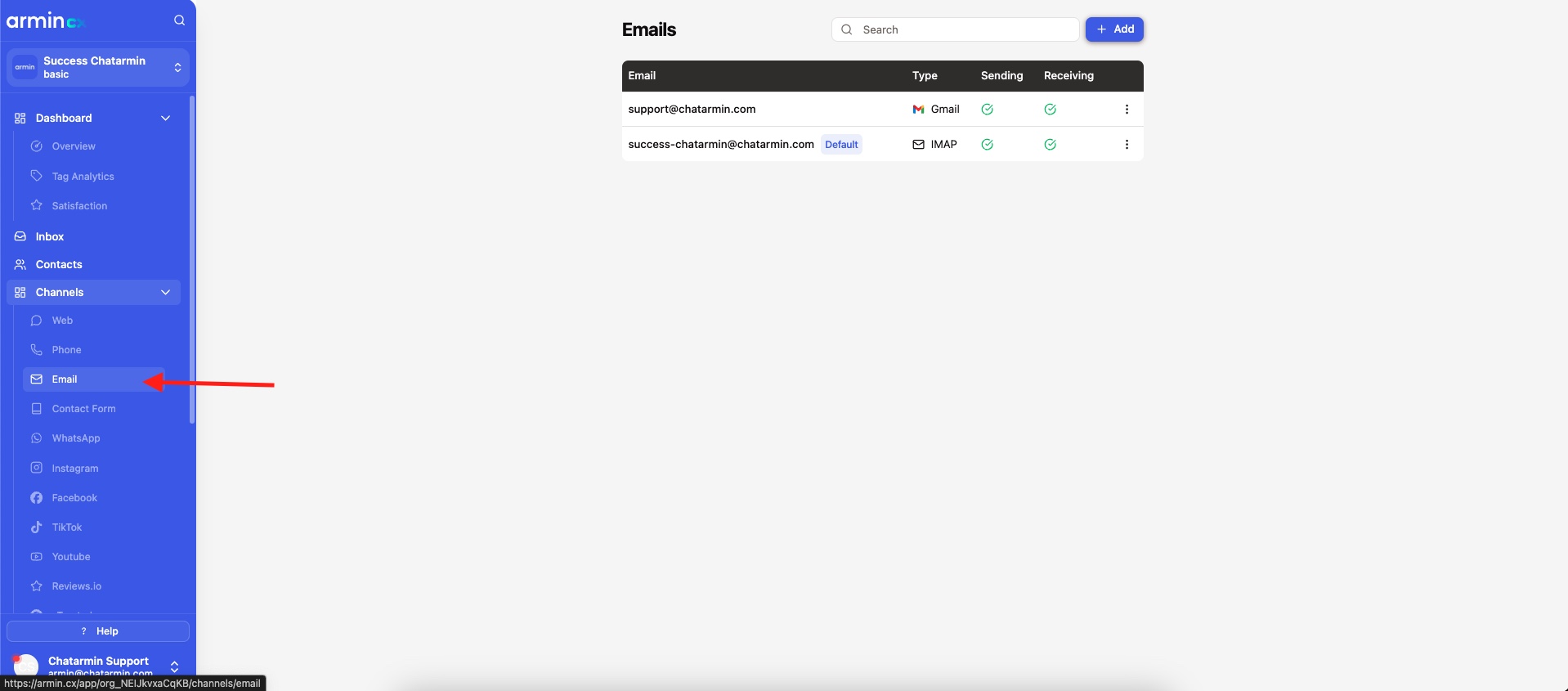
a) Go to channels -> E-Mail -> then select an E-Mail Account
b) Scroll down to "Auto-Reply Settings" -> Click on "Outside Business Hours".
You can then enter an Auto-Reply message. Enable via the slide and save changes. DONE!