> ## Documentation Index
> Fetch the complete documentation index at: https://docs.armin.cx/llms.txt
> Use this file to discover all available pages before exploring further.
# Legacy CSAT survey workflow
> Maintain workflow-builder CSAT survey flows for existing setups.
This page is for existing workflow-builder CSAT survey flows.
Move existing CSAT workflows to the [CSAT AI Agent example](/ai-agents/examples) over time, not only new surveys. Follow the [migration guide](/ai-agents/migrate-from-classic-ai) to test a controlled rollout and turn off the overlapping CSAT workflow once the replacement is proven. [Create an AI Agent](/ai-agents/getting-started), and open [Workflows](https://armin.cx/app/_/workflows) only during migration or for necessary maintenance.
## Requirements
Before you add a CSAT action, make sure:
* the workflow has ticket context, such as a resolved or closed-ticket trigger
* the customer has contact information for the selected channel
* the ticket has a valid channel
* your message is short enough for the channel
## Maintain a CSAT survey action
In the workflow builder, open the existing flow or click the plus button and select **CSAT Survey**.
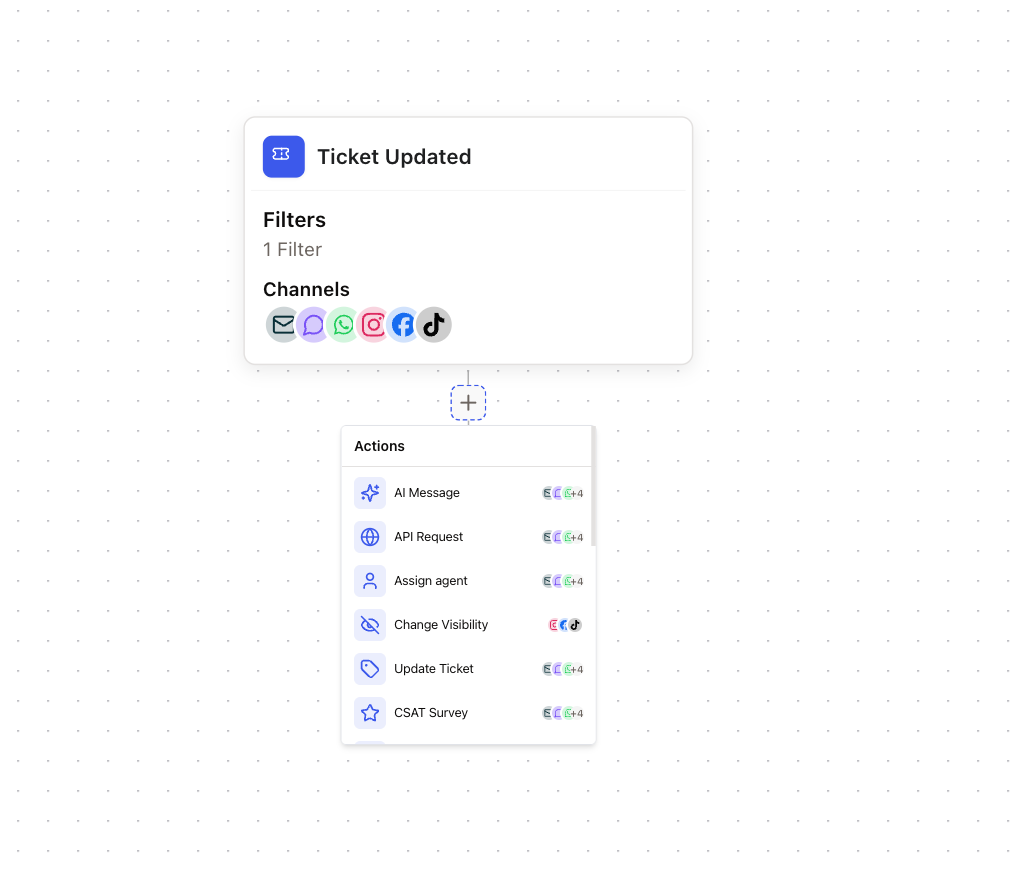 Enable the channels where you want to send surveys.
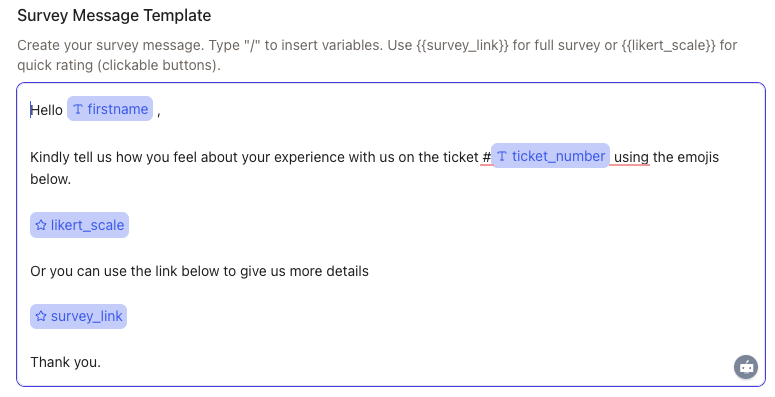
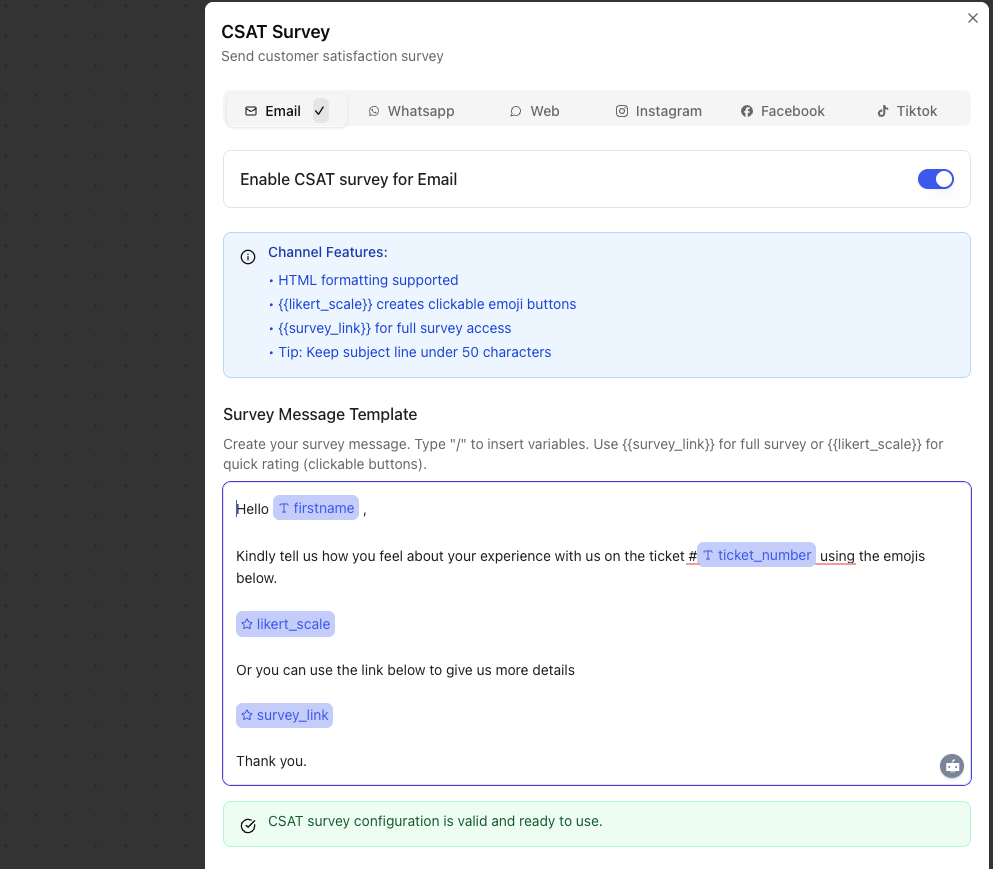 Use the editor to write a message and insert variables with `/`.
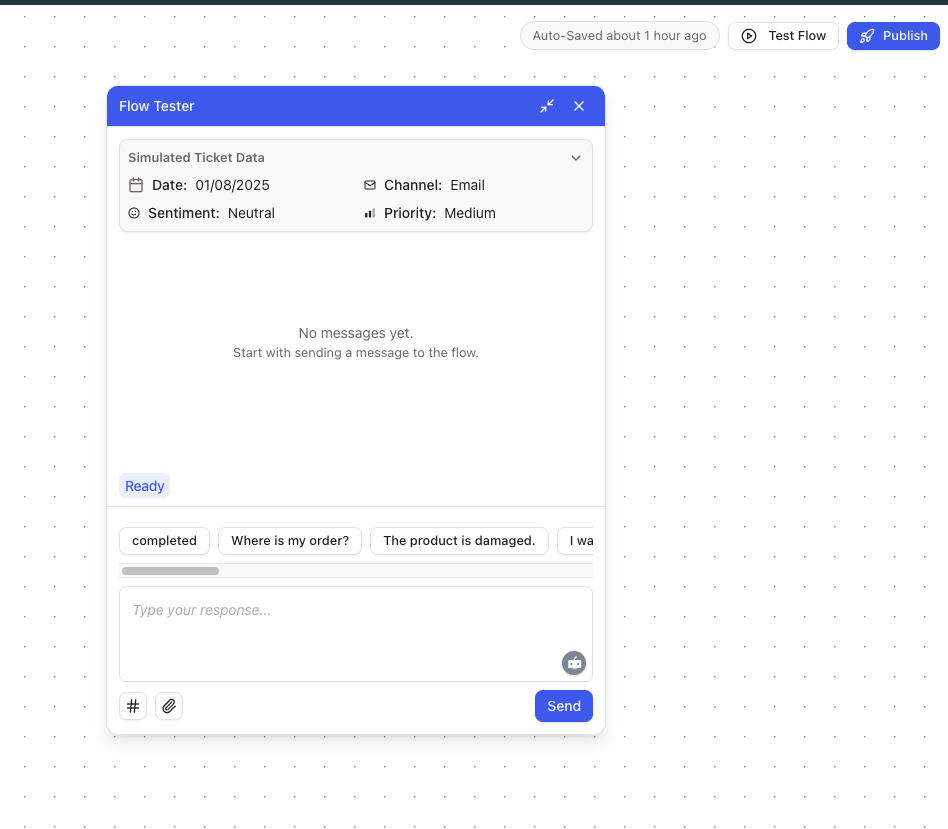
 Use the workflow tester to preview the survey for each enabled channel.
 ## Channel behavior
Email supports formatted messages, `{{likert_scale}}`, and `{{survey_link}}`.
WhatsApp uses `{{survey_link}}` and opens the survey in the customer's browser.
The web widget supports in-chat emoji ratings with `{{likert_scale}}`.
Social channels should use short messages with `{{survey_link}}`. Character limits apply.
## Useful variables
* `{{contact.firstname}}`
* `{{contact.lastname}}`
* `{{ticket.ticket_number}}`
* `{{ticket.subject}}`
* `{{survey_link}}`
* `{{likert_scale}}`
Channel signatures are added automatically based on the channel configuration.
## Analytics
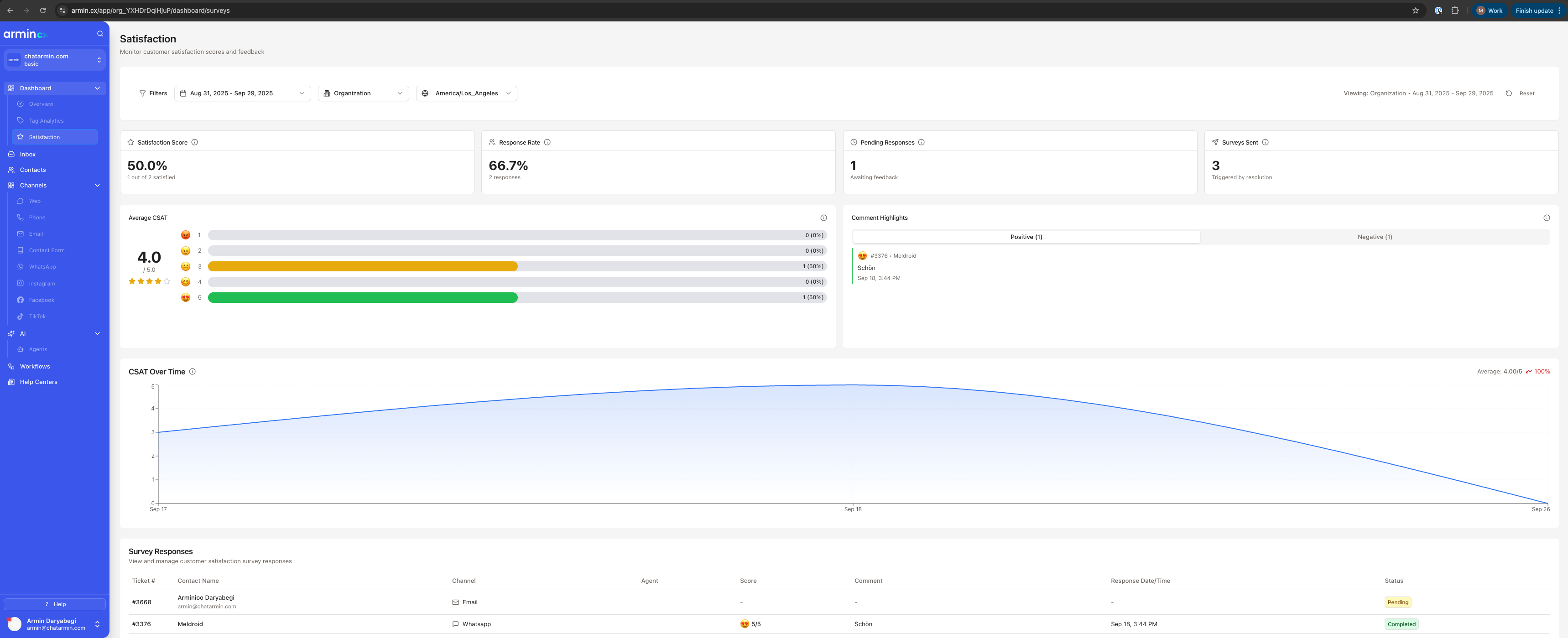
CSAT analytics show satisfaction score, response rate, agent performance, trend analysis, and customer comments.
## Channel behavior
Email supports formatted messages, `{{likert_scale}}`, and `{{survey_link}}`.
WhatsApp uses `{{survey_link}}` and opens the survey in the customer's browser.
The web widget supports in-chat emoji ratings with `{{likert_scale}}`.
Social channels should use short messages with `{{survey_link}}`. Character limits apply.
## Useful variables
* `{{contact.firstname}}`
* `{{contact.lastname}}`
* `{{ticket.ticket_number}}`
* `{{ticket.subject}}`
* `{{survey_link}}`
* `{{likert_scale}}`
Channel signatures are added automatically based on the channel configuration.
## Analytics
CSAT analytics show satisfaction score, response rate, agent performance, trend analysis, and customer comments.
 ## Best practices
* Send surveys shortly after resolution.
* Keep the message simple.
* Use the customer's name and ticket context.
* Test each channel before publishing.
* Review analytics weekly.
## Troubleshooting
Check that the ticket has contact information, the channel is enabled, and a survey was not already sent for the ticket.
Check the variable spelling and confirm the data exists on the contact or ticket.
Shorten the message, send closer to resolution, and use the customer's preferred channel.
Create shorter channel-specific templates, especially for social channels.
## Best practices
* Send surveys shortly after resolution.
* Keep the message simple.
* Use the customer's name and ticket context.
* Test each channel before publishing.
* Review analytics weekly.
## Troubleshooting
Check that the ticket has contact information, the channel is enabled, and a survey was not already sent for the ticket.
Check the variable spelling and confirm the data exists on the contact or ticket.
Shorten the message, send closer to resolution, and use the customer's preferred channel.
Create shorter channel-specific templates, especially for social channels.