> ## Documentation Index
> Fetch the complete documentation index at: https://docs.armin.cx/llms.txt
> Use this file to discover all available pages before exploring further.
# WooCommerce
> Show WooCommerce customer and order data in tickets.
The WooCommerce integration connects store data to Chatarmin CX so agents can see customer and order context inside tickets.
## Set up WooCommerce
Go to **Integrations** and choose **WooCommerce**.
Click **Connect**, add an account, enter your WooCommerce store domain, and grant the requested permissions.
## Use WooCommerce in the inbox
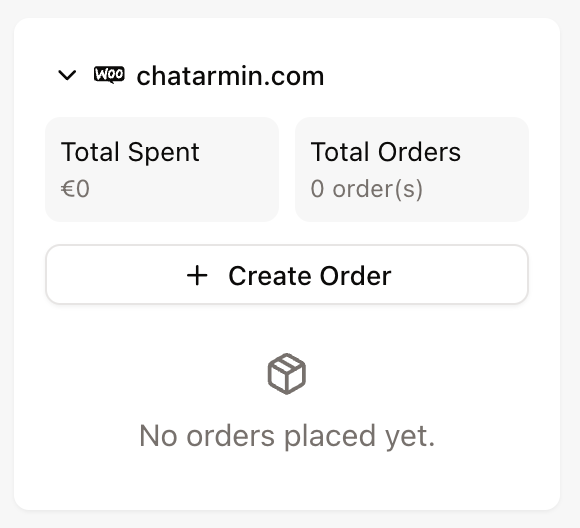
After connecting WooCommerce, matching tickets show a WooCommerce widget in the ticket sidebar. Use it to view customer and order details and create orders when supported.