> ## Documentation Index
> Fetch the complete documentation index at: https://docs.armin.cx/llms.txt
> Use this file to discover all available pages before exploring further.
# Shopify
> Show Shopify order data in tickets and use Shopify actions with AI Agents.
The Shopify integration connects store, customer, product, and order data to Chatarmin CX.
## Set up Shopify
Go to **Integrations** and choose **Shopify**.
Click **Connect**, add an account, enter your Shopify admin domain, and grant the requested permissions.
## Use Shopify in the inbox
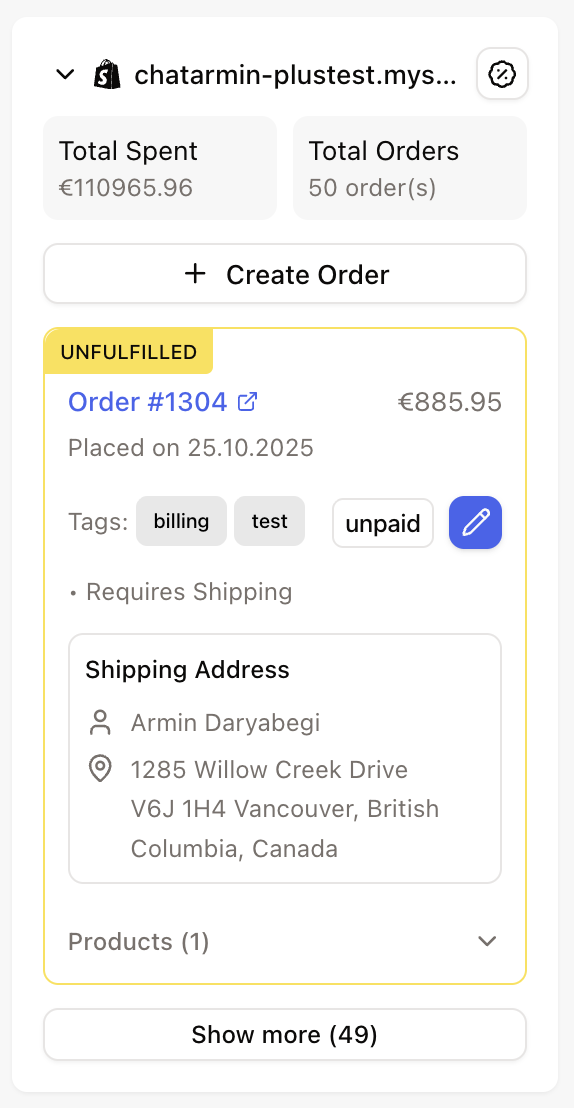
When a ticket contact matches a Shopify customer or order, the Shopify widget appears in the ticket sidebar. Use it to view order context and perform available order actions.
 ## AI Agent actions
Connect Shopify first, then enable actions on the agent and select which connected store(s) the agent may use. Shopify actions can let AI Agents:
* get orders, products, and customers
* create customers and orders
* create discount codes
* reorder products
* cancel orders, with optional refund, or cancel and refund in one step — see [Cancel and refund actions](#cancel-and-refund-actions)
* add or remove order line items
* create refunds
* add order notes
* update tags
* update shipping addresses
When an AI Agent cancels an order, the `notifyCustomer` option controls whether Shopify sends its official cancellation email. That email is separate from a reply the agent sends in the inbox or on chat. If your process requires Shopify's email, set `notifyCustomer` to true in the agent instructions for cancel flows.
If you fulfill through **FFN Connect** or **Fly**, cancel and address-change automation still uses these Shopify actions — see [FFN Connect / Fly](/integrations/ffn-connect).
### Cancel and refund actions
Shopify AI Agents can cancel orders in two ways. Pick the action that matches how the brand handles cancellations and refunds — especially when fulfillment or refunds run outside Shopify.
#### Cancel order
Cancels the order on Shopify. Refund, customer notification, and restock are configurable (all default to on). The agent can cancel **without** refunding when refund happens elsewhere — for example ERP, logistics, or a manual finance step.
Use **Cancel order** when cancellation and refund may be separate steps.
#### Cancel & refund order
Always cancels **and** fully refunds in one step. Refund is not optional.
Use **Cancel & refund** when the agent should always cancel and refund together — the classic “Storno + Erstattung” flow with no ambiguity.
#### Quick setup guide
| Client need | Enable |
| --------------------------------------- | ------------------------------------------------------ |
| Always cancel + refund together | **Cancel & refund order** |
| Cancel and refund may happen separately | **Cancel order** (and **Refund** separately if needed) |
| Partial refund without cancelling | **Create refund** only |
With default settings, both cancel actions look similar. The difference is intent: **Cancel & refund** removes the risk of the agent skipping or mis-setting refund parameters.
Do not enable both cancel actions on the same agent unless instructions clearly say when to use each one.
#### ERP and logistics setups
For brands with 2-way sync to ERP or a warehouse, cancellation in Shopify and refund in another system are often separate operations. In those cases, prefer **Cancel order** with agent instructions to refund only when appropriate — or hand off to a human when the stack requires it.
## Inbox order actions
Agents are not the only way to act on Shopify orders. When a ticket shows a Shopify order in the sidebar, open the order actions menu to cancel, refund, reorder, or edit the order directly from the inbox. Each action records a ticket note with the result.
## Legacy workflow actions
Existing workflows can still use Shopify actions for fixed processes.
## Classic AI knowledge
To let Classic AI use Shopify data, go to **AI** -> your Classic AI agent -> **Sources** -> **Shopify** and select the connected account.
## AI Agent actions
Connect Shopify first, then enable actions on the agent and select which connected store(s) the agent may use. Shopify actions can let AI Agents:
* get orders, products, and customers
* create customers and orders
* create discount codes
* reorder products
* cancel orders, with optional refund, or cancel and refund in one step — see [Cancel and refund actions](#cancel-and-refund-actions)
* add or remove order line items
* create refunds
* add order notes
* update tags
* update shipping addresses
When an AI Agent cancels an order, the `notifyCustomer` option controls whether Shopify sends its official cancellation email. That email is separate from a reply the agent sends in the inbox or on chat. If your process requires Shopify's email, set `notifyCustomer` to true in the agent instructions for cancel flows.
If you fulfill through **FFN Connect** or **Fly**, cancel and address-change automation still uses these Shopify actions — see [FFN Connect / Fly](/integrations/ffn-connect).
### Cancel and refund actions
Shopify AI Agents can cancel orders in two ways. Pick the action that matches how the brand handles cancellations and refunds — especially when fulfillment or refunds run outside Shopify.
#### Cancel order
Cancels the order on Shopify. Refund, customer notification, and restock are configurable (all default to on). The agent can cancel **without** refunding when refund happens elsewhere — for example ERP, logistics, or a manual finance step.
Use **Cancel order** when cancellation and refund may be separate steps.
#### Cancel & refund order
Always cancels **and** fully refunds in one step. Refund is not optional.
Use **Cancel & refund** when the agent should always cancel and refund together — the classic “Storno + Erstattung” flow with no ambiguity.
#### Quick setup guide
| Client need | Enable |
| --------------------------------------- | ------------------------------------------------------ |
| Always cancel + refund together | **Cancel & refund order** |
| Cancel and refund may happen separately | **Cancel order** (and **Refund** separately if needed) |
| Partial refund without cancelling | **Create refund** only |
With default settings, both cancel actions look similar. The difference is intent: **Cancel & refund** removes the risk of the agent skipping or mis-setting refund parameters.
Do not enable both cancel actions on the same agent unless instructions clearly say when to use each one.
#### ERP and logistics setups
For brands with 2-way sync to ERP or a warehouse, cancellation in Shopify and refund in another system are often separate operations. In those cases, prefer **Cancel order** with agent instructions to refund only when appropriate — or hand off to a human when the stack requires it.
## Inbox order actions
Agents are not the only way to act on Shopify orders. When a ticket shows a Shopify order in the sidebar, open the order actions menu to cancel, refund, reorder, or edit the order directly from the inbox. Each action records a ticket note with the result.
## Legacy workflow actions
Existing workflows can still use Shopify actions for fixed processes.
## Classic AI knowledge
To let Classic AI use Shopify data, go to **AI** -> your Classic AI agent -> **Sources** -> **Shopify** and select the connected account.