> ## Documentation Index
> Fetch the complete documentation index at: https://docs.armin.cx/llms.txt
> Use this file to discover all available pages before exploring further.
# JTL Wawi (API)
> Connect JTL-Wawi ERP for order lookup, tracking, and approved write actions in Chatarmin CX.
The JTL Wawi (API) integration connects your on-premise or hosted JTL-Wawi instance to Chatarmin CX so agents and AI Agents can look up orders, tracking, and—where you allow it—update addresses or cancel orders.
This guide is for **JTL-Wawi ERP** with the REST API. It is not the same as [FFN Connect / Fly](/integrations/ffn-connect), which syncs Shopify to a fulfillment warehouse.
## When to use it
Use JTL Wawi (API) when:
* Orders and customers live in JTL-Wawi (common in DACH)
* Support needs WISMO, address changes, cancellations, or order context from Wawi
* You want AI Agents to read or write Wawi data with approval on sensitive actions
## Prerequisites
Before you connect in cx, confirm on the JTL side:
* **JTL-Wawi REST API service is running** — in JTL-Wawi Administrator, the API / app-registration service for external apps is started.
* **You know the database segment in the API URL** — this is the name after `/api/` in the server URL (for example `eazybusiness`). It is the **database name**, not necessarily the Windows service display name.
* **A JTL-Wawi user exists** for the connection — you enter this username in cx after approving the app in Wawi.
* **Your API port is reachable from the public internet** — Chatarmin CX calls your Wawi server from the cloud. The port is set in JTL (often **5883**, but customers also use **5679**, **50443**, and others). Private LAN addresses (for example `192.168.x.x`) do not work.
## Server URL format
In cx, use the full base URL of the Wawi REST API:
```
https://YOUR-PUBLIC-HOST:YOUR-PORT/api/YOUR-DATABASE
```
Examples (same database name, different ports — use the port your administrator configured):
* `https://wawi.example.com:5883/api/eazybusiness`
* `https://203.0.113.10:5679/api/eazybusiness`
Use your **public hostname or public IP**, not an internal VM or Proxmox LAN address. The segment after `/api/` is the **JTL database name** (often `eazybusiness`), not your shop or Windows service name. If Wawi has **no TLS certificate stored**, try `http://` instead of `https://` in the URL.
**5883** is the common default API port. Connected Chatarmin accounts use customer-specific ports — always copy the host, port, and database from your JTL administrator, not from another shop.
## Network and firewall
Chatarmin CX must be able to open an **inbound TCP connection on your Wawi API port** (the same port in the server URL). Configure all layers that apply:
1. **Windows Firewall** on the Wawi server — allow inbound TCP on the API port for the Wawi service. Include the **Public** profile if the server is reached from outside the LAN.
2. **Hypervisor / datacenter firewall** (for example Proxmox) — allow the same port on the VM; default deny rules block cx even when Windows allows the port.
3. **Hosting provider edge firewall** — if Wawi runs at a hoster, ask them to allow inbound traffic on your API port to your VM's public IP.
Allow **outbound-initiated connections from Chatarmin CX** (our servers connect to you; you do not whitelist a callback URL). For the current **outbound IP allowlist**, contact your Chatarmin CX onboarding or support contact — do not guess IPs from old tickets.
Quick check from outside your office network:
```bash theme={null}
curl -vk "https://YOUR-HOST:YOUR-PORT/api/YOUR-DATABASE/v1/companies"
```
A JSON response or HTTP 401/403 means the port is reachable; **timeout** means firewall, wrong host, or the API service is not listening.
## Set up JTL Wawi (API)
### Start the JTL-Wawi REST API
Before you connect in cx, start the JTL-Wawi API on your server and make it reachable on a **public hostname or IP** (see [Network and firewall](#network-and-firewall) above). JTL publishes a setup guide for the REST server: [Start the JTL-Wawi API REST server](https://guide.jtl-software.com/jtl-wawi/jtl-wawi-api/api-rest-server-starten/).
### Connect in Chatarmin CX
[Open integrations](https://armin.cx/app/_/settings/integrations/jtlwawi) and choose **JTL Wawi (API)**.
Click **Add account**. Enter an **integration name** and your **server URL** (for example `https://wawi.example.com:5883/api/eazybusiness`). Do **not** click **Connect** yet — complete the JTL app registration wizard on the Wawi PC first (next section).
After you approve the app in JTL-Wawi, return to cx, enter the **JTL-Wawi username** you chose in the wizard (we recommend **`chatarmin/v1`**), and click **Finish Setup**. The account should appear under connected integrations.
### Register the app in JTL-Wawi (before Connect)
Reach the **waiting for registration request** screen in JTL-Wawi **before** you click **Connect** in cx. If you click Connect first while the wizard is not listening, JTL never receives the request and the flow looks stuck.
On the Wawi server PC:
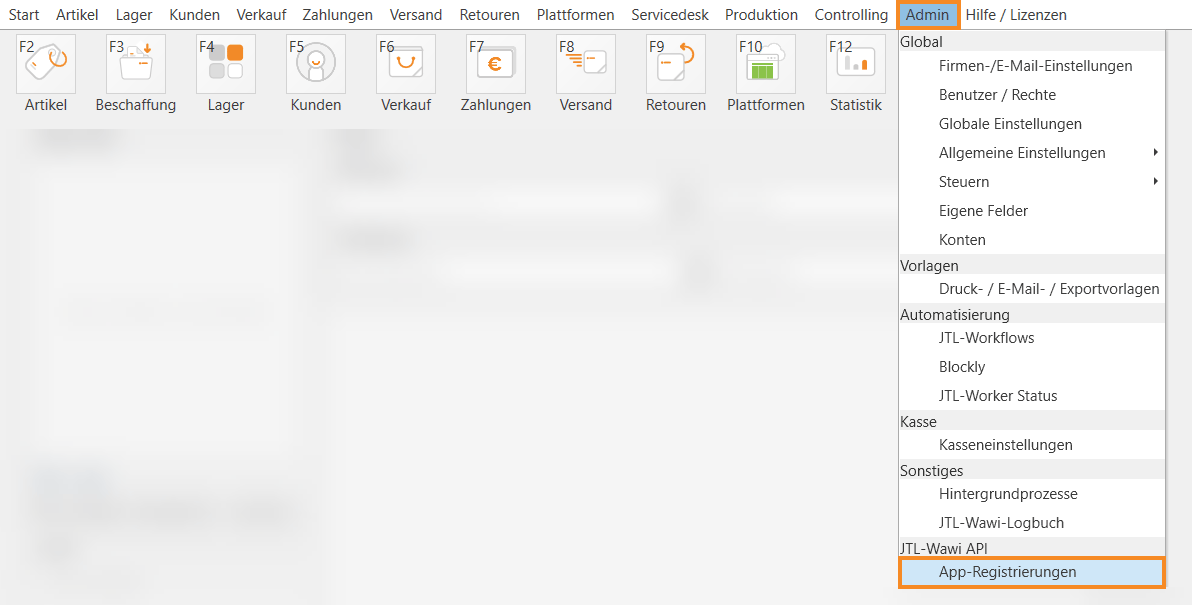
1. Open JTL-Wawi and go to **Admin → JTL-Wawi API → App Registration** (*App-Registrierungen*).
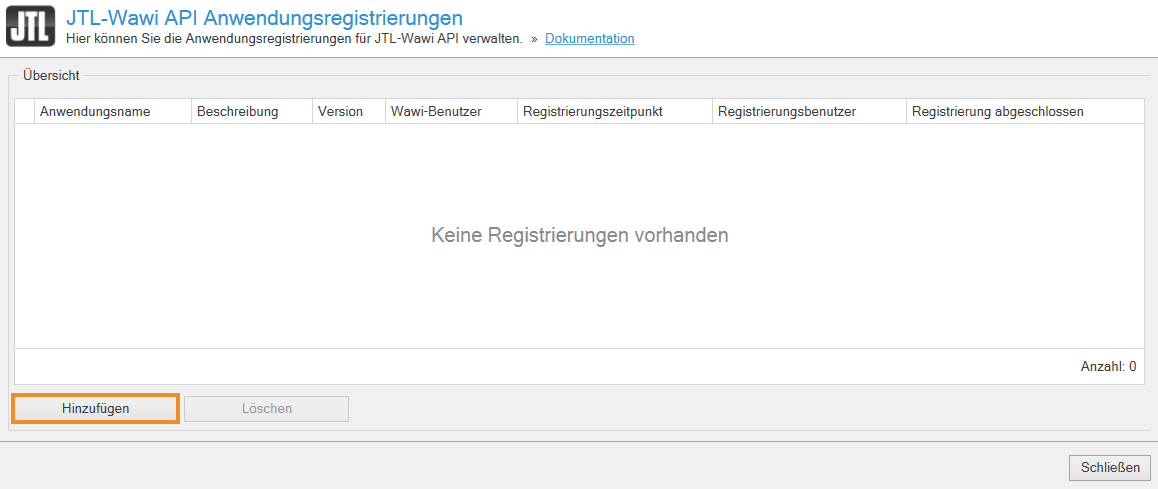
 2. Click **Add** (*Hinzufügen*). The registration wizard opens.
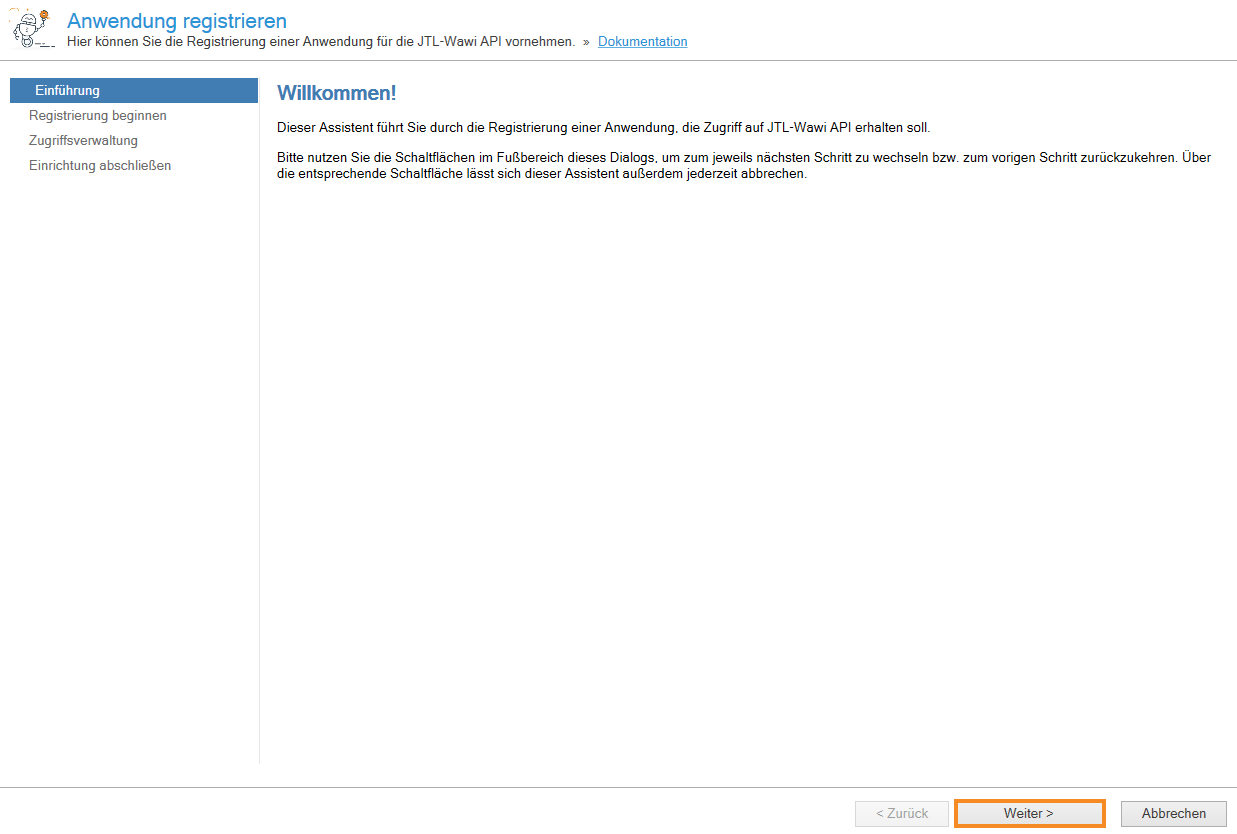
 3. On the introduction page, click **Next** (*Weiter*).
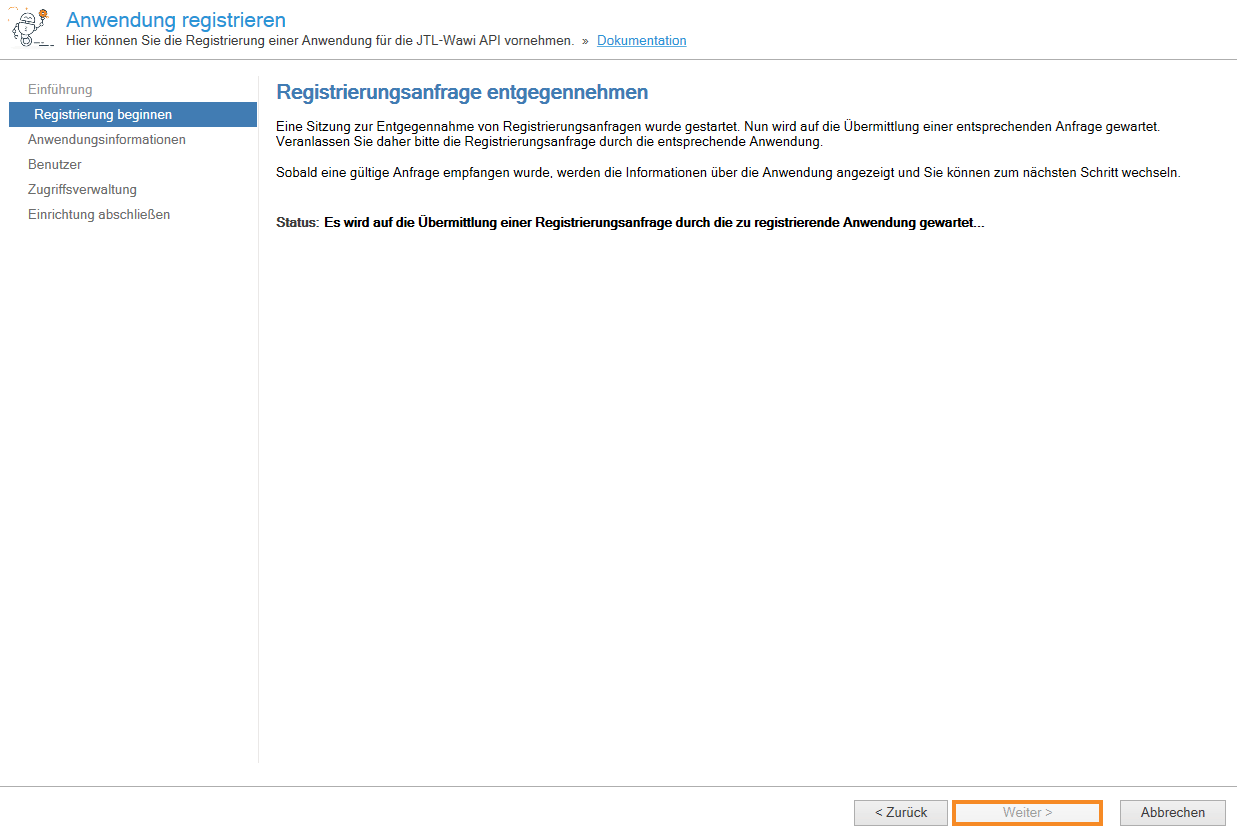
 4. On **Start registration** (*Registrierung beginnen*), JTL-Wawi waits for a registration request from cx. Leave this screen open. The status should say it is waiting for the application to send a request — **Next** stays disabled until then.
 5. Back in cx, click **Connect**. JTL-Wawi should show application details for **chatarmin/v1** / **chatarmin.com** (*chatarmin.com GmbH*).
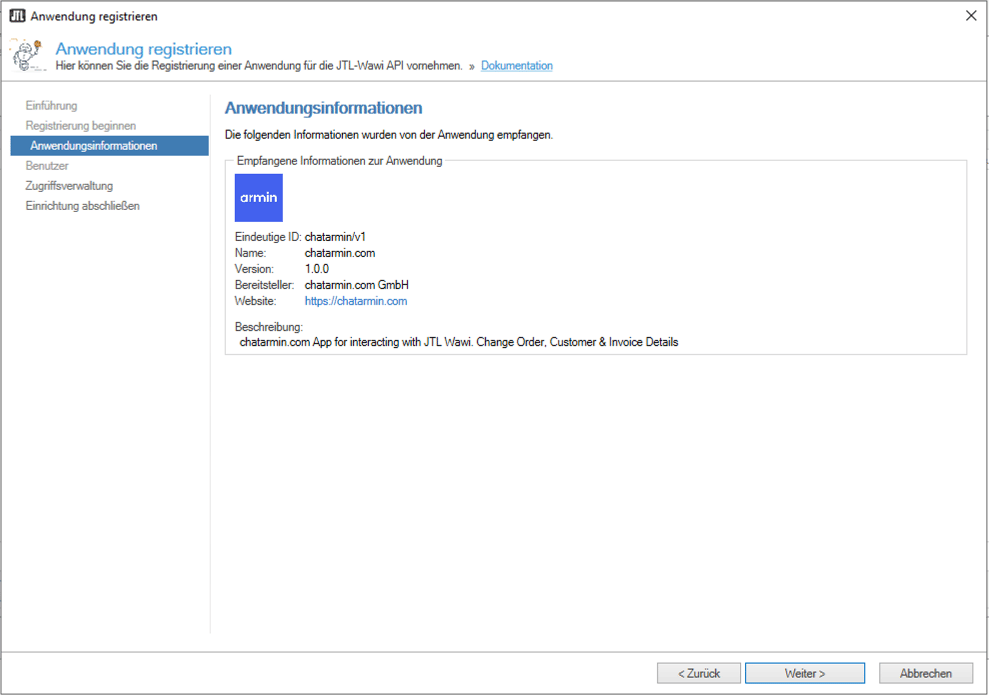 6. In JTL-Wawi, click **Next**, set the API username (recommended: **`chatarmin/v1`**), click **Next** through access management, and finish the wizard.
7. In cx, enter the same username and click **Finish Setup**.
## Use JTL Wawi in the inbox
When a ticket contact matches a Wawi customer, order context can appear in the ticket sidebar. Agents see order details without switching to Wawi.
## AI Agent actions
JTL Wawi actions can let AI Agents:
* get an order
* get tracking information
* update a shipping address
* update custom fields or delivery dates
* cancel an order (with cancellation reason where configured)
Keep write actions on **approval** until test runs match your warehouse rules. Existing workflows can still use JTL actions for fixed legacy flows.
## Best practices
* Use the **database name** in the URL path; wrong paths cause connection or auth failures that look like generic errors.
* Document your public URL and firewall rules with whoever manages Proxmox or hosting — cx cannot fix datacenter firewall from the product.
* Prefer HTTPS once a certificate is stored in Wawi; use HTTP only when Wawi serves the API without TLS.
## Troubleshooting
| Symptom | Likely cause | What to do |
| ----------------------------------------------- | --------------------------------------- | ------------------------------------------------------------------------------------------------------------------------------------------------------------- |
| **Failed to connect to JTL server** | cx cannot reach your API port (timeout) | Open Windows + hypervisor + provider firewall on the **same port as in the URL**; confirm API service is running; verify public host/IP and database segment. |
| **Invalid URL** | Malformed server URL in cx | Use `https://host:port/api/eazybusiness` (or your database name) with no trailing path beyond the database segment. |
| **Registration not yet approved** | App not approved in Wawi | Approve **chatarmin/v1** under Admin → App Registration, then click **Finish Setup** again. |
| Connection works from office PC but not from cx | Private IP or LAN-only firewall rule | Use public IP/hostname and allow inbound from the internet (or from Chatarmin egress IPs). |
| HTTPS fails, HTTP works | No certificate in Wawi | Use `http://` in the server URL or install/store a certificate in Wawi. |
For REST field reference after the connection works, see the [JTL Wawi API documentation](https://wawi-api.jtl-software.com/) (vendor reference).
6. In JTL-Wawi, click **Next**, set the API username (recommended: **`chatarmin/v1`**), click **Next** through access management, and finish the wizard.
7. In cx, enter the same username and click **Finish Setup**.
## Use JTL Wawi in the inbox
When a ticket contact matches a Wawi customer, order context can appear in the ticket sidebar. Agents see order details without switching to Wawi.
## AI Agent actions
JTL Wawi actions can let AI Agents:
* get an order
* get tracking information
* update a shipping address
* update custom fields or delivery dates
* cancel an order (with cancellation reason where configured)
Keep write actions on **approval** until test runs match your warehouse rules. Existing workflows can still use JTL actions for fixed legacy flows.
## Best practices
* Use the **database name** in the URL path; wrong paths cause connection or auth failures that look like generic errors.
* Document your public URL and firewall rules with whoever manages Proxmox or hosting — cx cannot fix datacenter firewall from the product.
* Prefer HTTPS once a certificate is stored in Wawi; use HTTP only when Wawi serves the API without TLS.
## Troubleshooting
| Symptom | Likely cause | What to do |
| ----------------------------------------------- | --------------------------------------- | ------------------------------------------------------------------------------------------------------------------------------------------------------------- |
| **Failed to connect to JTL server** | cx cannot reach your API port (timeout) | Open Windows + hypervisor + provider firewall on the **same port as in the URL**; confirm API service is running; verify public host/IP and database segment. |
| **Invalid URL** | Malformed server URL in cx | Use `https://host:port/api/eazybusiness` (or your database name) with no trailing path beyond the database segment. |
| **Registration not yet approved** | App not approved in Wawi | Approve **chatarmin/v1** under Admin → App Registration, then click **Finish Setup** again. |
| Connection works from office PC but not from cx | Private IP or LAN-only firewall rule | Use public IP/hostname and allow inbound from the internet (or from Chatarmin egress IPs). |
| HTTPS fails, HTTP works | No certificate in Wawi | Use `http://` in the server URL or install/store a certificate in Wawi. |
For REST field reference after the connection works, see the [JTL Wawi API documentation](https://wawi-api.jtl-software.com/) (vendor reference).