> ## Documentation Index
> Fetch the complete documentation index at: https://docs.armin.cx/llms.txt
> Use this file to discover all available pages before exploring further.
# Gorgias
> Sync Gorgias helpdesk data into Chatarmin CX.
The Gorgias integration helps transfer helpdesk data into Chatarmin CX.
## Set up Gorgias
Go to **Integrations** and choose **Gorgias**.
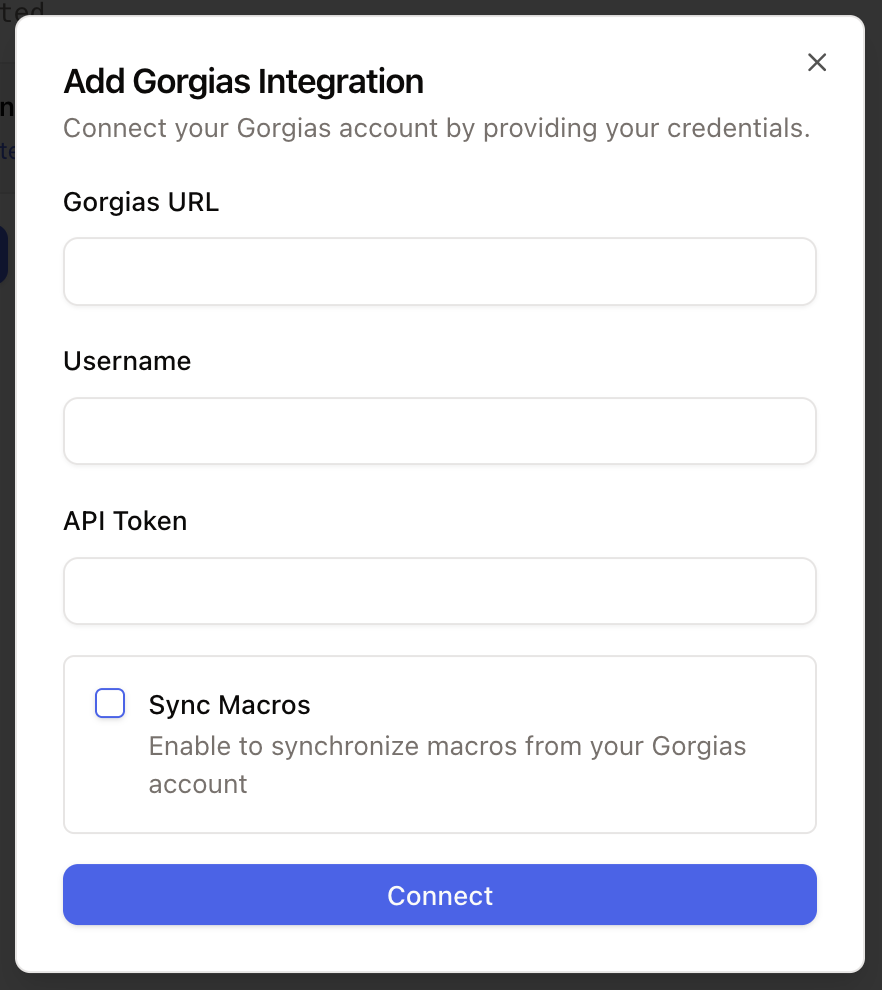
Click **Connect**, add an account, enter your credentials, and grant the requested permissions.
 ## Migrate historical tickets
For a one-time historical import from a connected Gorgias account, use the [Gorgias ticket import](/integrations/ticket-import/gorgias) migration wizard.
## Use Gorgias
After the integration is connected, Chatarmin CX can use synced Gorgias data in the inbox.
## Migrate historical tickets
For a one-time historical import from a connected Gorgias account, use the [Gorgias ticket import](/integrations/ticket-import/gorgias) migration wizard.
## Use Gorgias
After the integration is connected, Chatarmin CX can use synced Gorgias data in the inbox.
