> ## Documentation Index
> Fetch the complete documentation index at: https://docs.armin.cx/llms.txt
> Use this file to discover all available pages before exploring further.
# Tickets
> Work with customer conversations, AI drafts, status, assignment, and ticket actions.
A ticket is a customer conversation in Chatarmin CX. New customer messages from connected channels create tickets in the inbox.
## What a ticket shows
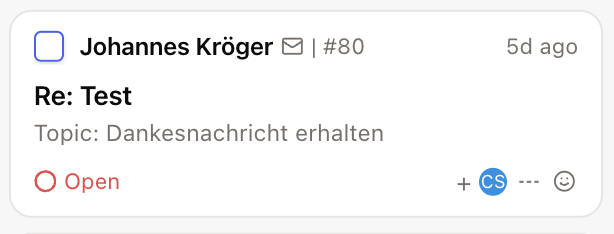
The ticket header and preview show the context agents need before replying:
* contact name
* channel
* ticket number
* creation time
* subject
* AI-generated summary
 ## Ticket actions
Right-click a ticket in the inbox to open the context menu. Use it to keep ownership and reporting accurate:
* change status: open, on hold, resolved, or closed
* add or remove tags
* assign an agent or team
* set priority
* set sentiment
* change ticket language
* snooze the ticket
* copy the ticket ID or link from the **Copy** submenu
* export the ticket
* merge duplicate tickets
* delete or restore the ticket when your permissions allow it
Selected values show a checkmark on the right. Assignee and tag submenus are searchable.
## Ticket actions
Right-click a ticket in the inbox to open the context menu. Use it to keep ownership and reporting accurate:
* change status: open, on hold, resolved, or closed
* add or remove tags
* assign an agent or team
* set priority
* set sentiment
* change ticket language
* snooze the ticket
* copy the ticket ID or link from the **Copy** submenu
* export the ticket
* merge duplicate tickets
* delete or restore the ticket when your permissions allow it
Selected values show a checkmark on the right. Assignee and tag submenus are searchable.
 ## Translate conversations
You can translate a ticket manually from the context menu, or turn on **Auto-translate inbox** in **Settings** → **Account** → **Ticket preferences**.
When auto-translate is enabled and the ticket language differs from your working language:
* messages stay readable on first open
* a banner shows **Translating from** while bulk translation runs, then **Translated from** when it finishes
* individual messages show a small **Translating…** indicator in the header while that row is still loading
You can still switch between original and translated text for the ticket.
## Marketing consent
When marketing consent is enabled for your workspace, the customer info panel shows consent for each of the contact's email and WhatsApp identifiers.
You can:
* see the current subscription status per identifier
* update consent when your permissions allow it
* open **History** to review who changed consent, when, and why
The same consent card appears on the contact profile when you manage customers outside a ticket.
## Reply to a customer
The conversation history appears above the reply area. Use the reply area to send customer replies, internal notes, or forwards.
For email tickets, turn on **Attach ticket conversation** in **Settings** → **Ticket settings** → **Email replies** to include previous messages in outbound emails by default. Agents can still add or remove history from the reply toolbar before sending.
Some channels enforce a maximum reply length. When a limit applies, the composer shows a live character counter. If you go over the limit, the send button stays disabled and you see an explicit warning. Character limits apply to customer replies only — internal notes are not capped.
## Translate conversations
You can translate a ticket manually from the context menu, or turn on **Auto-translate inbox** in **Settings** → **Account** → **Ticket preferences**.
When auto-translate is enabled and the ticket language differs from your working language:
* messages stay readable on first open
* a banner shows **Translating from** while bulk translation runs, then **Translated from** when it finishes
* individual messages show a small **Translating…** indicator in the header while that row is still loading
You can still switch between original and translated text for the ticket.
## Marketing consent
When marketing consent is enabled for your workspace, the customer info panel shows consent for each of the contact's email and WhatsApp identifiers.
You can:
* see the current subscription status per identifier
* update consent when your permissions allow it
* open **History** to review who changed consent, when, and why
The same consent card appears on the contact profile when you manage customers outside a ticket.
## Reply to a customer
The conversation history appears above the reply area. Use the reply area to send customer replies, internal notes, or forwards.
For email tickets, turn on **Attach ticket conversation** in **Settings** → **Ticket settings** → **Email replies** to include previous messages in outbound emails by default. Agents can still add or remove history from the reply toolbar before sending.
Some channels enforce a maximum reply length. When a limit applies, the composer shows a live character counter. If you go over the limit, the send button stays disabled and you see an explicit warning. Character limits apply to customer replies only — internal notes are not capped.
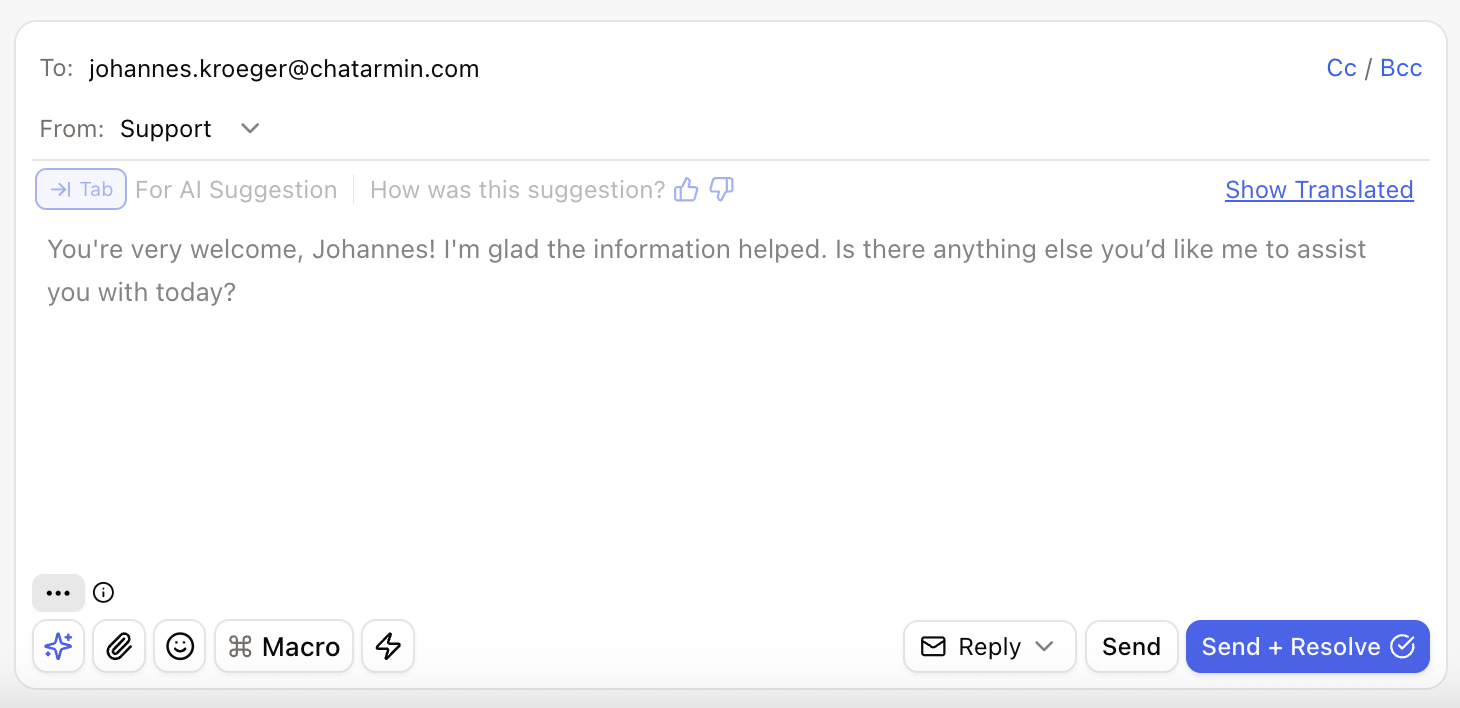 When AI has enough context, it drafts a response. Press **Tab** to accept the draft, then edit or send it.
You can also:
* give AI feedback with the star button
* add attachments and emojis
* insert a macro
* use available AI Agent or legacy workflow actions
* send and resolve in one action
When you forward a message, attachment-only messages are included in the forwarded content. Files from the conversation can be appended to the composer, with image and file previews matching the message viewer.
## Failed outbound messages
When a reply fails to send, the message shows an inline error footer under the bubble with the failure reason and a recovery action.
Depending on the failure type, you may see:
* **Retry now** for transient errors
* **Open Channel Settings** or **Reconnect** when the channel needs attention, such as expired OAuth for Gmail or Microsoft
* no action when retry would not help, such as spam or unsubscribe blocks
Fix channel connection issues before retrying when reconnect is shown.
## Order actions from the inbox
When a Shopify order appears in the ticket sidebar, open the order actions menu to run supported operations without leaving the ticket:
* cancel order
* refund
* reorder
* edit order details such as shipping address, tags, or notes
Each action opens a confirmation dialog. After it completes, Chatarmin CX adds a ticket note with a summary of what changed.
## Best practices
* Resolve tickets only when the customer issue is complete.
* Use internal notes for team context that customers should not see.
* Keep tags and ticket fields updated before resolving, so reporting stays useful.
* Use macros for repeated answers, then edit the final reply for the specific customer.
## Take over from Classic AI
On WhatsApp, Instagram, and Widget, assign the ticket **and** send a reply to stop Classic AI auto-sending. On Email, assignment alone is enough. These steps do not apply to AI Agents.
Full steps: [Take over from Classic AI](/troubleshooting/take-over-from-ai). For AI Agents, see [Routing and ownership](/ai-agents/routing-and-ownership).
Learn more about [tags](/inbox/tags), [macros](/macros/intro), and [ticket fields](/ticket-fields/intro).
When AI has enough context, it drafts a response. Press **Tab** to accept the draft, then edit or send it.
You can also:
* give AI feedback with the star button
* add attachments and emojis
* insert a macro
* use available AI Agent or legacy workflow actions
* send and resolve in one action
When you forward a message, attachment-only messages are included in the forwarded content. Files from the conversation can be appended to the composer, with image and file previews matching the message viewer.
## Failed outbound messages
When a reply fails to send, the message shows an inline error footer under the bubble with the failure reason and a recovery action.
Depending on the failure type, you may see:
* **Retry now** for transient errors
* **Open Channel Settings** or **Reconnect** when the channel needs attention, such as expired OAuth for Gmail or Microsoft
* no action when retry would not help, such as spam or unsubscribe blocks
Fix channel connection issues before retrying when reconnect is shown.
## Order actions from the inbox
When a Shopify order appears in the ticket sidebar, open the order actions menu to run supported operations without leaving the ticket:
* cancel order
* refund
* reorder
* edit order details such as shipping address, tags, or notes
Each action opens a confirmation dialog. After it completes, Chatarmin CX adds a ticket note with a summary of what changed.
## Best practices
* Resolve tickets only when the customer issue is complete.
* Use internal notes for team context that customers should not see.
* Keep tags and ticket fields updated before resolving, so reporting stays useful.
* Use macros for repeated answers, then edit the final reply for the specific customer.
## Take over from Classic AI
On WhatsApp, Instagram, and Widget, assign the ticket **and** send a reply to stop Classic AI auto-sending. On Email, assignment alone is enough. These steps do not apply to AI Agents.
Full steps: [Take over from Classic AI](/troubleshooting/take-over-from-ai). For AI Agents, see [Routing and ownership](/ai-agents/routing-and-ownership).
Learn more about [tags](/inbox/tags), [macros](/macros/intro), and [ticket fields](/ticket-fields/intro).