> ## Documentation Index
> Fetch the complete documentation index at: https://docs.armin.cx/llms.txt
> Use this file to discover all available pages before exploring further.
# Inbox
> Use the inbox to manage every customer conversation from one place.
The inbox is where your team reads, routes, replies to, and resolves customer conversations from every connected channel.
## What the inbox does
Use the inbox to:
* see all open customer conversations in one place
* segment work with saved views and subviews
* assign tickets to agents or teams
* apply tags, priorities, sentiment, and custom ticket fields
* reply with AI drafts, macros, internal notes, forwards, and automation actions
 ## Core concepts
Every customer conversation becomes a ticket with status, assignee, channel, and context.
Save filtered ticket lists for teams, brands, shops, languages, or automation reviews.
Add structured context to tickets manually, through rules, or with auto-tagging.
Send consistent replies faster and give AI examples of your brand voice.
Email suppliers, carriers, or partners from a ticket without mixing those threads into the customer conversation.
Apply response-time targets and surface breaches in the inbox.
Detect, tag, resolve, and block spam before it clutters open queues.
## Create a subview
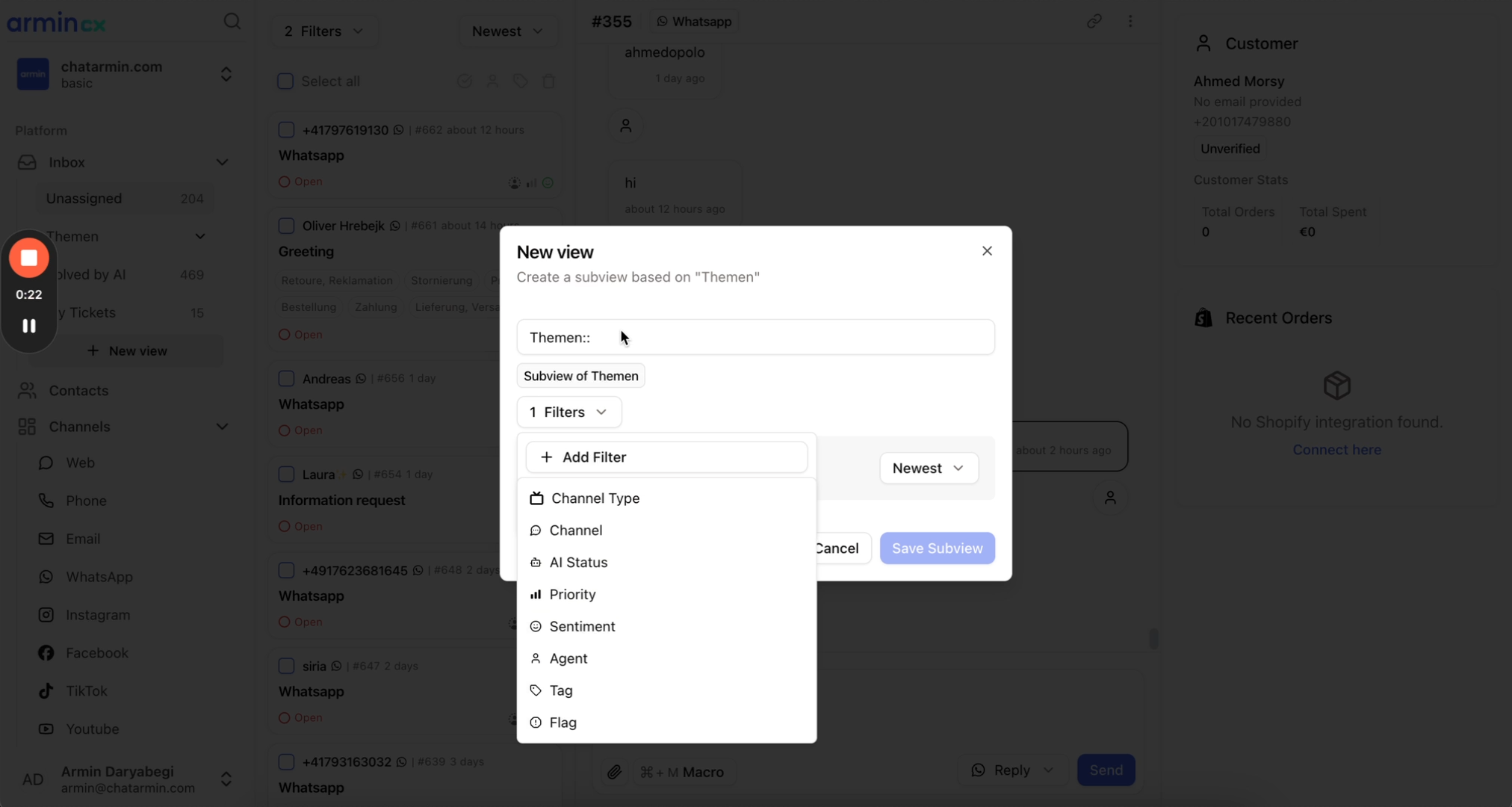
Subviews inherit the parent view's filters when you create them. After creation, the subview keeps its own filter set.
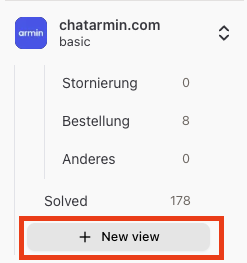
In the inbox sidebar, click **Add view**.
## Core concepts
Every customer conversation becomes a ticket with status, assignee, channel, and context.
Save filtered ticket lists for teams, brands, shops, languages, or automation reviews.
Add structured context to tickets manually, through rules, or with auto-tagging.
Send consistent replies faster and give AI examples of your brand voice.
Email suppliers, carriers, or partners from a ticket without mixing those threads into the customer conversation.
Apply response-time targets and surface breaches in the inbox.
Detect, tag, resolve, and block spam before it clutters open queues.
## Create a subview
Subviews inherit the parent view's filters when you create them. After creation, the subview keeps its own filter set.
In the inbox sidebar, click **Add view**.
 Use the format `Parent view::Subview name`.
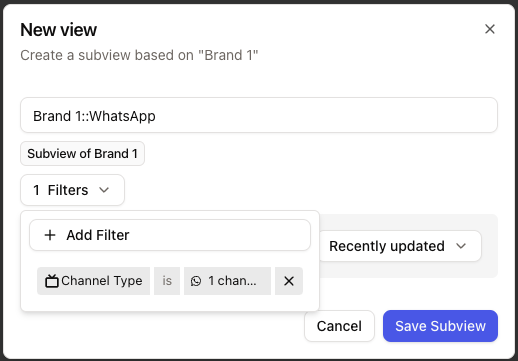 Change the subview filters to match the tickets it should show.
Updating a subview does not change the parent view. The subview only shows tickets that match the filters saved on the subview itself.
## Watch the walkthrough
[Watch the 2-minute views and subviews walkthrough](https://www.loom.com/share/d98563e266114832ba2d3e531f593ad6?sid=d9e4c57a-f299-4fd6-862d-74db2b799222)
Change the subview filters to match the tickets it should show.
Updating a subview does not change the parent view. The subview only shows tickets that match the filters saved on the subview itself.
## Watch the walkthrough
[Watch the 2-minute views and subviews walkthrough](https://www.loom.com/share/d98563e266114832ba2d3e531f593ad6?sid=d9e4c57a-f299-4fd6-862d-74db2b799222)