> ## Documentation Index
> Fetch the complete documentation index at: https://docs.armin.cx/llms.txt
> Use this file to discover all available pages before exploring further.
# Attachment and link security
> Dangerous attachments are quarantined, disguised links are disabled, and affected tickets are flagged before anyone opens them.
Chatarmin CX checks incoming files and links so an agent cannot open malware or a disguised download by accident. Protection is on for every workspace and needs no setup.
## What it does
* **Dangerous attachments are quarantined.** Executables, scripts, and files that hide a program behind a document name (like `invoice.pdf.exe`) never appear as normal attachments. The ticket is still created and the rest of the message is untouched.
* **Disguised links are disabled or need a confirmation.** A link that looks like `Scan_2026.pdf` but leads to an executable cannot be clicked.
* **Affected tickets are flagged as suspicious.** Filter by **Suspicious** to review them before anyone opens them.
* **Every override is logged.** Downloading a quarantined file or opening a flagged link is recorded with the agent, ticket, and time.
## Quarantined attachments
Chatarmin CX inspects the real content of every incoming email attachment, not just its name. Files are held in quarantine when they are:
* **programs, disk images, or Windows shortcuts**, detected by their content regardless of the file name
* **named with an executable or script extension** such as `invoice.pdf.exe`, `.bat`, `.vbs`, `.js`, `.ps1`, `.msi`, `.lnk`, `.iso`, or `.jar`, even if the content looks harmless
* **HTML, SVG, or JavaScript files**, because they can run code in the browser
Everything else passes as before: PDFs, images, Office documents, archives, voice messages, and unknown file types.
Chatarmin CX does not scan allowed files for viruses. A PDF or Office document with a malicious macro still arrives as a normal attachment. Treat unexpected files from unknown senders with care.
### What the team sees
A quarantined file is stored separately from the conversation. It has no preview, it is not included in **Download all**, and AI Agents cannot read it.
* The conversation shows a note: **Attachment `filename` was quarantined for security**.
* The attachments section in the ticket sidebar shows a red **Quarantined** group with the file name and the reason.
 ### Download a quarantined file
Only download a quarantined file when you have confirmed with the sender, through another channel, that they really sent it.
Open the ticket in the [Inbox](https://armin.cx/app/_/inbox) and expand the attachments section in the sidebar.
Hover over the file in the **Quarantined** group and click the download icon.
The dialog **Download quarantined file?** explains why the file was blocked. Click **Download anyway** to save it to your computer.
The file is downloaded as a plain file without a preview. Each download is written to the security log. There is no way to move a file out of quarantine back into the conversation.
### Contact forms
File uploads on [contact forms](/channels/contact-form/intro) run through the same check. A dangerous file is rejected while the visitor is still on the form, so they can choose a different file. Nothing is quarantined in that case.
Attachment checks currently cover incoming email and contact-form uploads. Files that arrive through other channels are stored as before.
## Disguised links
Attackers often show a link as a document while it leads to a program. Chatarmin CX compares the link text with the real target on every message it displays, including older messages.
A link is flagged when its text ends in a document, image, or archive extension such as `.pdf`, `.docx`, `.jpg`, or `.zip`, while the real address ends in a different extension.
| Real target | What happens |
| ---------------------------------------------------------------------- | ----------------------------------------------------------------------------------------------------------------------------------------------------------------- |
| A program or script, for example `.exe`, `.pif`, `.bat`, `.js`, `.lnk` | The link is disabled. It appears red and struck through and cannot be clicked. |
| Any other mismatching file type | Clicking opens the dialog **Open suspicious link?**, which shows the real address. **Open anyway** opens it in a new tab and writes an entry to the security log. |
A message with at least one flagged link shows the banner **This message contains links that may be deceptive** above the content.
### Download a quarantined file
Only download a quarantined file when you have confirmed with the sender, through another channel, that they really sent it.
Open the ticket in the [Inbox](https://armin.cx/app/_/inbox) and expand the attachments section in the sidebar.
Hover over the file in the **Quarantined** group and click the download icon.
The dialog **Download quarantined file?** explains why the file was blocked. Click **Download anyway** to save it to your computer.
The file is downloaded as a plain file without a preview. Each download is written to the security log. There is no way to move a file out of quarantine back into the conversation.
### Contact forms
File uploads on [contact forms](/channels/contact-form/intro) run through the same check. A dangerous file is rejected while the visitor is still on the form, so they can choose a different file. Nothing is quarantined in that case.
Attachment checks currently cover incoming email and contact-form uploads. Files that arrive through other channels are stored as before.
## Disguised links
Attackers often show a link as a document while it leads to a program. Chatarmin CX compares the link text with the real target on every message it displays, including older messages.
A link is flagged when its text ends in a document, image, or archive extension such as `.pdf`, `.docx`, `.jpg`, or `.zip`, while the real address ends in a different extension.
| Real target | What happens |
| ---------------------------------------------------------------------- | ----------------------------------------------------------------------------------------------------------------------------------------------------------------- |
| A program or script, for example `.exe`, `.pif`, `.bat`, `.js`, `.lnk` | The link is disabled. It appears red and struck through and cannot be clicked. |
| Any other mismatching file type | Clicking opens the dialog **Open suspicious link?**, which shows the real address. **Open anyway** opens it in a new tab and writes an entry to the security log. |
A message with at least one flagged link shows the banner **This message contains links that may be deceptive** above the content.
 This check targets disguised file downloads. It does not catch links with ordinary text such as “click here” that lead to a phishing page, and it does not replace spam filtering or staff training.
## Suspicious tickets
When an email arrives with a quarantined attachment or a disguised link, the ticket is marked **Suspicious**. Flagged tickets still appear in your normal views — the flag does not hide or move them — so use it to review them before anyone opens them.
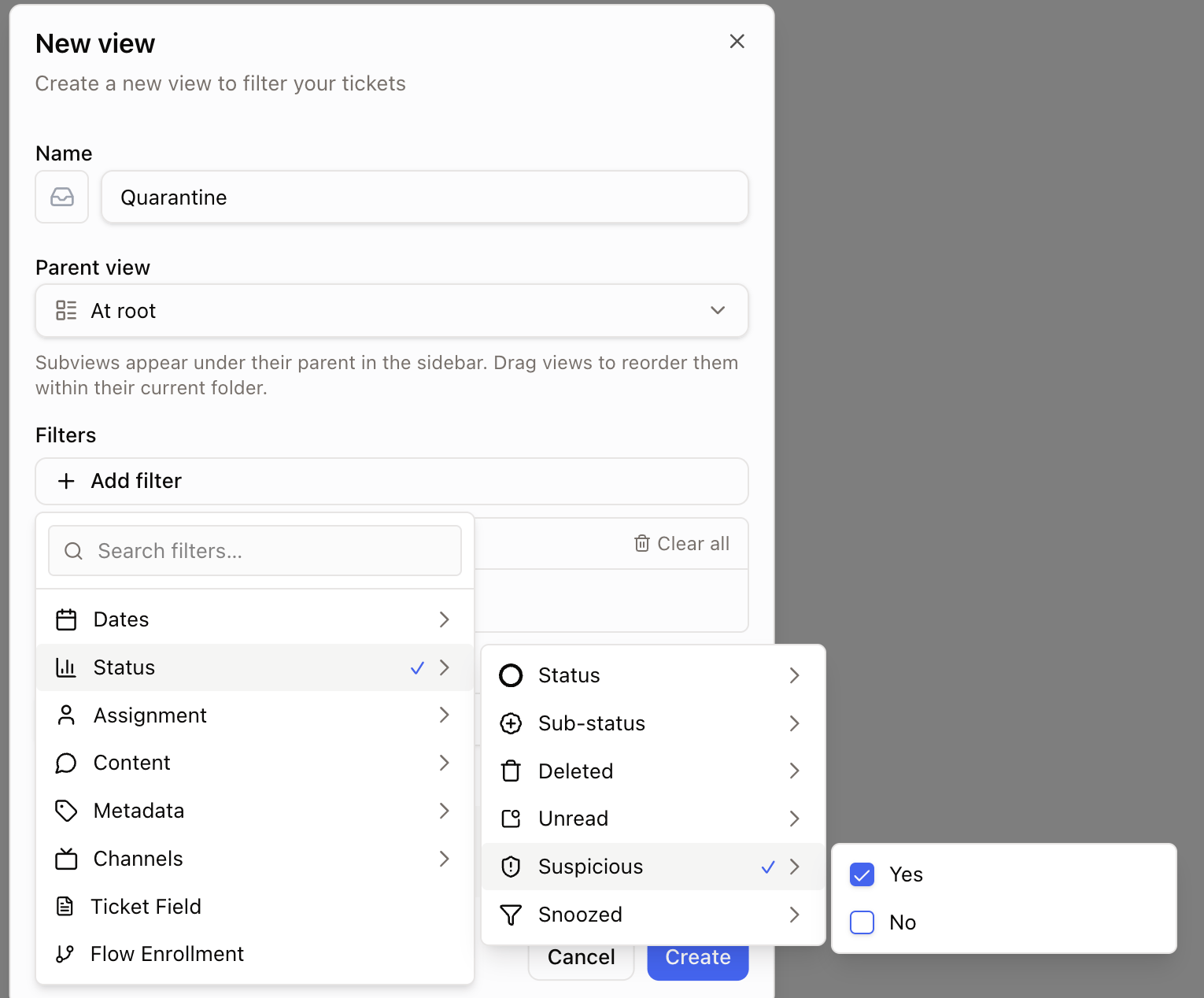
* **Filter.** Add the **Suspicious** filter to the inbox or any saved view to see only flagged tickets. See [Views and filters](/inbox/views-and-filters).
* **Save a Quarantine view.** Filter by **Suspicious**, then save it as a shared view named “Quarantine” so your team triages flagged tickets in one place before opening them.
* **Rules.** Use the **Suspicious** condition in [Rules](/rules/intro), for example to tag the ticket or assign it to whoever handles security.
This check targets disguised file downloads. It does not catch links with ordinary text such as “click here” that lead to a phishing page, and it does not replace spam filtering or staff training.
## Suspicious tickets
When an email arrives with a quarantined attachment or a disguised link, the ticket is marked **Suspicious**. Flagged tickets still appear in your normal views — the flag does not hide or move them — so use it to review them before anyone opens them.
* **Filter.** Add the **Suspicious** filter to the inbox or any saved view to see only flagged tickets. See [Views and filters](/inbox/views-and-filters).
* **Save a Quarantine view.** Filter by **Suspicious**, then save it as a shared view named “Quarantine” so your team triages flagged tickets in one place before opening them.
* **Rules.** Use the **Suspicious** condition in [Rules](/rules/intro), for example to tag the ticket or assign it to whoever handles security.
 The flag is set automatically and stays on the ticket. AI Agents do not treat flagged tickets differently — they only lose access to the quarantined files.
## Security log
Chatarmin CX records who downloaded a quarantined file and who confirmed opening a flagged link, together with the ticket, the file or address, and the time. The log is not shown in the app. Contact Chatarmin support to receive the entries for your workspace.
## Best practices
* Review suspicious tickets daily — filter by **Suspicious**, or save a Quarantine view — and resolve the ones that are clearly phishing.
* Before you click **Download anyway** or **Open anyway**, confirm with the sender by phone or a known address. A genuine customer account can be hijacked and used to send lures.
* Tell customers to send scans as PDF or images. Those pass without friction, while HTML files or shortcuts are always quarantined.
* If an agent confirmed a lure by mistake, change their password immediately and contact Chatarmin support with the ticket number.
## FAQ
**A harmless file was quarantined. What now?**
Download it through the warning dialog if you trust the sender, or ask them to resend it as a PDF, image, or ZIP archive. HTML attachments are quarantined by design.
**Does this protect files that agents send?**
No. The checks apply to incoming messages only.
**How do I get a Quarantine view?**
Filter the inbox by **Suspicious** and save it as a shared view. There is no built-in one — saving it yourself keeps you in control of its name and sharing.
Related: [Spam](/inbox/spam), [Views and filters](/inbox/views-and-filters), [Contact forms](/channels/contact-form/intro).
The flag is set automatically and stays on the ticket. AI Agents do not treat flagged tickets differently — they only lose access to the quarantined files.
## Security log
Chatarmin CX records who downloaded a quarantined file and who confirmed opening a flagged link, together with the ticket, the file or address, and the time. The log is not shown in the app. Contact Chatarmin support to receive the entries for your workspace.
## Best practices
* Review suspicious tickets daily — filter by **Suspicious**, or save a Quarantine view — and resolve the ones that are clearly phishing.
* Before you click **Download anyway** or **Open anyway**, confirm with the sender by phone or a known address. A genuine customer account can be hijacked and used to send lures.
* Tell customers to send scans as PDF or images. Those pass without friction, while HTML files or shortcuts are always quarantined.
* If an agent confirmed a lure by mistake, change their password immediately and contact Chatarmin support with the ticket number.
## FAQ
**A harmless file was quarantined. What now?**
Download it through the warning dialog if you trust the sender, or ask them to resend it as a PDF, image, or ZIP archive. HTML attachments are quarantined by design.
**Does this protect files that agents send?**
No. The checks apply to incoming messages only.
**How do I get a Quarantine view?**
Filter the inbox by **Suspicious** and save it as a shared view. There is no built-in one — saving it yourself keeps you in control of its name and sharing.
Related: [Spam](/inbox/spam), [Views and filters](/inbox/views-and-filters), [Contact forms](/channels/contact-form/intro).