Web-Widget
Introduction
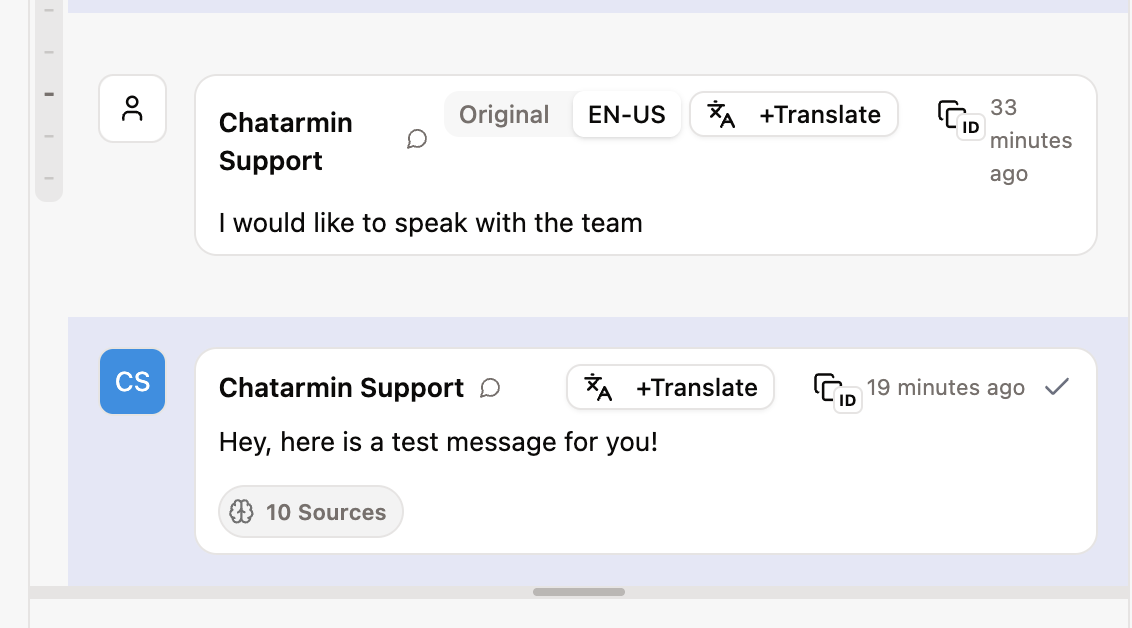
The Web Widget is a website pop-up widget that allows businesses to offer both an AI chatbot and live chat support directly on their website.
It enables real-time communication with visitors, helps answer questions instantly, and creates a seamless support experience without forcing customers to leave the page.
The widget can be used for:
AI-powered automated support
Live chat with human agents
A hybrid setup combining AI and human escalation
AI Handling & Escalation
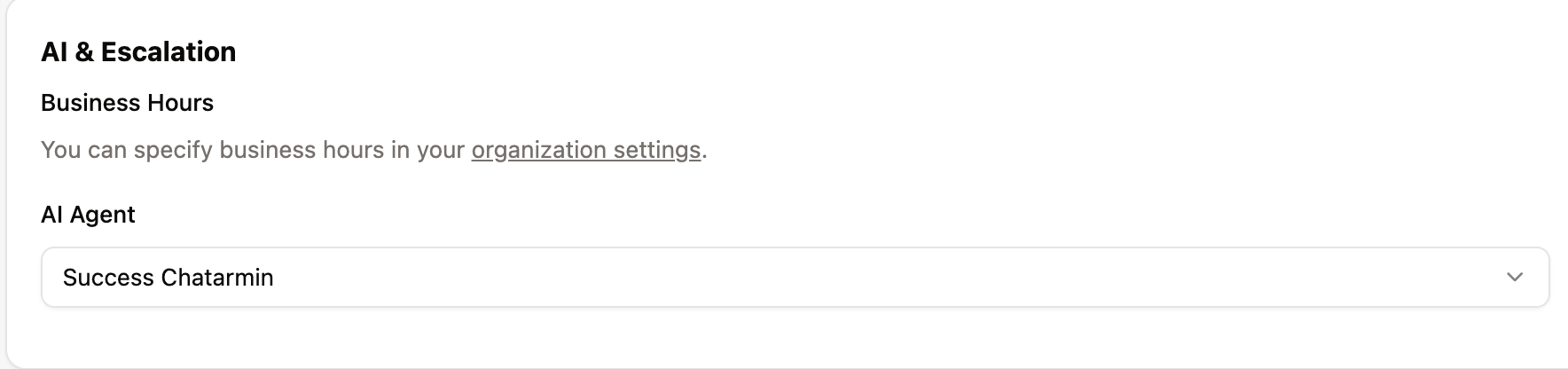
You can select a specific AI Agent to manage incoming conversations in the Web Widget.
The AI can:
Automatically answer frequently asked questions
Guide users through predefined workflows
Collect relevant information
Escalate conversations to human agents when needed
Escalation can be configured based in the AI Agent on:
Customer intent
Specific keywords
Confidence thresholds
Manual request for a human agent
This ensures efficiency while maintaining a high-quality support experience.
Installation
Installation is simple and requires adding a script to your website.
To install the Web Widget:
Copy the provided code snippet.
Paste the code snippet before the closing </body> tag on all pages where you want the widget to appear.
Publish your changes.
Once implemented, the widget will automatically load and be ready for use.
Web Widget Customization
The Web Widget is fully customizable to match your brand and support structure.
You can customize:
Colors and design
Widget position
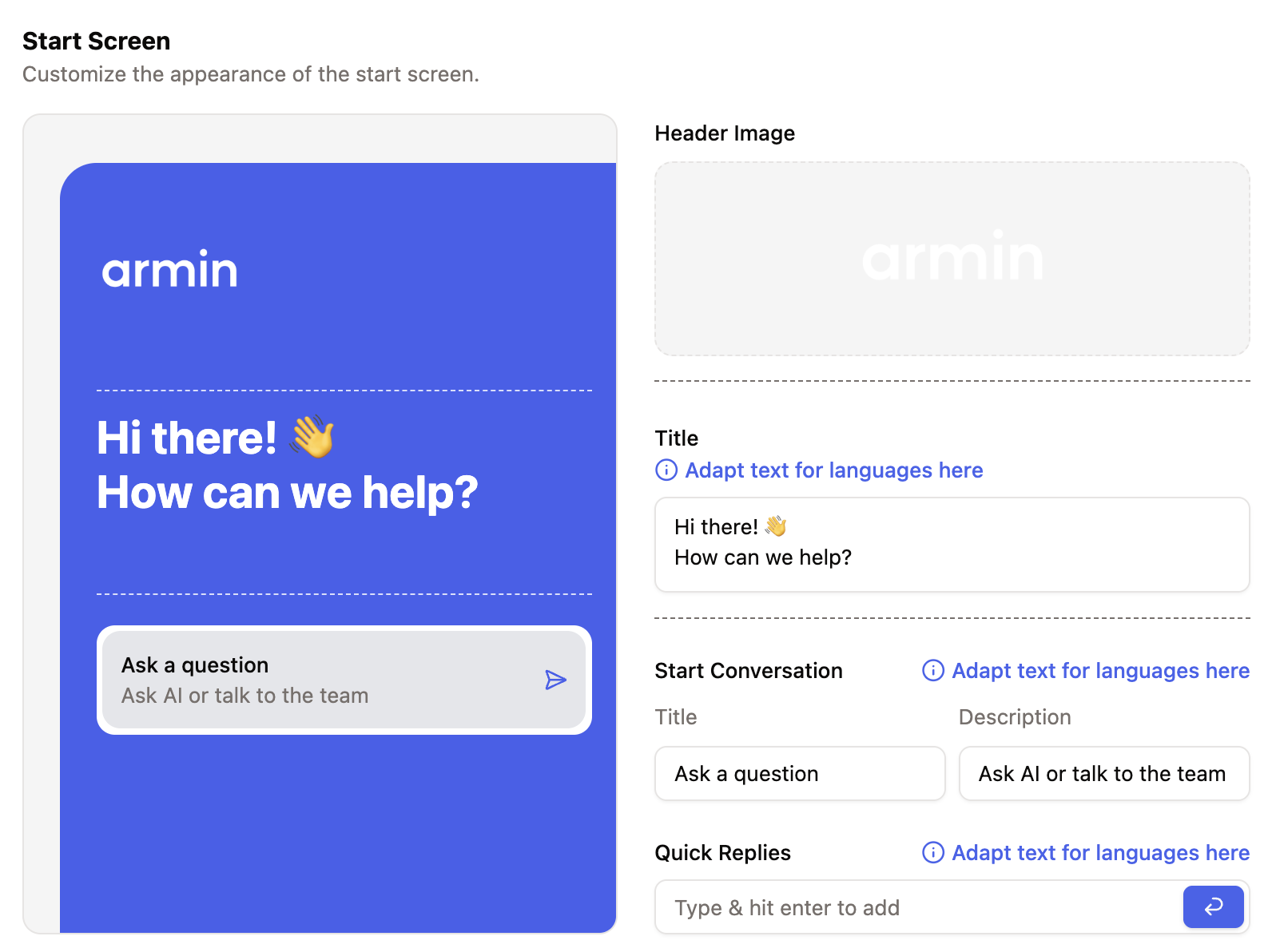
Welcome message
Chat behavior
Additionally, you can configure:
Predefined Buttons
Add predefined quick-reply buttons that trigger specific workflows.
This helps guide users efficiently and reduces friction.
Help Center Integration
You can connect your Help Center to the widget, allowing users to:
Search articles
View suggested solutions
Access FAQs directly within the chat interface
This reduces ticket volume and empowers customers with self-service options.
Navigation Bar & WhatsApp Channel
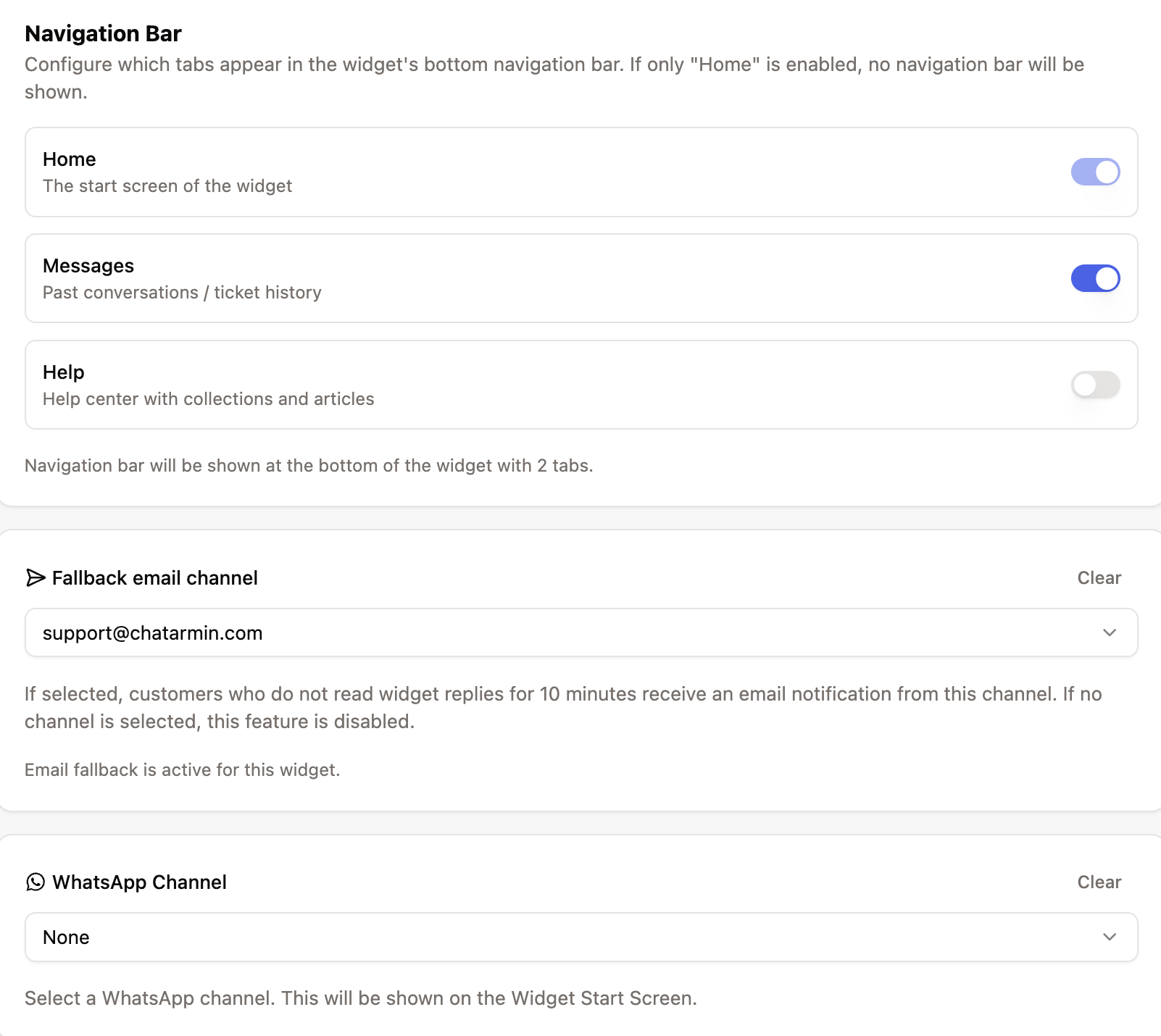
The Navigation Bar within the widget can also be configured.
You can:
Add multiple contact options
Include WhatsApp as an additional channel
Let customers choose their preferred communication method
This creates a true omnichannel experience directly from your website.
Fallback Email Communication
To prevent conversations from being lost when users leave the website, a fallback email option can be configured.

How it works:
If a customer leaves the website during a conversation,
They receive an email notification.
The email contains the conversation history and allows them to continue the discussion.
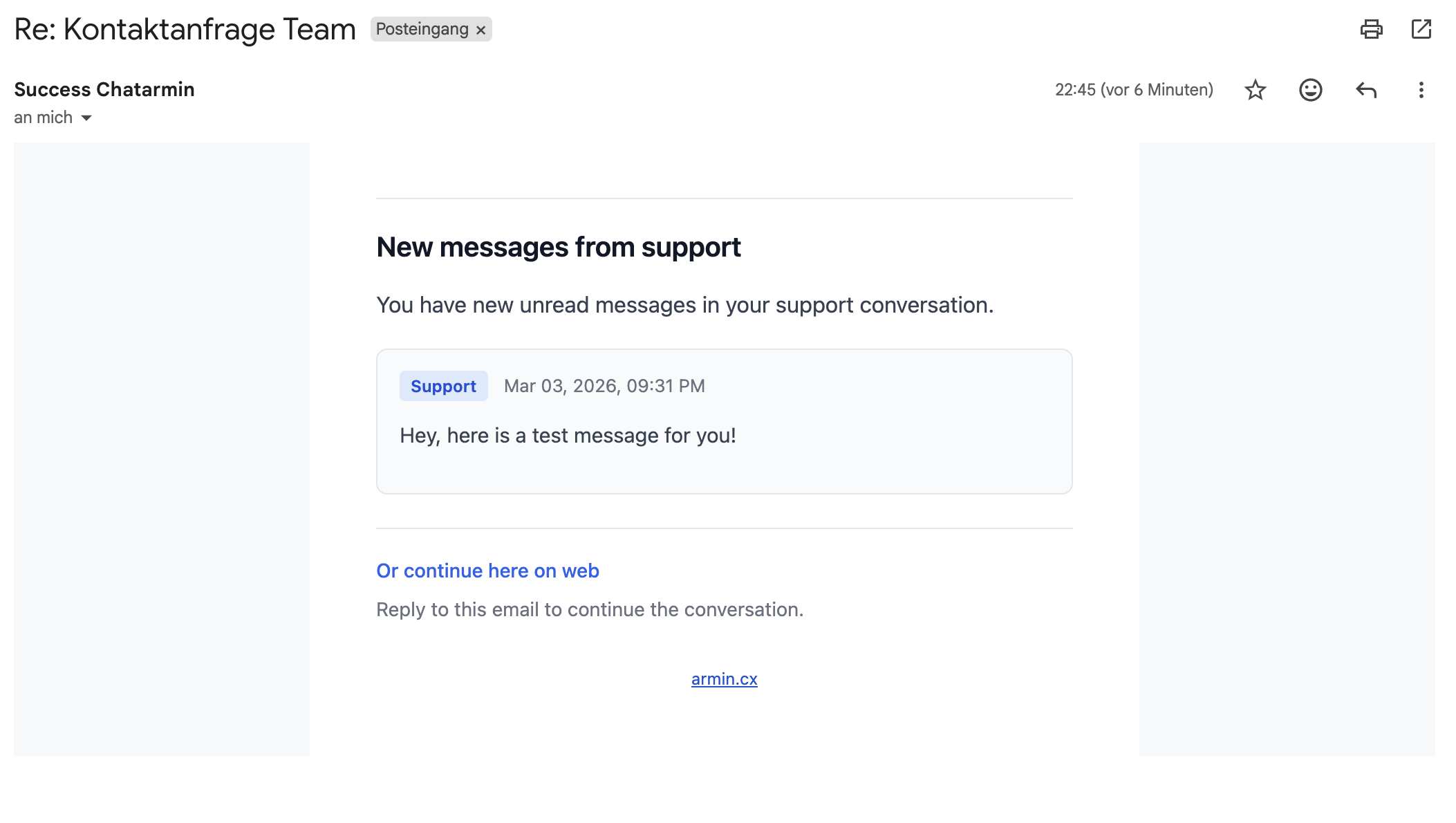
The customer can then decide whether to:
Continue via email, or
Return to the chat widget
All messages remain within the same ticket, ensuring continuity and a unified support experience.