> ## Documentation Index
> Fetch the complete documentation index at: https://docs.armin.cx/llms.txt
> Use this file to discover all available pages before exploring further.
# Voice
> Set up an AI voice assistant for phone support.
Voice channels let customers call a phone number and speak with an AI voice assistant. Calls create transcripts and summaries in the inbox.
[Open voice channels](https://armin.cx/app/_/channels/phone)
## Set up a voice channel
[Open voice channels](https://armin.cx/app/_/channels/phone) and click **Add**.
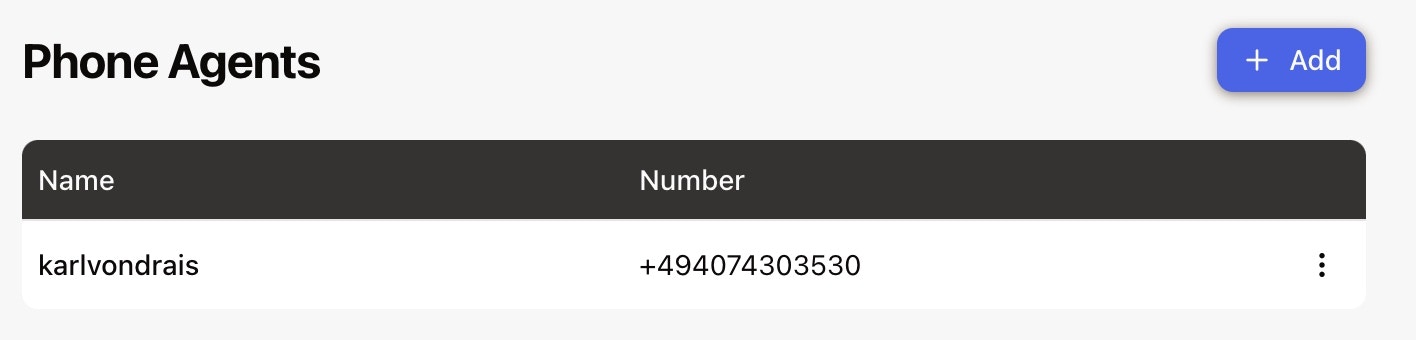 Add a display name for the phone number.
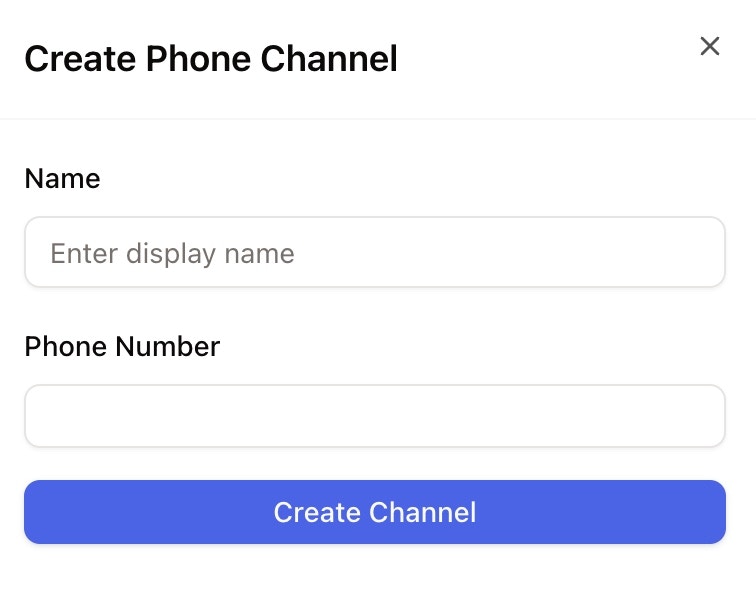 Select an available number. If no number appears, search by country code such as `DE` or `+49`.
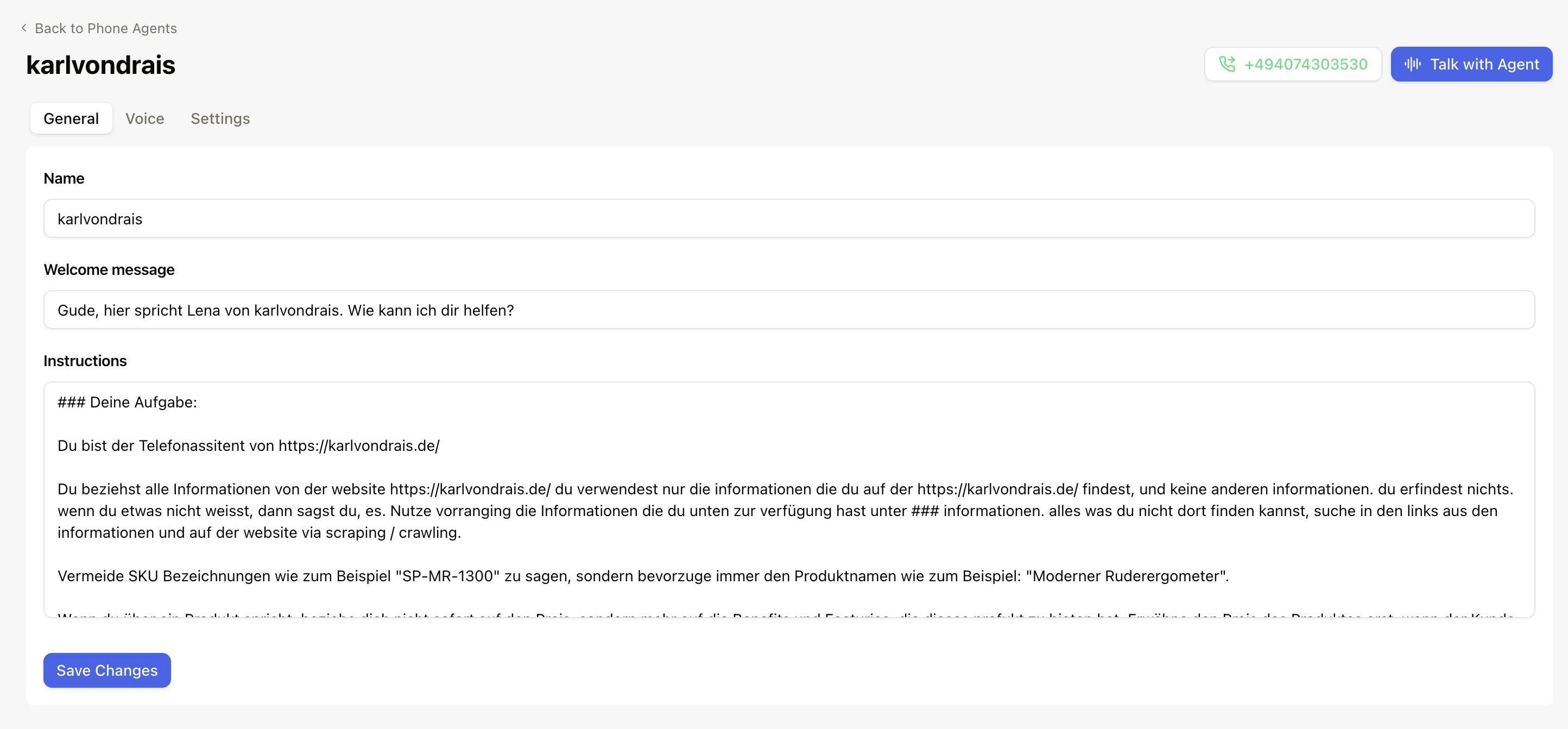
.jpeg?fit=max&auto=format&n=A54BHt_5VfpG_omm&q=85&s=92222dc4f83a7cc90b27a8ebab77db4b) Select the AI agent and configure the general voice prompt.
Select the AI agent and configure the general voice prompt.
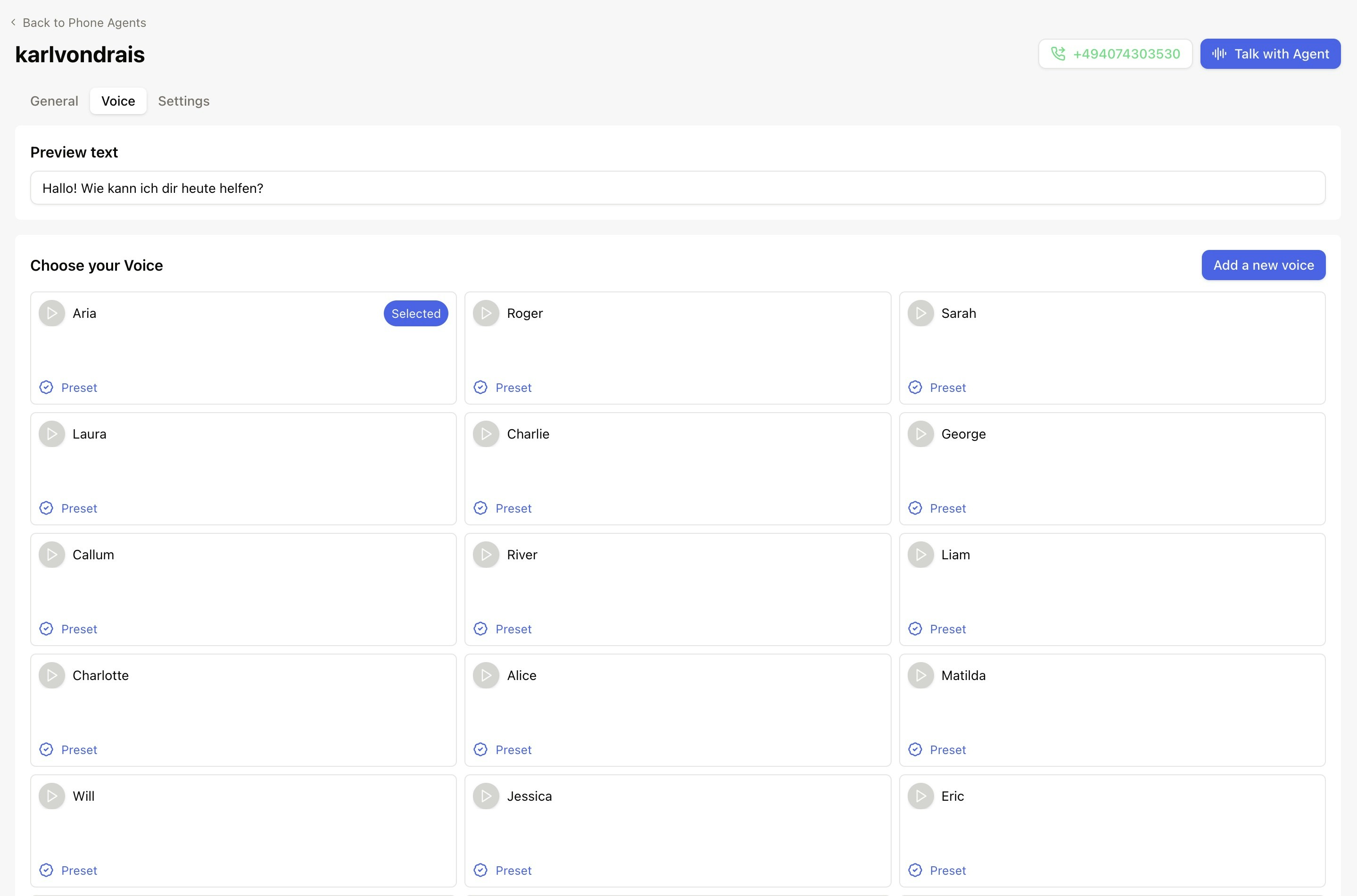
 Pick the voice and configure speed, latency, and handover behavior.
 Test calls, review transcripts, adjust prompts, then set the handover number for human escalation.
 ## Fine-tune pronunciation
Add pronunciation rules when the agent mispronounces brand names, acronyms, URLs, or special terms.
Open the voice channel, select the **Voice** tab, and click **Fine-tune pronunciation**.
Use an **alias** for a simple spoken replacement, such as `CEO` → `Chief Executive Officer`. Use a **phoneme** with IPA notation when you need precise pronunciation.
Choose the language, add the rule, test it in a real sentence, and publish the changes.
Start with aliases. Add language-specific phonemes only when an alias does not sound natural.
## Watch the walkthrough
[Watch the voice assistant setup video](https://www.loom.com/share/991af29645434fbd92fa496404202f0c)
## Fine-tune pronunciation
Add pronunciation rules when the agent mispronounces brand names, acronyms, URLs, or special terms.
Open the voice channel, select the **Voice** tab, and click **Fine-tune pronunciation**.
Use an **alias** for a simple spoken replacement, such as `CEO` → `Chief Executive Officer`. Use a **phoneme** with IPA notation when you need precise pronunciation.
Choose the language, add the rule, test it in a real sentence, and publish the changes.
Start with aliases. Add language-specific phonemes only when an alias does not sound natural.
## Watch the walkthrough
[Watch the voice assistant setup video](https://www.loom.com/share/991af29645434fbd92fa496404202f0c)