> ## Documentation Index
> Fetch the complete documentation index at: https://docs.armin.cx/llms.txt
> Use this file to discover all available pages before exploring further.
# Classic AI sources
> Add the knowledge your Classic AI setup uses to answer customers.
Classic AI sources are the factual knowledge base for the legacy AI setup. Add sources before you enable automatic replies in Classic AI.
Move existing Classic AI automation to AI Agents over time, not only new work. Follow the [migration guide](/ai-agents/migrate-from-classic-ai) to transfer knowledge safely and retire overlapping Classic AI behavior once the replacement is proven. Start with [Getting started](/ai-agents/getting-started), and use the [Classic AI agent list](https://armin.cx/app/_/ai/agents) only during migration or for necessary source maintenance.
## Choose a source
| Source | Best for |
| -------- | -------------------------------------------------------------------------------------------------------- |
| Website | Public product pages, help centers, shipping policies, return policies, campaigns, and store information |
| Files | Stable internal knowledge in PDF, DOCX, CSV, or TXT format |
| Q\&A | One repeated customer question with one clear, stable answer |
| Guidance | Policies with multiple conditions, exceptions, or judgment calls |
## Add website content
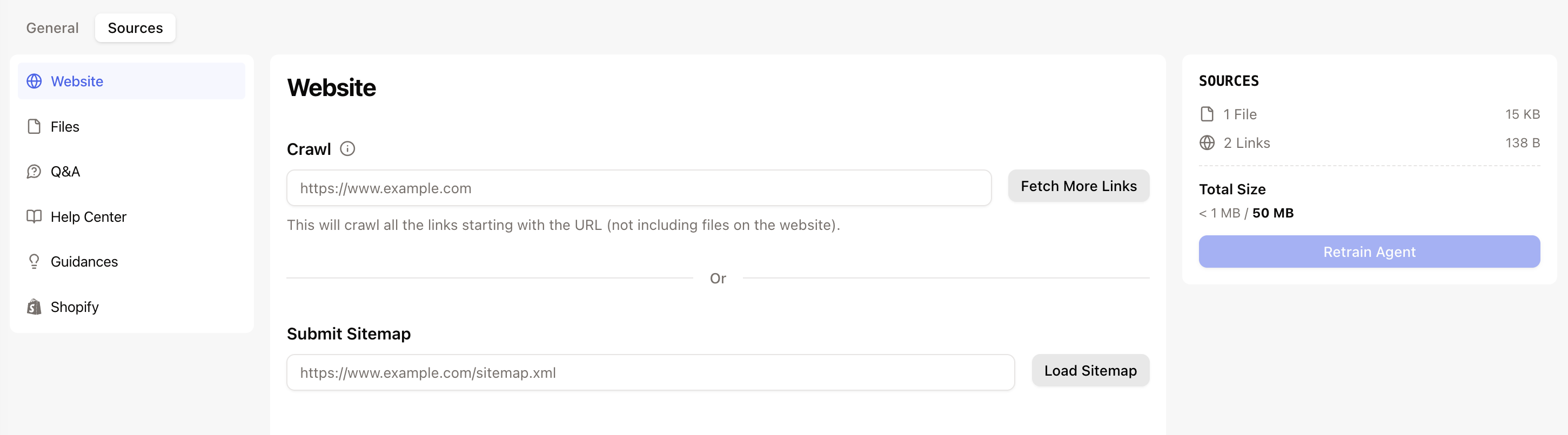
Website sources accept a root domain, sitemap, or specific page. With Smart Sync enabled, Chatarmin CX checks them weekly for updates.
Open the [Classic AI agent list](https://armin.cx/app/_/ai/agents), choose your agent, then go to **Sources** → **Website**.
Add a root domain such as `https://example.com`, a sitemap such as `https://example.com/sitemap.xml`, or a specific help-center section.
Remove pages the AI should not use and add missing pages manually.
Ask questions that should use the website and confirm the answers.
 ## Add files
Use files for stable knowledge that is not available on a public page, such as compatibility tables, sizing guides, warranty details, or internal fulfillment rules.
In your existing Classic AI agent, go to **Sources** → **Files**.
Upload a PDF, DOCX, CSV, or TXT file. Keep one topic per file.
Ask questions the file should answer before relying on it for automatic replies.
Large or mixed-topic files can reduce answer quality. Split them by topic before uploading, or contact support for help preparing a large knowledge base.
## Add Q\&A
Use Q\&A for repeated questions with one clear answer. For example:
* How long does shipping take to Germany?
* Can I return a worn item?
* What size is Medium in EU sizing?
* Do you ship internationally?
* Is this promotion code still valid?
In your existing Classic AI agent, go to **Sources** → **Q\&A**.
Phrase it as a customer would.
Keep it direct, complete, and ready to reuse.
Ask the same question in a few different ways and confirm the AI finds the answer.
## Add guidance
Use guidance when a customer question depends on a broader policy rather than one fixed answer. Good topics include return conditions, sizing, payment methods, loyalty programs, and delivery timelines.
In your existing Classic AI agent, go to **Sources** → **Guidance**.
Create a focused entry such as `Return policy` or `Size guide`.
Include the policy, relevant conditions, exceptions, and when Classic AI should not answer.
Test customer messages that should use the guidance and edge cases that should not.
## Best practices
* Prefer a sitemap when your site has many pages.
* Remove expired campaign pages and old file versions.
* Keep files short and topic-specific. Split large, mixed manuals by topic.
* Keep one customer question per Q\&A entry and use customer language.
* Maintain policy facts in one source instead of duplicating them.
* Use guidance when an answer depends on several conditions.
* Test the AI on real tickets before turning on auto-reply.
## Add files
Use files for stable knowledge that is not available on a public page, such as compatibility tables, sizing guides, warranty details, or internal fulfillment rules.
In your existing Classic AI agent, go to **Sources** → **Files**.
Upload a PDF, DOCX, CSV, or TXT file. Keep one topic per file.
Ask questions the file should answer before relying on it for automatic replies.
Large or mixed-topic files can reduce answer quality. Split them by topic before uploading, or contact support for help preparing a large knowledge base.
## Add Q\&A
Use Q\&A for repeated questions with one clear answer. For example:
* How long does shipping take to Germany?
* Can I return a worn item?
* What size is Medium in EU sizing?
* Do you ship internationally?
* Is this promotion code still valid?
In your existing Classic AI agent, go to **Sources** → **Q\&A**.
Phrase it as a customer would.
Keep it direct, complete, and ready to reuse.
Ask the same question in a few different ways and confirm the AI finds the answer.
## Add guidance
Use guidance when a customer question depends on a broader policy rather than one fixed answer. Good topics include return conditions, sizing, payment methods, loyalty programs, and delivery timelines.
In your existing Classic AI agent, go to **Sources** → **Guidance**.
Create a focused entry such as `Return policy` or `Size guide`.
Include the policy, relevant conditions, exceptions, and when Classic AI should not answer.
Test customer messages that should use the guidance and edge cases that should not.
## Best practices
* Prefer a sitemap when your site has many pages.
* Remove expired campaign pages and old file versions.
* Keep files short and topic-specific. Split large, mixed manuals by topic.
* Keep one customer question per Q\&A entry and use customer language.
* Maintain policy facts in one source instead of duplicating them.
* Use guidance when an answer depends on several conditions.
* Test the AI on real tickets before turning on auto-reply.